> ## Documentation Index
> Fetch the complete documentation index at: https://docs.botbrains.io/llms.txt
> Use this file to discover all available pages before exploring further.
# Billing and Usage
> Monitor usage, understand pricing, and manage your subscription
botBrains bills for what you use, and this page explains exactly what that means: what counts as usage, how your plan is structured, and where to see the numbers. The goal is that you can always trace a charge back to something concrete.
This page describes botBrains' understanding of usage. Commercial agreements supercede this documentation. If your contract has different terms, those are the ones that apply.
## How Billing Works
You commit to a monthly volume up front, and pay a lower per-unit rate for it. If you go over, the extra usage is billed pay-as-you-go at an overage rate, so a busy month never blocks you from serving customers.
* **Committed volume**: a baseline amount of messages and projects included in your plan at a fixed monthly rate. You pay for this whether or not you use all of it.
* **Pay-as-you-go (overage)**: anything above your committed volume, charged at the overage rate.
Usage is tracked per billing period, and each period starts fresh. Unused committed volume doesn't roll over. Depending on your contract, the period renews monthly or yearly.
### What You're Billed For
| Category | What's billed | Billing unit |
| ---------------------- | --------------------------------------------------------------------------------------------------------------------------------------- | ---------------------------------------------------------------------------------------------- |
| **Chat Messages** | AI responses on conversational channels: website widget, Slack, WhatsApp, and the API/SDK (any channel without a ticketing integration) | Per message |
| **Ticketing Messages** | AI replies on ticketing channels, i.e. conversations tied to a Zendesk or Salesforce integration | Per message ([priced higher than Chat](#why-is-the-chat-rate-cheaper-than-the-ticketing-rate)) |
| **Generated Messages** | *Legacy category.* A single combined message cap covering all channels, used before Chat Messages and Ticketing Messages were split out | Per message |
| **Projects** | Each active project in your organization, for separate AI configurations per product, brand, or use case | Per active project |
Messages are the main thing most customers pay for. A billed message is a **reply generated by your AI**. The messages your users and human agents send are never billed, and [spam](#does-botbrains-charge-for-spam) never counts.
**Simulations and guidance testing are billed**, but always at the cheaper **Chat Messages** rate, no matter which channel you're testing. Testing your agent never costs the Ticketing premium. See [why Chat is cheaper than Ticketing](#why-is-the-chat-rate-cheaper-than-the-ticketing-rate) below.
Newer plans split messages into **Chat Messages** and **Ticketing Messages**; older plans use the single combined **Generated Messages** category across all channels. You'll have one setup or the other, not both. Your [subscription settings](https://platform.botbrains.io/settings/billing/subscription) show which categories apply to you and the rate for each.
**The "Messages" number on your dashboard is not your bill.** The [metrics dashboard](https://platform.botbrains.io/~/metrics) "Messages" card counts **incoming messages from your users**, which is a traffic metric. Billing counts the **AI's replies** going the other way. So the two numbers won't match, and that's expected.
## Viewing Your Usage
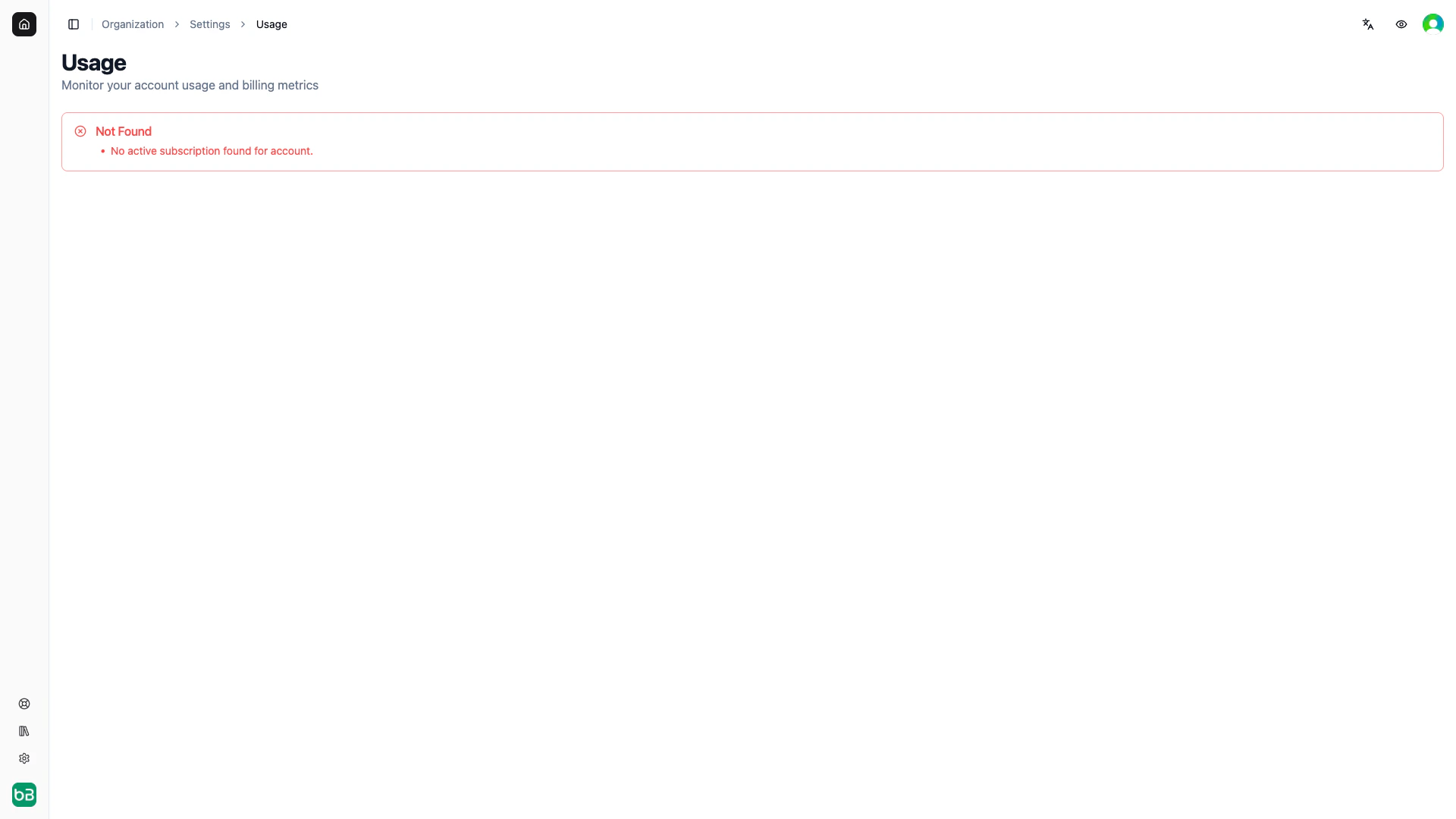
Access your [usage dashboard](https://platform.botbrains.io/settings/billing/usage) for organization-wide visibility.
 ### Current Billing Cycle
At the top of the dashboard you'll see, for the current period:
* **Billing Period**: the start and end dates, and how much time is left
* **Current Bill**: what you've run up so far this cycle (committed cost plus any overage to date)
* **Projected Bill**: where your total is likely to land by the end of the cycle
* **Projected Pay-as-you-Go**: the overage portion of that projection
### How Projections Work
Projections take your average daily usage so far and extend it at the same rate to the end of the period. They get more reliable as the cycle goes on, so take the first few days' projection with a grain of salt.
## Managing Your Subscription
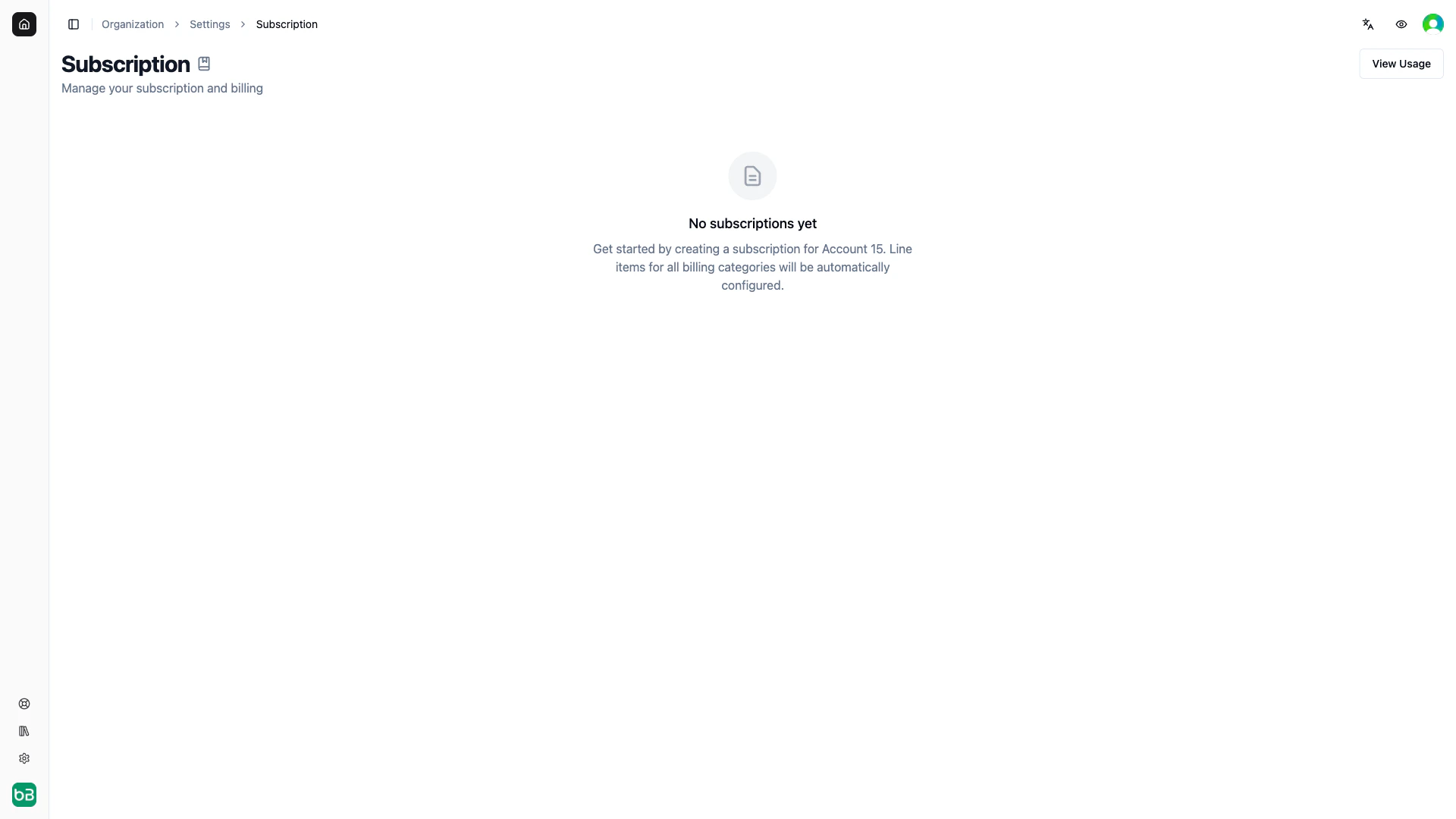
Navigate to your [subscription settings](https://platform.botbrains.io/settings/billing/subscription) to view and manage your plan.
### Current Billing Cycle
At the top of the dashboard you'll see, for the current period:
* **Billing Period**: the start and end dates, and how much time is left
* **Current Bill**: what you've run up so far this cycle (committed cost plus any overage to date)
* **Projected Bill**: where your total is likely to land by the end of the cycle
* **Projected Pay-as-you-Go**: the overage portion of that projection
### How Projections Work
Projections take your average daily usage so far and extend it at the same rate to the end of the period. They get more reliable as the cycle goes on, so take the first few days' projection with a grain of salt.
## Managing Your Subscription
Navigate to your [subscription settings](https://platform.botbrains.io/settings/billing/subscription) to view and manage your plan.
 ### Subscription Details
Here's what each field on the subscription page means:
**Status**
* **Active**: live and billing normally
* **Trial**: you're inside the initial special-termination window (the paid Testphase, explained below)
* **Cancelled**: set to end when the current period finishes
* **Expired**: the subscription has ended
**Start Date**: when your subscription began
**Next Renewal**: when the next billing cycle starts
**Contract Period**: how long you've committed for (usually 12 months)
**Testphase End** (if applicable): when your at-will cancellation window closes; after that the contract simply continues
### Trial Period (Testphase)
We don't do free trials. Every engagement starts as a **paid contract** with a **special right of termination** in the early days, usually the first 30 days, and up to 12 weeks depending on the deal.
You get the same protection a trial gives you: if we don't deliver the results we promised, or clearly show we're getting there, you can walk away within that window. We require the signature and approval before the trial phase because our data processing requires legal and compliance signoff anyway and when the trial is up, nothing changes: no new contract, no gap in service and no signature chasing.
**Why we keep it paid**
Almost all of our cost and hands-on work lands in **onboarding**, where we do the heavy lifting to get your AI actually performing. Because so much of the effort is up front, keeping the proof of concept paid lets us work with customers who are genuinely committed, ask for that commitment on both sides, and cover some of the risk we take on early.
And we do take on real risk: we routinely spend more on onboarding than we earn back at the start. That's a deliberate bet on the partnership working out; we're an entrepreneurial company. For larger deals we'll sometimes waive or reduce fees, but that's the exception, not the rule.
### Reading the Line Items
Each category has its own line, with these fields:
**Volume**: how much is committed per cycle
**Rate**: the price per unit of that committed volume
**Unit**: how units are grouped for committed billing (usually 1)
**Overage Rate**: the price per unit once you go over your committed volume
**Overage Unit**: how units are grouped for overage billing (usually 1)
**Prepaid Until** (if applicable): for prepaid volumes, when the prepayment runs out
## Understanding Your Bill
Each monthly invoice lays out:
* **Subscription summary**: your account and subscription IDs, the period covered, and the subscription status
* **Line-item charges**: the committed cost for each category plus any overage, shown as volume × rate so you can check the math
* **Total due**: the sum of everything, plus tax where it applies, charged to the payment method on file
## Why is the Chat rate cheaper than the Ticketing rate?
Because a ticketing answer takes more work than a chat message. Two things drive the difference:
* **Custom field prediction.** On a ticket, botBrains doesn't just write the reply. It also predicts the ticket's custom fields (priority, category, and other annotated fields) and fills them in. Chat has nothing equivalent.
* **More reasoning per answer.** A live chatbot has to respond in real time, which limits how much the AI can think before replying. Ticketing has no such latency constraint, so the AI can reason far more deeply on each answer. During testing we swallow that cost, which is why simulations and guidance testing still bill at the Chat rate.
More work per message means a higher rate for Ticketing. Chat is leaner and latency-bound, so it's billed at the lower rate. The exact rates, tiers, and any minimum volumes are set in your contract; see your [subscription settings](https://platform.botbrains.io/settings/billing/subscription) for your numbers.
**Simulations and guidance testing** are always billed at this cheaper Chat rate, whatever channel you're testing, so trying out your agent never costs the Ticketing premium.
## Does botBrains charge for spam?
No. botBrains automatically detects spam and removes it from your analytics, and doesn't counts toward your billed messages. You can view the % of removed messages in the **Conversation Filter Quality** chart, right at the bottom of the [metrics page](https://platform.botbrains.io/~/metrics). You can also block spam before the AI ever responds with [Triggers](/concepts/triggers). If you still spot suspicious patterns, submit a hint to [support](mailto:support@botbrains.io).
Notifications you receive in your ticketing system are not considered spam, to exclude them, change your assignment rules or use a trigger to block replies.
## Where can I track my bill?
You can review all past usage in the [billing usage dashboard](https://platform.botbrains.io/settings/billing/usage). Each billing cycle shows your total charges, committed costs, and any pay-as-you-go overages.
If a charge ever doesn't add up, reach out to [support](mailto:support@botbrains.io) and we're happy to walk through it with you.
### Subscription Details
Here's what each field on the subscription page means:
**Status**
* **Active**: live and billing normally
* **Trial**: you're inside the initial special-termination window (the paid Testphase, explained below)
* **Cancelled**: set to end when the current period finishes
* **Expired**: the subscription has ended
**Start Date**: when your subscription began
**Next Renewal**: when the next billing cycle starts
**Contract Period**: how long you've committed for (usually 12 months)
**Testphase End** (if applicable): when your at-will cancellation window closes; after that the contract simply continues
### Trial Period (Testphase)
We don't do free trials. Every engagement starts as a **paid contract** with a **special right of termination** in the early days, usually the first 30 days, and up to 12 weeks depending on the deal.
You get the same protection a trial gives you: if we don't deliver the results we promised, or clearly show we're getting there, you can walk away within that window. We require the signature and approval before the trial phase because our data processing requires legal and compliance signoff anyway and when the trial is up, nothing changes: no new contract, no gap in service and no signature chasing.
**Why we keep it paid**
Almost all of our cost and hands-on work lands in **onboarding**, where we do the heavy lifting to get your AI actually performing. Because so much of the effort is up front, keeping the proof of concept paid lets us work with customers who are genuinely committed, ask for that commitment on both sides, and cover some of the risk we take on early.
And we do take on real risk: we routinely spend more on onboarding than we earn back at the start. That's a deliberate bet on the partnership working out; we're an entrepreneurial company. For larger deals we'll sometimes waive or reduce fees, but that's the exception, not the rule.
### Reading the Line Items
Each category has its own line, with these fields:
**Volume**: how much is committed per cycle
**Rate**: the price per unit of that committed volume
**Unit**: how units are grouped for committed billing (usually 1)
**Overage Rate**: the price per unit once you go over your committed volume
**Overage Unit**: how units are grouped for overage billing (usually 1)
**Prepaid Until** (if applicable): for prepaid volumes, when the prepayment runs out
## Understanding Your Bill
Each monthly invoice lays out:
* **Subscription summary**: your account and subscription IDs, the period covered, and the subscription status
* **Line-item charges**: the committed cost for each category plus any overage, shown as volume × rate so you can check the math
* **Total due**: the sum of everything, plus tax where it applies, charged to the payment method on file
## Why is the Chat rate cheaper than the Ticketing rate?
Because a ticketing answer takes more work than a chat message. Two things drive the difference:
* **Custom field prediction.** On a ticket, botBrains doesn't just write the reply. It also predicts the ticket's custom fields (priority, category, and other annotated fields) and fills them in. Chat has nothing equivalent.
* **More reasoning per answer.** A live chatbot has to respond in real time, which limits how much the AI can think before replying. Ticketing has no such latency constraint, so the AI can reason far more deeply on each answer. During testing we swallow that cost, which is why simulations and guidance testing still bill at the Chat rate.
More work per message means a higher rate for Ticketing. Chat is leaner and latency-bound, so it's billed at the lower rate. The exact rates, tiers, and any minimum volumes are set in your contract; see your [subscription settings](https://platform.botbrains.io/settings/billing/subscription) for your numbers.
**Simulations and guidance testing** are always billed at this cheaper Chat rate, whatever channel you're testing, so trying out your agent never costs the Ticketing premium.
## Does botBrains charge for spam?
No. botBrains automatically detects spam and removes it from your analytics, and doesn't counts toward your billed messages. You can view the % of removed messages in the **Conversation Filter Quality** chart, right at the bottom of the [metrics page](https://platform.botbrains.io/~/metrics). You can also block spam before the AI ever responds with [Triggers](/concepts/triggers). If you still spot suspicious patterns, submit a hint to [support](mailto:support@botbrains.io).
Notifications you receive in your ticketing system are not considered spam, to exclude them, change your assignment rules or use a trigger to block replies.
## Where can I track my bill?
You can review all past usage in the [billing usage dashboard](https://platform.botbrains.io/settings/billing/usage). Each billing cycle shows your total charges, committed costs, and any pay-as-you-go overages.
If a charge ever doesn't add up, reach out to [support](mailto:support@botbrains.io) and we're happy to walk through it with you.