> ## Documentation Index
> Fetch the complete documentation index at: https://docs.botbrains.io/llms.txt
> Use this file to discover all available pages before exploring further.
# Conversations
> Browse, filter, and analyze customer conversations to improve AI performance
Your [conversation history](https://platform.botbrains.io/~/conversations) is the most valuable source of insights for improving your AI. Browse, filter, and analyze conversations to identify knowledge gaps, track satisfaction, and validate improvements.
Every conversation has a [status](/concepts/chat-performance#conversation-status) (resolved, unresolved, escalated) and an [AI involvement level](/concepts/ticketing-performance#why-involvement-rate-not-resolution-rate) (autonomous, public, private, not involved). You can manually change a conversation's status by clicking the status tag on the conversation detail page.
## Filters
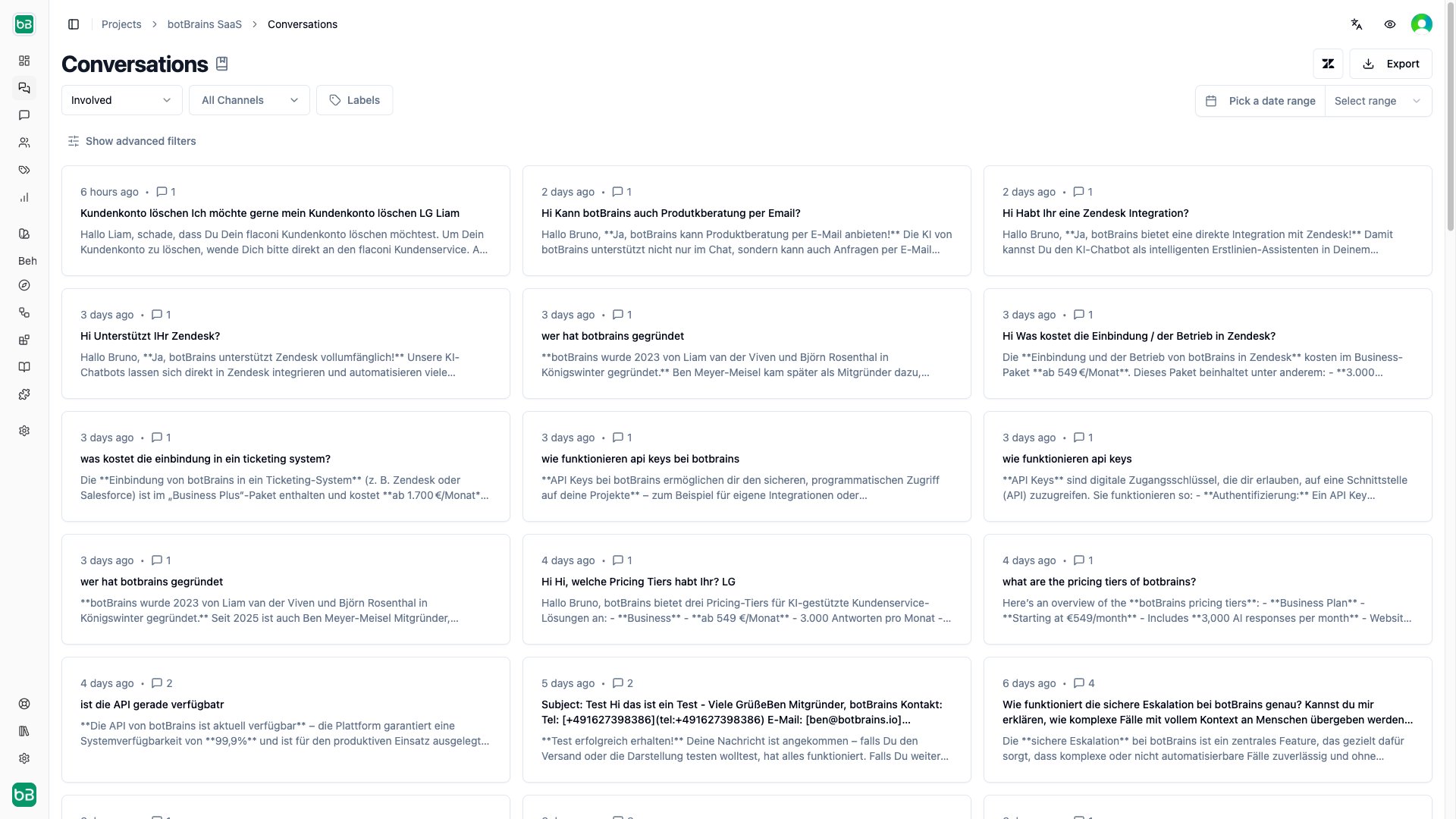
Use filters on the [conversations page](https://platform.botbrains.io/~/conversations) to drill down to specific segments.
| Filter | Description |
| --------------- | ------------------------------------------------------------------------------------ |
| **Date range** | Focus on a specific time range (last 7 days, 30 days, 90 days, or custom) |
| **Involvement** | Segment by AI participation level |
| **Channel** | Filter by communication channel (Web, Zendesk, Salesforce, Slack, WhatsApp, Email) |
| **Labels** | Include or exclude conversations by label-see [Labels](/concepts/labels) for details |
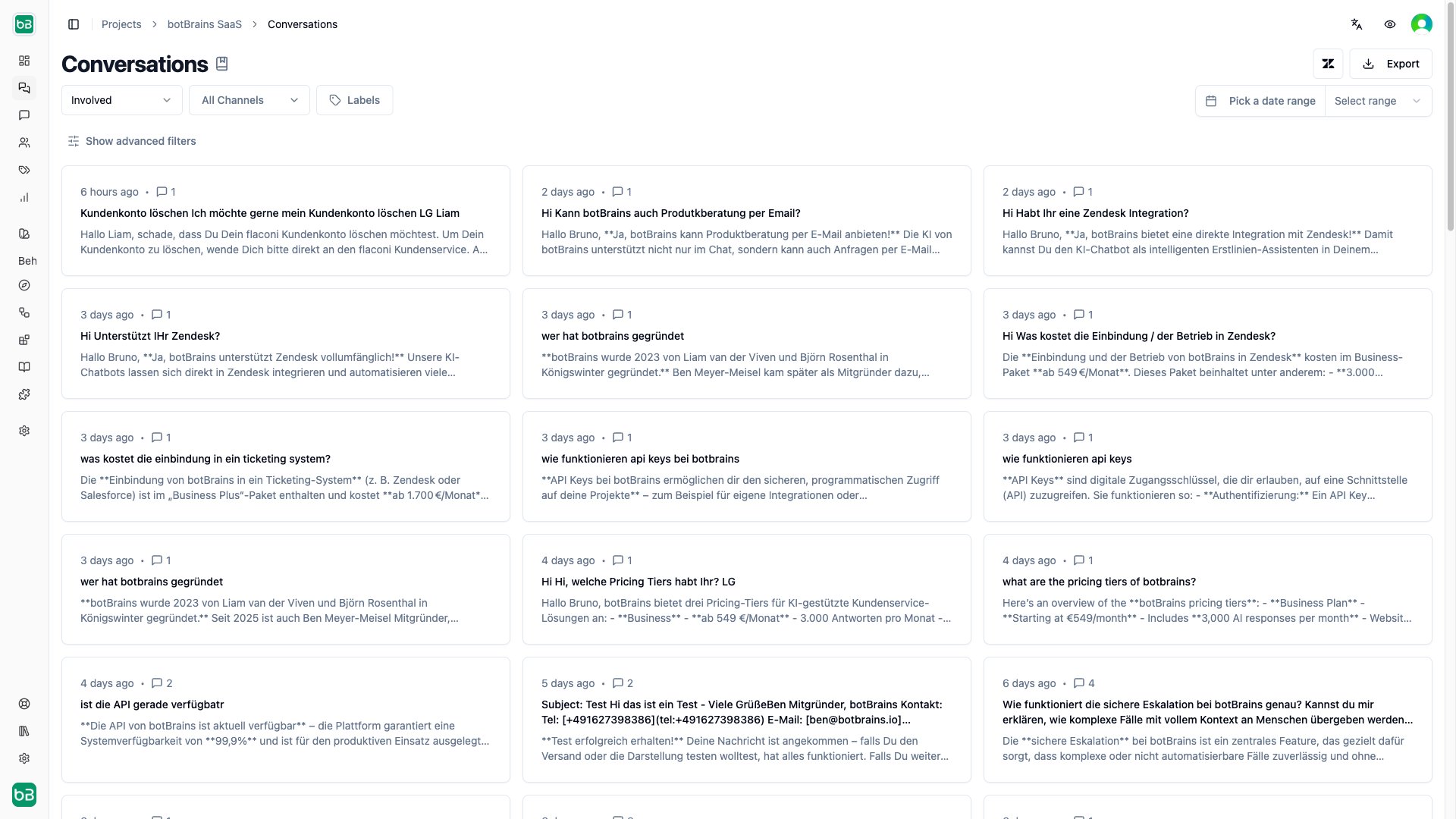 Click **Show advanced filters** for additional options:
| Filter | Description |
| ---------- | ----------------------------------------------------------------------- |
| **Topic** | Filter by automatically detected conversation topics |
| **Status** | Filter by resolution outcome (Resolved, Unresolved, Escalated) |
| **Rating** | Filter by customer satisfaction score (1–5 stars, Abandoned, Unoffered) |
Filter to ratings 1–2 and status Unresolved to find the most problematic conversations requiring immediate attention.
## Conversation Details
Click any conversation to open the detail view. The header shows message count, topic, status, rating, channel, and timestamps. The timeline displays user messages, AI responses (with source attribution), and operator messages in chronological order.
Click **Show advanced filters** for additional options:
| Filter | Description |
| ---------- | ----------------------------------------------------------------------- |
| **Topic** | Filter by automatically detected conversation topics |
| **Status** | Filter by resolution outcome (Resolved, Unresolved, Escalated) |
| **Rating** | Filter by customer satisfaction score (1–5 stars, Abandoned, Unoffered) |
Filter to ratings 1–2 and status Unresolved to find the most problematic conversations requiring immediate attention.
## Conversation Details
Click any conversation to open the detail view. The header shows message count, topic, status, rating, channel, and timestamps. The timeline displays user messages, AI responses (with source attribution), and operator messages in chronological order.
 ### Customer Feedback
If the customer rated the conversation, a feedback card appears at the top of the timeline showing the star rating (1–5), the label (Terrible to Amazing), and any text feedback.
### User Information Sidebar
The right sidebar shows the user's profile (ID, email, device info, location), channel details, and applied labels. Click the user to view their full conversation history.
### Hiding a Conversation
Open the conversation, select the three-dot menu in the top-right corner, then choose **Hide Conversation**. A hidden conversation disappears from your metrics and conversation list views, which makes this the quickest way to clean up test conversations you created while configuring your AI. To hide many at once, use [Batch Operations](#batch-operations).
## Improving Answers
Click any AI message to open the knowledge sidebar, which shows which sources the AI referenced and any available but unused sources. From there you can add missing information as a snippet, navigate to source documents to correct errors, or adjust guidance for tone and style.
### Customer Feedback
If the customer rated the conversation, a feedback card appears at the top of the timeline showing the star rating (1–5), the label (Terrible to Amazing), and any text feedback.
### User Information Sidebar
The right sidebar shows the user's profile (ID, email, device info, location), channel details, and applied labels. Click the user to view their full conversation history.
### Hiding a Conversation
Open the conversation, select the three-dot menu in the top-right corner, then choose **Hide Conversation**. A hidden conversation disappears from your metrics and conversation list views, which makes this the quickest way to clean up test conversations you created while configuring your AI. To hide many at once, use [Batch Operations](#batch-operations).
## Improving Answers
Click any AI message to open the knowledge sidebar, which shows which sources the AI referenced and any available but unused sources. From there you can add missing information as a snippet, navigate to source documents to correct errors, or adjust guidance for tone and style.
 "Used Sources (0)" means the AI answered from general knowledge rather than your data-this signals a knowledge gap. Create a snippet to address it.
## Batch Operations
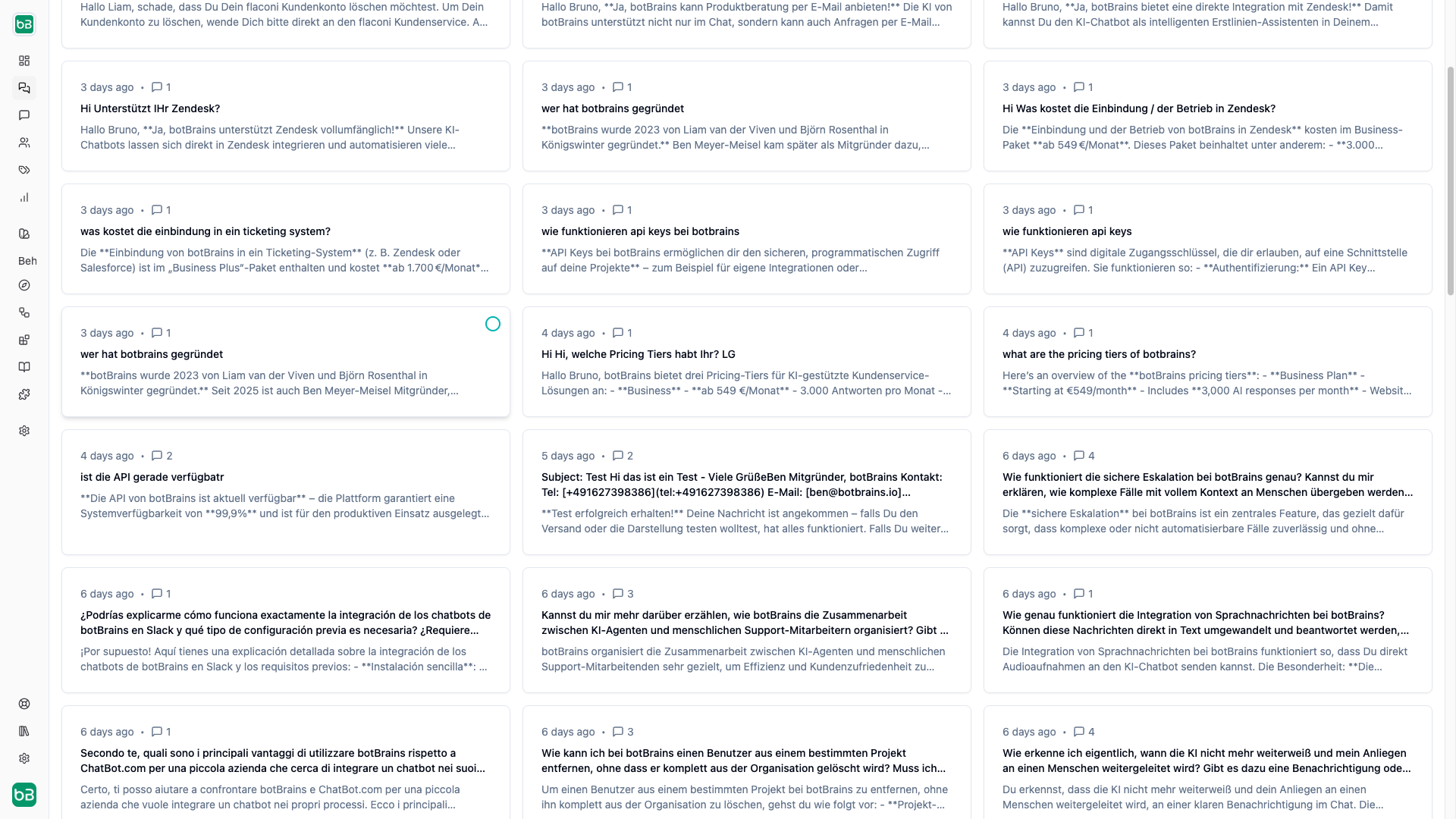
Select multiple conversations by clicking the selection circle on conversation cards. The batch toolbar lets you apply labels, remove labels, export data, or hide conversations in bulk.
Batch hide is permanent. Hidden conversations cannot be recovered. Use this only for spam or test data.
## Exporting Data
Click **Export** on the [conversations page](https://platform.botbrains.io/~/conversations) to download conversations matching your current filters as CSV or JSON. You can also set up recurring exports in your [data export settings](https://platform.botbrains.io/~/settings/data-export).
## Next Steps
* [Message Search](/concepts/message-search) - Find specific content across all conversations
* [Topics](/concepts/topics) - Understand what users are asking about
* [Metrics](/concepts/metrics) - Monitor aggregate performance indicators
* [Improve Answers](/guides/improve-answers) - Use conversation insights to refine AI responses
* [Labels](/concepts/labels) - Organize conversations with custom categorization
"Used Sources (0)" means the AI answered from general knowledge rather than your data-this signals a knowledge gap. Create a snippet to address it.
## Batch Operations
Select multiple conversations by clicking the selection circle on conversation cards. The batch toolbar lets you apply labels, remove labels, export data, or hide conversations in bulk.
Batch hide is permanent. Hidden conversations cannot be recovered. Use this only for spam or test data.
## Exporting Data
Click **Export** on the [conversations page](https://platform.botbrains.io/~/conversations) to download conversations matching your current filters as CSV or JSON. You can also set up recurring exports in your [data export settings](https://platform.botbrains.io/~/settings/data-export).
## Next Steps
* [Message Search](/concepts/message-search) - Find specific content across all conversations
* [Topics](/concepts/topics) - Understand what users are asking about
* [Metrics](/concepts/metrics) - Monitor aggregate performance indicators
* [Improve Answers](/guides/improve-answers) - Use conversation insights to refine AI responses
* [Labels](/concepts/labels) - Organize conversations with custom categorization