> ## Documentation Index
> Fetch the complete documentation index at: https://docs.botbrains.io/llms.txt
> Use this file to discover all available pages before exploring further.
# Escalations
> Configure smooth handoffs to human support when AI can't help
Even the best AI can't solve every customer issue. Escalations ensure customers get human help when needed, seamlessly transferring conversations from AI to your support team. Proper escalation configuration is critical for maintaining customer trust and satisfaction when AI reaches its limits.
## Why Escalations Matter
Escalations serve as your safety net, ensuring:
* **Customer satisfaction** - Users don't get stuck in frustrating AI loops
* **Issue resolution** - Complex or sensitive matters reach qualified humans
* **Trust building** - Showing customers there's always a human available builds confidence
* **Continuous improvement** - Escalated conversations reveal where AI needs enhancement
* **Graceful degradation** - AI admits limits rather than providing incorrect information
The goal isn't to minimize all escalations - it's to escalate at the right time for the right reasons. Some issues should always go to humans.
## Types of Escalations
botBrains offers two escalation mechanisms with different user experiences:
### Offer handoff
**User-controlled escalation** where the AI drafts an email for the user to review and send.
**How it works:**
1. AI determines escalation is appropriate
2. AI composes email with subject and body
3. User reviews the draft
4. User can edit the content
5. User approves and sends, or cancels
**When to use:**
* General support questions AI can't answer
* Non-urgent escalations
* When user should control the handoff
* Situations where user may want to add context
**Configuration:**
Enable in **Behavior → Tools → Offer handoff**
**Example guidance:**
```
"If you encounter questions about billing disputes, account security issues,
or legal matters, use `offer_handoff` to connect the customer with our
support team. Explain why you're escalating and what the customer can expect."
```
### Escalate to Human
**Automatic escalation** that transfers the conversation immediately without user approval.
**How it works:**
1. AI determines it needs to escalate immediately
2. The system marks the conversation as "escalated"
3. The system notifies the support team
4. The system informs the user that escalation has occurred
**When to use:**
* High-priority issues requiring immediate attention
* Compliance or security concerns
* Situations where AI shouldn't continue interacting
* Premium customer tier automatic routing
**Configuration:**
Enable in **Behavior → Tools → Escalate to Human**
**Example guidance:**
```
"For enterprise customers or any conversation involving potential security
incidents, immediately use `escalate_to_human`. Do not continue the
conversation after escalating."
```
**Escalate to Human** bypasses user approval. Only use for situations requiring immediate human intervention. For most cases, **Offer Handoff** provides better user experience.
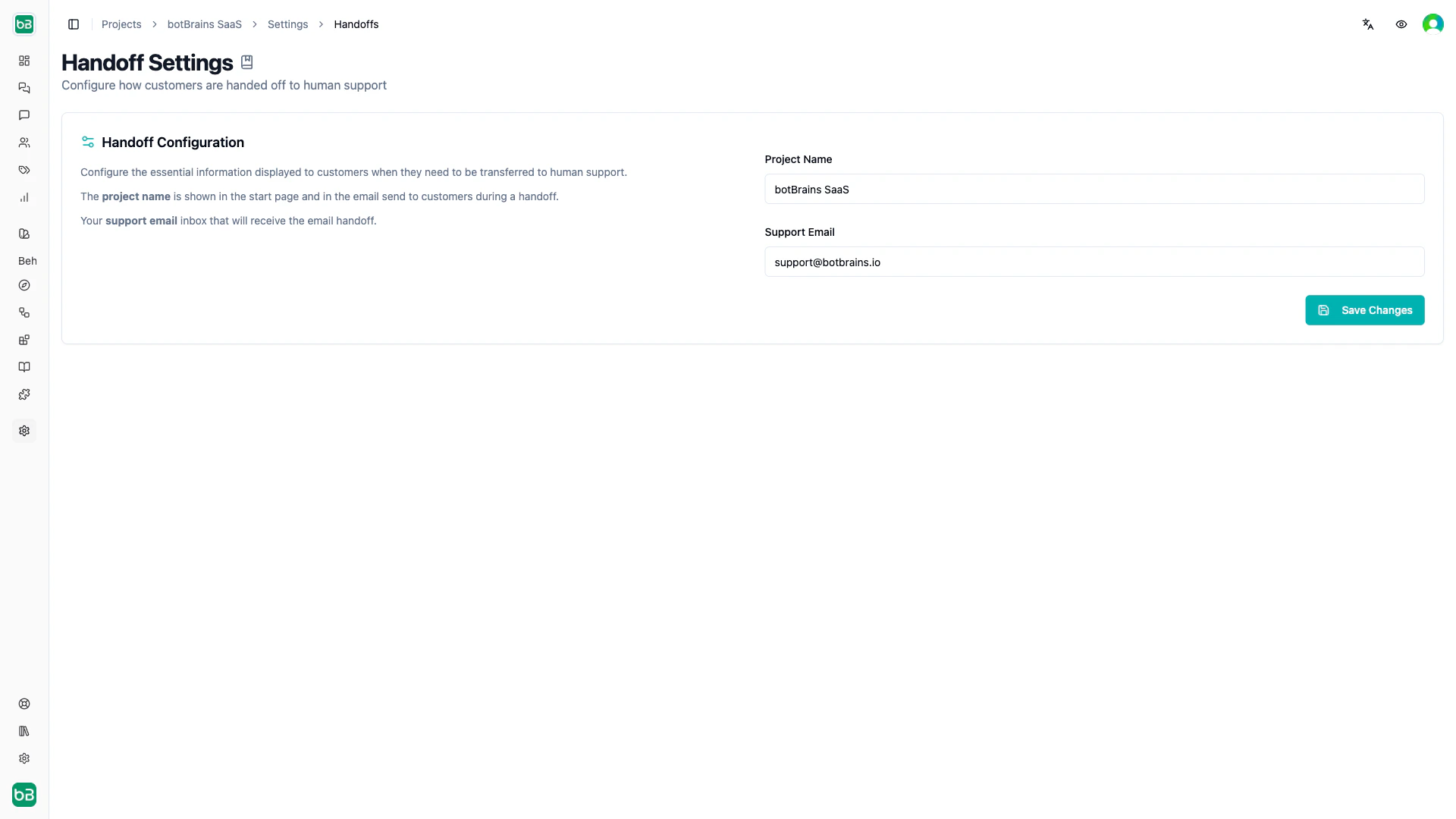
## Configuring Email handoffs
Email handoffs require configuration to function.
### Setting Up Support Email
Navigate to **Settings → handoffs** to configure:
**Project Name**
* Displayed to customers during handoff
* Included in handoff email subject
* Should be clear and recognizable
**Support Email**
* Email address where the system sends handoff messages
* Your team must monitor it on a consistent schedule
* Can be individual email or team inbox
**Example configuration:**
```
Project Name: Acme Corp Support
Support Email: support@acme.com
```
 ### How email handoffs work
When a user approves a handoff:
1. **The system sends an email to** the configured `support_email`
2. **Email contains:**
* Subject line (AI-generated or user-edited)
* Customer's question/issue
* Conversation context
* User's email address
* Link to conversation (if integrated)
3. **User receives** confirmation that the system sent the handoff
4. **The system marks** the conversation with "escalated" status
### The handoff email format
Each handoff email includes:
**Subject:**
```
[Project Name] Support Request: [AI-generated summary]
Example: [Acme Corp] Support Request: Billing question about annual plan
```
**Body:**
```html theme={null}
### How email handoffs work
When a user approves a handoff:
1. **The system sends an email to** the configured `support_email`
2. **Email contains:**
* Subject line (AI-generated or user-edited)
* Customer's question/issue
* Conversation context
* User's email address
* Link to conversation (if integrated)
3. **User receives** confirmation that the system sent the handoff
4. **The system marks** the conversation with "escalated" status
### The handoff email format
Each handoff email includes:
**Subject:**
```
[Project Name] Support Request: [AI-generated summary]
Example: [Acme Corp] Support Request: Billing question about annual plan
```
**Body:**
```html theme={null}
A customer has requested human support through ou AI agent.
Customer Email: user@example.com
Issue Summary:
[AI-generated explanation of the issue]
Customer's Message:
[User's original question/concern]
Conversation History:
[Link to full conversation if available]
```
Customers can edit the handoff email before sending, allowing them to add additional context or clarify their issue.
## Enabling Escalation Tools
Configure escalation tools in your AI's behavior settings.
### Step-by-Step Setup
**1. Navigate to Behavior**
Go to **Behavior → Guidance** in your project
**2. Create or Edit Guidance**
Choose guidance rules where escalation applies
**3. Add Tool Instructions**
Reference escalation tools in instructions:
```
"When you encounter questions about [topics you can't handle], use
`offer_handoff` to connect the user with our support team. Draft a clear
email explaining the issue."
```
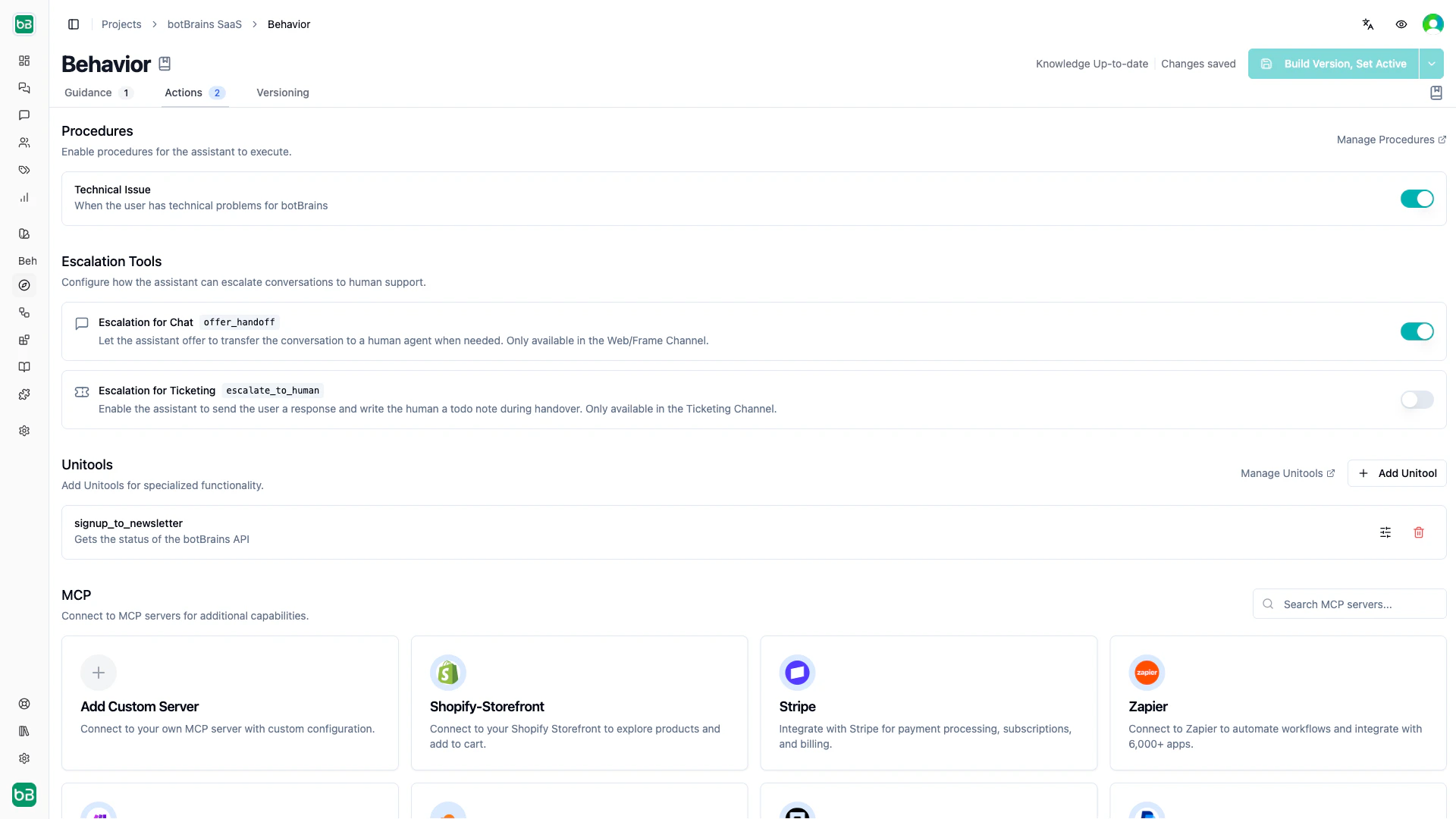
**4. Enable Tools**
In **Behavior → Tools General**, check:
* **Offer handoff** for user-controlled escalation
* **Escalate to Human** for automatic escalation
 **5. Build and Deploy**
Create new version and set as active
## Examples
```
Guidance: General Support
Instructions: "Help customers with product questions and account issues.
If you're unable to resolve the issue after 2-3 exchanges, or if the
customer seems frustrated, offer to connect them with our support team
using `offer_handoff`."
Tools: search_docs, offer_handoff
Audience: Everyone
```
```
Guidance: Enterprise Escalation
Instructions: "Enterprise customers receive priority support. For any
complex issue, immediately use `escalate_to_human` to ensure rapid response
from our dedicated enterprise support team."
Tools: escalate_to_human
Audience: User.plan = "enterprise"
```
```
Guidance: Security Issues
Instructions: "If a customer mentions potential security concerns, account
compromise, or suspicious activity, immediately use `escalate_to_human`.
Do not attempt to diagnose or resolve security issues."
Tools: escalate_to_human
Audience: Message contains "hacked", "security", "compromised", "suspicious"
```
## When to Escalate
Teach your AI the right escalation triggers.
### Always Escalate For
**Out of Scope**
* Legal advice
* Medical recommendations
* Financial guidance
* Situations requiring professional expertise
**Security and Privacy**
* Suspected account compromise
* Data breach reports
* Password reset issues (after reasonable attempts)
* Unauthorized access concerns
**High-Value Situations**
* Enterprise customer issues
* Large order problems
* Revenue-impacting bugs
* Contract negotiations
**Emotional Escalation**
* User expresses strong frustration
* Repeated failed attempts to resolve
* User explicitly requests human help
* Complaints about service quality
**Compliance and Legal**
* Refund requests (depending on policy)
* Terms of service questions
* Data deletion requests (GDPR, CCPA)
* Accessibility accommodations
### Don't Escalate For
**Simple Questions**
* Information available in knowledge base
* Common how-to questions
* Standard product features
**First Attempt Issues**
* User hasn't tried suggested solution yet
* AI has relevant knowledge to share
* Existing tools can resolve the issue
**Preference-Based**
* User preference without attempting AI assistance
* "I want to talk to a human" as first message (try helping first)
### Gray Areas - Use Judgment
Configure specific guidance for:
**Billing Questions**
```
"Answer common billing questions using knowledge base. For billing disputes,
payment failures, or refund requests, offer handoff after explaining our
standard policy."
```
**Technical Troubleshooting**
```
"Walk users through up to 3 troubleshooting steps. If the issue persists
after following all steps, offer handoff to technical support with a summary
of what was tried."
```
**Product Feedback**
```
"Acknowledge feature requests and suggestions. For detailed feedback or
feature prioritization discussions, offer handoff to our product team."
```
## Integration-Specific Escalations
Escalations work differently depending on your deployment channel.
### Zendesk Integration
When integrated with Zendesk:
**Private Mode (Agent Assist)**
* Escalations alert the agent handling the ticket
* Agent can choose to take over or continue with AI assist
* Escalation appears as internal note
**Public Mode (Public Replies)**
* Escalation creates internal note for agents
* Triggers can update the ticket status
* Triggers can route to specific teams
**Configuration:**
Set up in **Integrations → Zendesk → Settings**
### Salesforce Integration
When integrated with Salesforce:
**Escalations:**
* Update Case status to "Escalated"
* Assign Case to queue or user
* Add note to Case history
* Trigger Salesforce workflow rules
**Configuration:**
Set up in **Integrations → Salesforce → Settings**
### Website Widget
For website deployments:
**Email handoff flow:**
1. Widget prompts for user email (if not provided)
2. User reviews and approves handoff
3. Email sent to `support_email`
4. User sees confirmation message
**Customization:**
Configure messaging in **Frames → \[Your Frame] → Settings**
### Slack Integration
For Slack deployments:
**Escalations:**
* Message posted to designated escalation channel
* Thread context included
* Support team can respond in thread
* Original user notified
**Configuration:**
Set up escalation channel in **Integrations → Slack → Settings**
## Optimizing Escalation Experience
### Writing effective handoff messages
When AI generates handoff emails, clarity matters:
**Good handoff:**
```
Subject: Billing Question - Annual Plan Discount
I'm reaching out because I have a question about the annual plan discount
that wasn't fully answered by th AI agent.
I'm currently on the monthly Pro plan ($49/month) and considering upgrading
to annual billing. The AI mentioned a 20% discount, but I'm not seeing this
reflected in my account when I try to change plans.
Could you help me understand:
1. Is the 20% discount automatically applied at checkout?
2. Will I be refunded for the remaining days on my monthly plan?
Thank you!
```
**Poor handoff:**
```
Subject: Question
I need help with billing.
```
### Guidance for better handoffs
Instruct your AI to create helpful handoff messages:
```
"When using `offer_handoff`, compose a clear email that includes:
1. Concise subject line summarizing the issue
2. Brief explanation of what the customer needs
3. Relevant context (account details, previous attempts)
4. Specific questions or requests
5. Professional, polite tone
Example subject lines:
- 'API Integration Issue - Authentication Errors'
- 'Feature Request - Export to PDF'
- 'Billing Question - Upgrade Pricing'
```
### Setting Escalation Expectations
Prepare users for what happens next:
```
"Before offering handoff: 'I'll connect you with our support team who can
help with this. You'll receive a response within 24 hours on business days.
Let me draft an email for you to review.'"
```
```
"After handoff sent: 'Your message has been sent to our support team. You
should receive a response at user@example.com within 24 hours. The email
includes all the context from our conversation.'"
```
## Monitoring and Improving Escalations
Track escalation patterns to improve your AI.
### Key Metrics
**Escalation Rate**
* Percentage of conversations that escalate
* Target: 5-15% for most use cases
* Too high: AI needs better knowledge or guidance
* Too low: May indicate users giving up instead of escalating
**Time to Escalation**
* How many messages before escalation
* Quick escalations suggest AI should escalate earlier
* Long conversations before escalation suggest persistent issues
**Escalation Topics**
* Which topics escalate most frequently
* Reveals knowledge gaps or complex scenarios
* Guides knowledge base improvements
**Resolution After Escalation**
* Did the team resolve escalated issues?
* Did escalation lead to satisfaction?
* Validates escalation was appropriate
### Analyzing Escalations
Navigate to **Analyze → Conversations** and filter by:
**Status: Escalated**
* Review all escalated conversations
* Look for patterns in questions
* Identify unnecessary escalations
**Tool Usage: `offer_handoff` or `escalate_to_human`**
* See when the AI invoked tools
* Analyze AI's reasoning for escalation
* Verify appropriateness
### Improving Based on Escalations
**Pattern: Same question always escalates**
* **Solution:** Add knowledge snippet for this question
* **Example:** If "How do I export my data?" always escalates, create detailed export guide
**Pattern: AI escalates too early**
* **Solution:** Update guidance to try harder before escalating
* **Example:** "Attempt 2-3 troubleshooting steps before offering handoff"
**Pattern: AI never escalates when it should**
* **Solution:** Add explicit escalation triggers to guidance
* **Example:** "If user mentions 'billing dispute', immediately offer handoff"
**Pattern: Escalations for out-of-scope topics**
* **Solution:** Add knowledge about these topics or configure a clear decline response
* **Example:** "For medical questions, explain that we can't provide medical advice and suggest consulting a healthcare professional"
## Best Practices
### For All Escalations
Offer escalation before users get frustrated. If AI attempts 2-3 solutions without success, escalate rather than continuing indefinitely.
Always tell users why escalation is happening: "This requires specific account access that I don't have" or "This is a billing matter best handled by our finance team."
Inform users about response times, who will contact them, and what information they'll need to provide.
Ensure handoff messages include conversation history so support teams don't ask users to repeat themselves.
If possible, update users when their escalation has been received and is being processed.
### For email handoffs specifically
* Monitor the `support_email` inbox on a consistent schedule
* Set up email rules to route handoffs appropriately
* Track response times to handoff emails
* Include handoff emails in your support SLAs
* Consider using shared inbox tools for team visibility
### For Enterprise Deployments
* Create VIP escalation paths for high-value customers
* Use `escalate_to_human` for enterprise tier
* Route enterprise escalations to dedicated support staff
* Implement faster SLAs for enterprise handoffs
* Track enterprise escalation metrics in their own dashboard
## Frequently Asked Questions
**Check:**
* Support email address is correct in Settings → Handoffs
* Email isn't caught by spam filters
* Email server allows emails from botBrains domain
* Test with a personal email to verify delivery
**Solutions:**
* Review guidance instructions - may be too cautious
* Add more knowledge sources to reduce gaps
* Update tool descriptions to clarify when to use
* Check audience targeting - wrong guidance may be active
**Solutions:**
* Verify escalation tools are enabled in Behavior → Tools
* Check guidance has tools in allowed\_tools list
* Add explicit escalation examples to instructions
* Test with questions that should trigger escalation
**Investigate:**
* Are users frustrated with AI before handoff offered?
* Is handoff offer appearing too early?
* Are users uncertain about response times?
* Review conversation flow leading to handoff offer
## Next Steps
Now that you understand escalations:
* **[Deploy Your AI](/concepts/versioning)** - Make your configured AI available to users
* **[Monitor Conversations](/concepts/conversations)** - Track escalation patterns
* **[Review Metrics](/concepts/metrics)** - Measure escalation rates and impact
* **[Improve Answers](/guides/improve-answers)** - Reduce unnecessary escalations
Effective escalations create a safety net that builds user trust. When users know they can always reach a human, they're more willing to try the AI first.
**5. Build and Deploy**
Create new version and set as active
## Examples
```
Guidance: General Support
Instructions: "Help customers with product questions and account issues.
If you're unable to resolve the issue after 2-3 exchanges, or if the
customer seems frustrated, offer to connect them with our support team
using `offer_handoff`."
Tools: search_docs, offer_handoff
Audience: Everyone
```
```
Guidance: Enterprise Escalation
Instructions: "Enterprise customers receive priority support. For any
complex issue, immediately use `escalate_to_human` to ensure rapid response
from our dedicated enterprise support team."
Tools: escalate_to_human
Audience: User.plan = "enterprise"
```
```
Guidance: Security Issues
Instructions: "If a customer mentions potential security concerns, account
compromise, or suspicious activity, immediately use `escalate_to_human`.
Do not attempt to diagnose or resolve security issues."
Tools: escalate_to_human
Audience: Message contains "hacked", "security", "compromised", "suspicious"
```
## When to Escalate
Teach your AI the right escalation triggers.
### Always Escalate For
**Out of Scope**
* Legal advice
* Medical recommendations
* Financial guidance
* Situations requiring professional expertise
**Security and Privacy**
* Suspected account compromise
* Data breach reports
* Password reset issues (after reasonable attempts)
* Unauthorized access concerns
**High-Value Situations**
* Enterprise customer issues
* Large order problems
* Revenue-impacting bugs
* Contract negotiations
**Emotional Escalation**
* User expresses strong frustration
* Repeated failed attempts to resolve
* User explicitly requests human help
* Complaints about service quality
**Compliance and Legal**
* Refund requests (depending on policy)
* Terms of service questions
* Data deletion requests (GDPR, CCPA)
* Accessibility accommodations
### Don't Escalate For
**Simple Questions**
* Information available in knowledge base
* Common how-to questions
* Standard product features
**First Attempt Issues**
* User hasn't tried suggested solution yet
* AI has relevant knowledge to share
* Existing tools can resolve the issue
**Preference-Based**
* User preference without attempting AI assistance
* "I want to talk to a human" as first message (try helping first)
### Gray Areas - Use Judgment
Configure specific guidance for:
**Billing Questions**
```
"Answer common billing questions using knowledge base. For billing disputes,
payment failures, or refund requests, offer handoff after explaining our
standard policy."
```
**Technical Troubleshooting**
```
"Walk users through up to 3 troubleshooting steps. If the issue persists
after following all steps, offer handoff to technical support with a summary
of what was tried."
```
**Product Feedback**
```
"Acknowledge feature requests and suggestions. For detailed feedback or
feature prioritization discussions, offer handoff to our product team."
```
## Integration-Specific Escalations
Escalations work differently depending on your deployment channel.
### Zendesk Integration
When integrated with Zendesk:
**Private Mode (Agent Assist)**
* Escalations alert the agent handling the ticket
* Agent can choose to take over or continue with AI assist
* Escalation appears as internal note
**Public Mode (Public Replies)**
* Escalation creates internal note for agents
* Triggers can update the ticket status
* Triggers can route to specific teams
**Configuration:**
Set up in **Integrations → Zendesk → Settings**
### Salesforce Integration
When integrated with Salesforce:
**Escalations:**
* Update Case status to "Escalated"
* Assign Case to queue or user
* Add note to Case history
* Trigger Salesforce workflow rules
**Configuration:**
Set up in **Integrations → Salesforce → Settings**
### Website Widget
For website deployments:
**Email handoff flow:**
1. Widget prompts for user email (if not provided)
2. User reviews and approves handoff
3. Email sent to `support_email`
4. User sees confirmation message
**Customization:**
Configure messaging in **Frames → \[Your Frame] → Settings**
### Slack Integration
For Slack deployments:
**Escalations:**
* Message posted to designated escalation channel
* Thread context included
* Support team can respond in thread
* Original user notified
**Configuration:**
Set up escalation channel in **Integrations → Slack → Settings**
## Optimizing Escalation Experience
### Writing effective handoff messages
When AI generates handoff emails, clarity matters:
**Good handoff:**
```
Subject: Billing Question - Annual Plan Discount
I'm reaching out because I have a question about the annual plan discount
that wasn't fully answered by th AI agent.
I'm currently on the monthly Pro plan ($49/month) and considering upgrading
to annual billing. The AI mentioned a 20% discount, but I'm not seeing this
reflected in my account when I try to change plans.
Could you help me understand:
1. Is the 20% discount automatically applied at checkout?
2. Will I be refunded for the remaining days on my monthly plan?
Thank you!
```
**Poor handoff:**
```
Subject: Question
I need help with billing.
```
### Guidance for better handoffs
Instruct your AI to create helpful handoff messages:
```
"When using `offer_handoff`, compose a clear email that includes:
1. Concise subject line summarizing the issue
2. Brief explanation of what the customer needs
3. Relevant context (account details, previous attempts)
4. Specific questions or requests
5. Professional, polite tone
Example subject lines:
- 'API Integration Issue - Authentication Errors'
- 'Feature Request - Export to PDF'
- 'Billing Question - Upgrade Pricing'
```
### Setting Escalation Expectations
Prepare users for what happens next:
```
"Before offering handoff: 'I'll connect you with our support team who can
help with this. You'll receive a response within 24 hours on business days.
Let me draft an email for you to review.'"
```
```
"After handoff sent: 'Your message has been sent to our support team. You
should receive a response at user@example.com within 24 hours. The email
includes all the context from our conversation.'"
```
## Monitoring and Improving Escalations
Track escalation patterns to improve your AI.
### Key Metrics
**Escalation Rate**
* Percentage of conversations that escalate
* Target: 5-15% for most use cases
* Too high: AI needs better knowledge or guidance
* Too low: May indicate users giving up instead of escalating
**Time to Escalation**
* How many messages before escalation
* Quick escalations suggest AI should escalate earlier
* Long conversations before escalation suggest persistent issues
**Escalation Topics**
* Which topics escalate most frequently
* Reveals knowledge gaps or complex scenarios
* Guides knowledge base improvements
**Resolution After Escalation**
* Did the team resolve escalated issues?
* Did escalation lead to satisfaction?
* Validates escalation was appropriate
### Analyzing Escalations
Navigate to **Analyze → Conversations** and filter by:
**Status: Escalated**
* Review all escalated conversations
* Look for patterns in questions
* Identify unnecessary escalations
**Tool Usage: `offer_handoff` or `escalate_to_human`**
* See when the AI invoked tools
* Analyze AI's reasoning for escalation
* Verify appropriateness
### Improving Based on Escalations
**Pattern: Same question always escalates**
* **Solution:** Add knowledge snippet for this question
* **Example:** If "How do I export my data?" always escalates, create detailed export guide
**Pattern: AI escalates too early**
* **Solution:** Update guidance to try harder before escalating
* **Example:** "Attempt 2-3 troubleshooting steps before offering handoff"
**Pattern: AI never escalates when it should**
* **Solution:** Add explicit escalation triggers to guidance
* **Example:** "If user mentions 'billing dispute', immediately offer handoff"
**Pattern: Escalations for out-of-scope topics**
* **Solution:** Add knowledge about these topics or configure a clear decline response
* **Example:** "For medical questions, explain that we can't provide medical advice and suggest consulting a healthcare professional"
## Best Practices
### For All Escalations
Offer escalation before users get frustrated. If AI attempts 2-3 solutions without success, escalate rather than continuing indefinitely.
Always tell users why escalation is happening: "This requires specific account access that I don't have" or "This is a billing matter best handled by our finance team."
Inform users about response times, who will contact them, and what information they'll need to provide.
Ensure handoff messages include conversation history so support teams don't ask users to repeat themselves.
If possible, update users when their escalation has been received and is being processed.
### For email handoffs specifically
* Monitor the `support_email` inbox on a consistent schedule
* Set up email rules to route handoffs appropriately
* Track response times to handoff emails
* Include handoff emails in your support SLAs
* Consider using shared inbox tools for team visibility
### For Enterprise Deployments
* Create VIP escalation paths for high-value customers
* Use `escalate_to_human` for enterprise tier
* Route enterprise escalations to dedicated support staff
* Implement faster SLAs for enterprise handoffs
* Track enterprise escalation metrics in their own dashboard
## Frequently Asked Questions
**Check:**
* Support email address is correct in Settings → Handoffs
* Email isn't caught by spam filters
* Email server allows emails from botBrains domain
* Test with a personal email to verify delivery
**Solutions:**
* Review guidance instructions - may be too cautious
* Add more knowledge sources to reduce gaps
* Update tool descriptions to clarify when to use
* Check audience targeting - wrong guidance may be active
**Solutions:**
* Verify escalation tools are enabled in Behavior → Tools
* Check guidance has tools in allowed\_tools list
* Add explicit escalation examples to instructions
* Test with questions that should trigger escalation
**Investigate:**
* Are users frustrated with AI before handoff offered?
* Is handoff offer appearing too early?
* Are users uncertain about response times?
* Review conversation flow leading to handoff offer
## Next Steps
Now that you understand escalations:
* **[Deploy Your AI](/concepts/versioning)** - Make your configured AI available to users
* **[Monitor Conversations](/concepts/conversations)** - Track escalation patterns
* **[Review Metrics](/concepts/metrics)** - Measure escalation rates and impact
* **[Improve Answers](/guides/improve-answers)** - Reduce unnecessary escalations
Effective escalations create a safety net that builds user trust. When users know they can always reach a human, they're more willing to try the AI first.