> ## Documentation Index
> Fetch the complete documentation index at: https://docs.botbrains.io/llms.txt
> Use this file to discover all available pages before exploring further.
# Insights
> Analytics and performance metrics for your AI
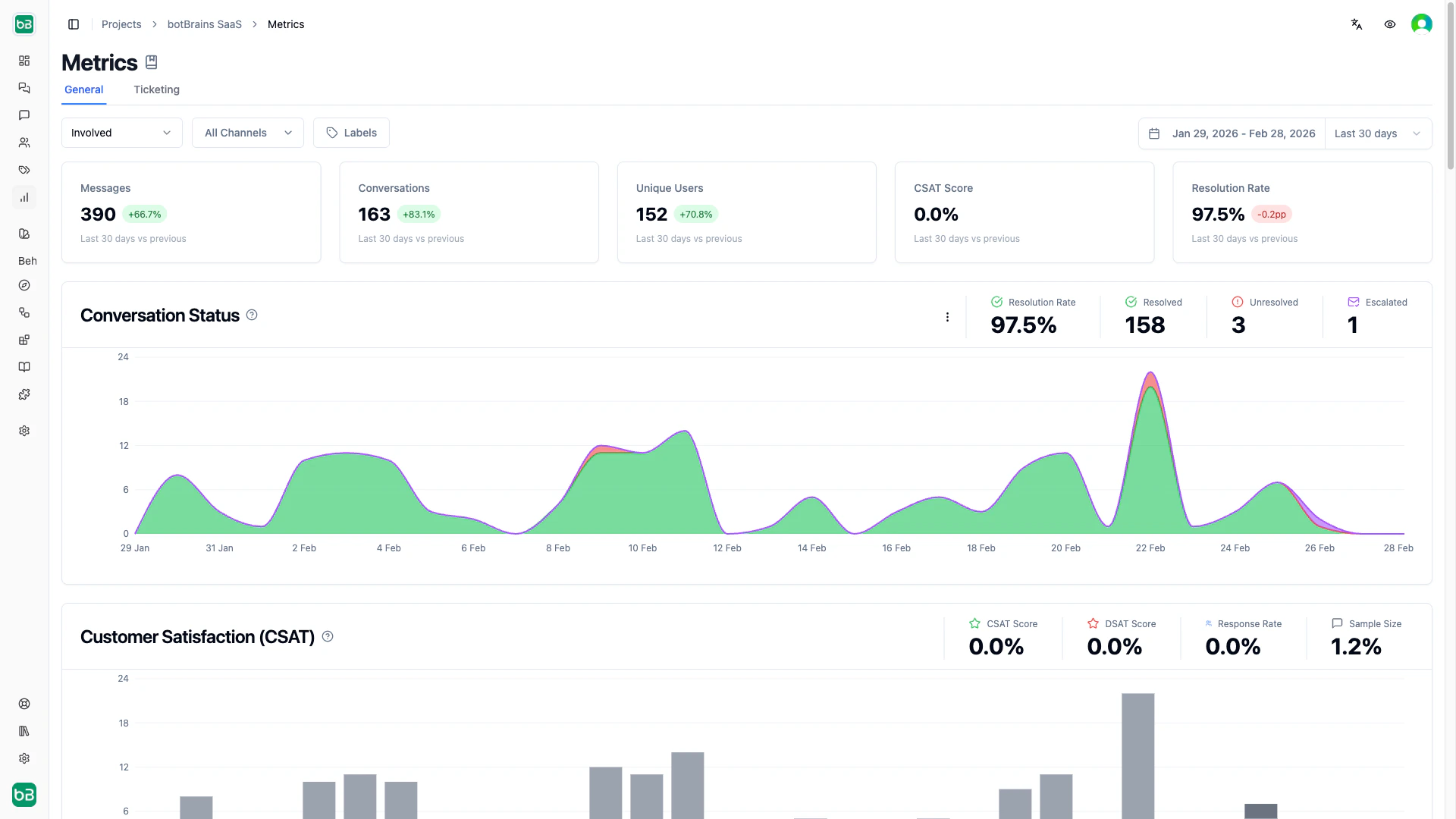
botBrains Insights gives you analytics to measure AI performance, track customer satisfaction, and identify improvement areas. The [metrics dashboard](https://platform.botbrains.io/~/metrics) has two views- **General** (chat channels) and **Ticketing** (Zendesk, Salesforce-, with different primary metrics for each. See [Choosing the Right Metrics](/concepts/metrics#choosing-the-right-metrics) for guidance on which view to use.
 Browse, filter, and analyze individual conversations
Search across all message content
AI-powered topic detection and analysis
Dashboard overview and cross-channel comparison
Resolution rates and CSAT for Web, Slack, and WhatsApp
Involvement rates and autonomous resolution for Zendesk and Salesforce
## CSAT Details
Customer Satisfaction (CSAT) measures how users rate their AI interactions on a 1–5 scale.
| Metric | Formula | What it tells you |
| ------------- | ------------------------------------------ | --------------------------------------------------- |
| CSAT Score | (Good + Amazing) / All rated conversations | Share of satisfied customers |
| DSAT Score | (Terrible + Bad) / All rated conversations | Share of dissatisfied customers |
| Response Rate | Rated conversations / Surveys offered | How often users complete the survey |
| Sample Size | Surveys offered / Total conversations | What share of conversations you collect feedback on |
A low Response Rate limits the reliability of your CSAT score. If few users complete the survey, the score may not represent overall satisfaction.
## Exporting Charts
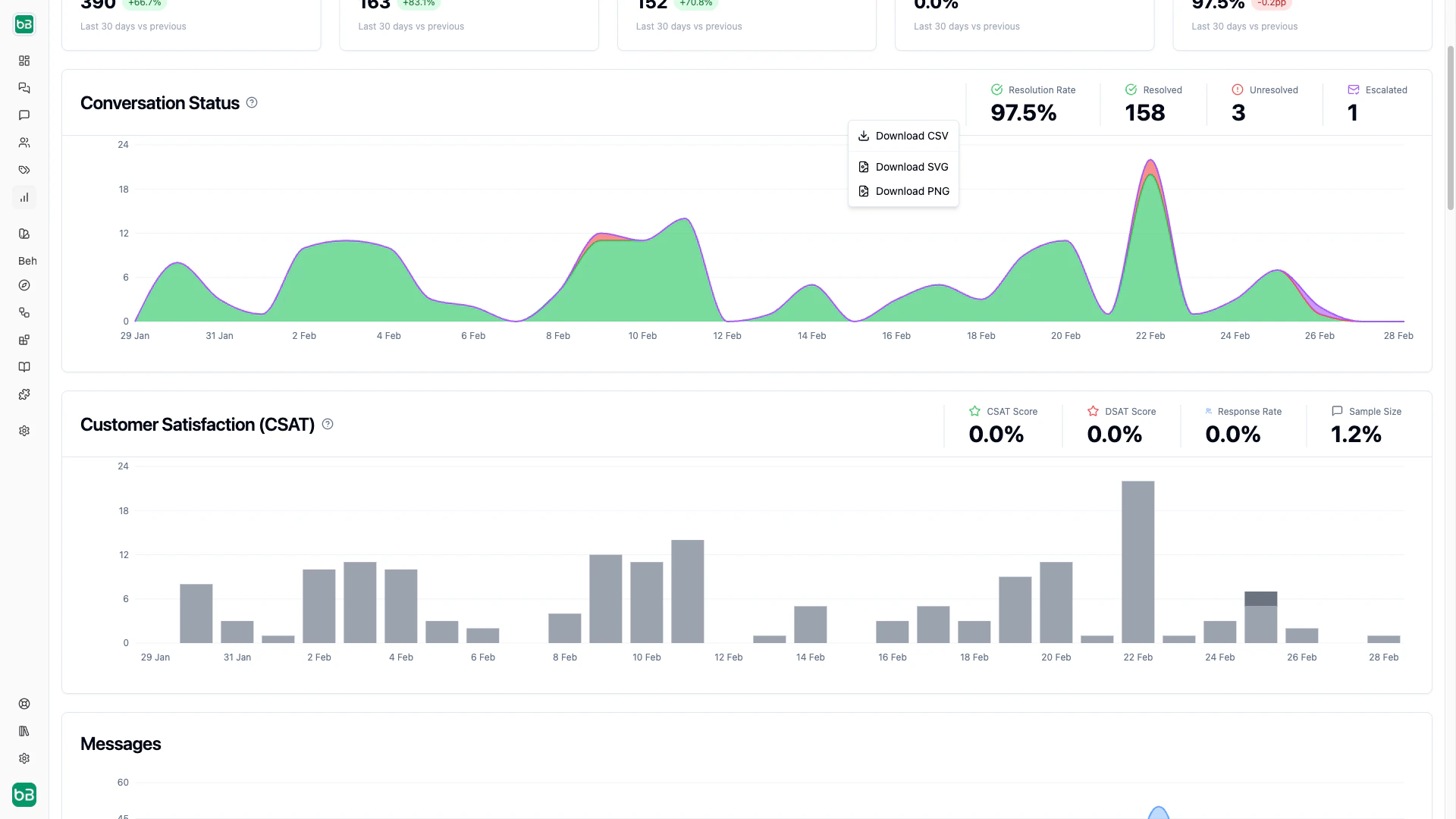
Hover over any chart to reveal the export menu. You can download a chart as **PNG**, export the underlying data as **CSV**, or **copy the data** to your clipboard for use in spreadsheets or external tools.
Browse, filter, and analyze individual conversations
Search across all message content
AI-powered topic detection and analysis
Dashboard overview and cross-channel comparison
Resolution rates and CSAT for Web, Slack, and WhatsApp
Involvement rates and autonomous resolution for Zendesk and Salesforce
## CSAT Details
Customer Satisfaction (CSAT) measures how users rate their AI interactions on a 1–5 scale.
| Metric | Formula | What it tells you |
| ------------- | ------------------------------------------ | --------------------------------------------------- |
| CSAT Score | (Good + Amazing) / All rated conversations | Share of satisfied customers |
| DSAT Score | (Terrible + Bad) / All rated conversations | Share of dissatisfied customers |
| Response Rate | Rated conversations / Surveys offered | How often users complete the survey |
| Sample Size | Surveys offered / Total conversations | What share of conversations you collect feedback on |
A low Response Rate limits the reliability of your CSAT score. If few users complete the survey, the score may not represent overall satisfaction.
## Exporting Charts
Hover over any chart to reveal the export menu. You can download a chart as **PNG**, export the underlying data as **CSV**, or **copy the data** to your clipboard for use in spreadsheets or external tools.
 ## Next Steps
* [Metrics](/concepts/metrics) - Understand which metrics matter for chat vs. ticketing
* [Chat Performance](/concepts/chat-performance) - Deep dive into chat channel analytics
* [Ticketing Performance](/concepts/ticketing-performance) - Deep dive into ticketing analytics
* [Improve Answers](/guides/improve-answers) - Turn metric insights into concrete improvements
## Next Steps
* [Metrics](/concepts/metrics) - Understand which metrics matter for chat vs. ticketing
* [Chat Performance](/concepts/chat-performance) - Deep dive into chat channel analytics
* [Ticketing Performance](/concepts/ticketing-performance) - Deep dive into ticketing analytics
* [Improve Answers](/guides/improve-answers) - Turn metric insights into concrete improvements