> ## Documentation Index
> Fetch the complete documentation index at: https://docs.botbrains.io/llms.txt
> Use this file to discover all available pages before exploring further.
# Roles and Permissions
> Understand roles and invite team members to collaborate on AI agents
| Scope | Role | Maps To | Level of Control |
| ---------------- | ----------- | ------------------------------------ | --------------------------------------------------- |
| **Organization** | Owner | COO / VP Ops / Director CX | Full control including billing, account termination |
| | Admin | Head of CS / CX | Full control excluding billing, account termination |
| | Billing | Finance Team | Access to billing, financial reporting |
| | Member | Everyone | Minimal user access, default |
| | Viewer | CEO, Executive, Auditor | Read-only full access |
| **Project** | Owner | Project Lead / CX Lead | Full project control |
| | Contributor | Support Manager / Engagement Manager | Operate, edit, redeploy, view metrics |
| | Member | Support Agent / Analyst | Operate, label, triage |
| | Viewer | Client / QA / Stakeholder | Read-only full access |
# Understanding Roles
botBrains uses a two-tier role system to give you precise control over who can access, view, and modify your AI agent projects.
## Two-Tier System
Every team member has both an **organization role** and a **project role** for each project they access:
**Organization Roles** - Baseline access across your entire account:
* Apply to all projects by default
* Control administrative capabilities like billing and team management
* You can't customize these - use built-in roles only
* **Best practice**: Assign most team members **Organization Member**
**Project Roles** - Access to specific AI agents:
* Only apply within a single project
* You can customize these with granular permissions
* Enable per-project access control
**Permission Priority**: A user's effective permissions are the **union** of their organization role and project role. If either role grants a permission, the user has that access.
Assign most users **Organization Member** (minimal permissions) and grant specific access through project roles. This ensures project-level controls actually restrict access.
## Organization Roles
| Role | Typical Titles | What They Can Do | What They Can't Do |
| ------------------------------------ | ---------------------------------- | ----------------------------------------------------------------------------- | ------------------------------------------------------------ |
| **Organization Owner** (`o_owner`) | COO, VP Operations, Director of CX | Full access to all projects, billing, team management, create/delete projects | Transfer ownership (contact support), leave the organization |
| **Organization Admin** (`o_admin`) | Head of CS/CX, Technical Lead | Full access to all projects, create projects, manage integrations, view team | Modify billing, remove team members, change org settings |
| **Billing** (`o_billing`) | Finance Team, Controller | View billing, usage tracking, invoices, read-only project info | Modify projects, access conversations, manage team |
| **Organization Member** (`o_member`) | Most team members (90%+) | Access assigned projects, view profile | See unassigned projects, create projects, billing access |
| **Organization Viewer** (`o_viewer`) | CEO, Executive, Auditor | Read-only visibility across organization | Change any settings or data |
Organization Owner and Admin have unrestricted access to everything. Only assign these roles to trusted individuals who need complete administrative control.
## Project Roles
| Role | Typical Titles | What They Can Do | What They Can't Do |
| ----------------------------------------- | -------------------------------------- | -------------------------------------------------------------------------- | ------------------------------------------------- |
| **Project Owner** (`p_owner`) | Engagement Manager, CX Program Manager | Complete project control, manage team, create custom roles, delete project | - |
| **Project Contributor** (`p_contributor`) | Support Manager, Senior CSM | Edit knowledge, debug, run evaluations, redeploy, configure integrations | Delete project, create custom roles |
| **Project Member** (`p_member`) | Support Agent, Operations Analyst | View conversations, label, triage, update knowledge sources | Modify deployments, delete knowledge, manage team |
| **Project Viewer** (`p_viewer`) | Executive, Account Executive, Client | Read-only access to performance, transcripts, reports | Modify any project settings or data |
## Custom Roles
Create custom roles with precise permission combinations tailored to your team's workflow.
**Why create custom roles:**
* QA teams who can label conversations but not edit knowledge
* Contractor access with limited permissions
* Compliance requirements separating conversation access from configuration
* Development workflows with different permissions per environment
**How to create:**
1. Go to **Project → Settings → Team → Roles** tab
2. Click **Add Role**
3. Enter name and description
4. Select specific permissions grouped by functional area
5. Save and assign to team members
**Common custom role examples:**
**QA Reviewer** - Review conversations and apply labels without editing
* Permissions: conversation:read, conversation:write, label:\*, metric:read, topic:read
**Knowledge Editor** - Maintain knowledge base without deployment access
* Permissions: knowledge:*, conversation:read, table:*, file:read
**Analyst** - View analytics and export data for reporting
* Permissions: metric:read, topic:read, conversation:read, export:read, label:read
***
# Which Role Should I Choose
Organizations have one or more projects. Permissions are defined at organization level and project level. Organizational roles and permissions are automatically inherited in projects. For explicit project-level control, assign **Organization Member** and then grant specific project roles.
## Organization-Level Roles
| Role | Typical Titles in a Service Organization | Functional Analogy |
| ------------------------------------ | --------------------------------------------------------------------------------------------------------------------------------------- | ------------------------------------------------------------------------------------------------------------------------------------------------------------------------------ |
| **Organization Owner** (`o_owner`) | **COO**, **VP Operations**, **Director of Customer Experience (CX)** | Senior operations leader overseeing all company-wide systems, billing, compliance, and account-level management. Owns contracts, organization settings, and access governance. |
| **Organization Admin** (`o_admin`) | **Head of Customer Success (CS)**, **Head of Customer Experience (CX)** | Manages customer delivery teams and organization resources. Full operational control except for billing and account termination. |
| **Billing** (`o_billing`) | **Finance Team**, **Controller**, **Procurement Lead** | Handles invoices, usage tracking, renewals, and cost approvals. Limited to financial visibility and read-only project information. |
| **Organization Member** (`o_member`) | **Everyone with limited access to one or more projects**. For example: **CSMs**, **Project Managers**, **Support Managers**, **Agents** | Standard employee or leader working across multiple projects. Can read and manage project memberships but not change billing or org policies. |
| **Organization Viewer** (`o_viewer`) | **Executive Leadership**, **CEO**, **VP Strategy**, **External Auditor** | Read-only visibility across the organization for reporting, reviews, or oversight. Can't change settings or data. |
## Project-Level Roles
| Role | Typical Titles in a Service Organization | Functional Analogy |
| ----------------------------------------- | ------------------------------------------------------------------------------ | ---------------------------------------------------------------------------------------------------------------------------------------- |
| **Project Owner** (`p_owner`) | **Engagement Manager**, **Service Delivery Lead**, **CX Program Manager** | End-to-end accountable for a project's success. Can deploy models, manage integrations, and assign roles within the project. |
| **Project Contributor** (`p_contributor`) | **Support Manager**, **Project Lead**, **Senior CSM / CX Lead** | Operates and improves the deployed AI systems. Can edit knowledge, debug, run evaluations, and redeploy-trusted to change live behavior. |
| **Project Member** (`p_member`) | **Support Agent**, **CX Associate**, **Operations Analyst, Quality Assurance** | Works in day-to-day operations: handles conversations, labeling, data triage. Can't modify knowledge or deploy models. |
| **Project Viewer** (`p_viewer`) | **Executives**, **Account Executive**, **Client** | Read-only access to performance dashboards, transcripts, and reports. For oversight, validation, or executive review. |
## Key Principles
* Every user has one organization role and up to one role per project
* Organization roles use the `o_` prefix, project roles use `p_` (built-in) or `pc_` (custom)
* Every user can have at max 50 project roles
* Custom roles are always project scoped
* If any role allows an action, the user can perform it (union of permissions)
* You can't edit your own role
* By default, users are organization members with **no permissions** - admins must explicitly grant project access
***
# Inviting Team Members
## How to Invite Colleagues
### Organization-Level Invitations
Invite people to join your botBrains organization:
1. Go to **Organization → Settings → Team**
2. Click the **Invitations** tab
3. Click **Invite User** button
4. Enter email addresses (press space or enter after each)
5. Select organization role: **Owner**, **Admin**, **Billing**, **Member**, or **Viewer**
6. Click **Send Invitations**
 **What happens next:**
* Recipients receive email with join link
* They create an account or sign in
* Upon accepting, they join with assigned role
* New members appear in Members tab
You can paste multiple email addresses at once. Use **Organization Member** as the default for 90% of invitees.
### Project-Level Invitations
Invite people to join a specific project:
1. Go to **Project → Settings → Team**
2. Click the **Invitations** tab
3. Click **Invite User**
4. Enter email addresses
5. Select project role: **Owner**, **Contributor**, **Member**, **Viewer**, or custom role
6. Click **Send Invitations**
**Inviting new people directly to projects:**
When you invite someone who isn't an organization member yet, botBrains automatically creates both organization and project invitations in a single email.
### Managing Pending Invitations
Track invitations in the **Invitations** tab:
**View**: Email, assigned role, sent date, expiration, status
**Revoke**: Click trash icon to cancel before acceptance
**Resend**: Available if invitation wasn't received
Once accepted, invitations cannot be "un-accepted" - you must remove the member from the organization or project.
## Managing Team Access
### Changing Roles
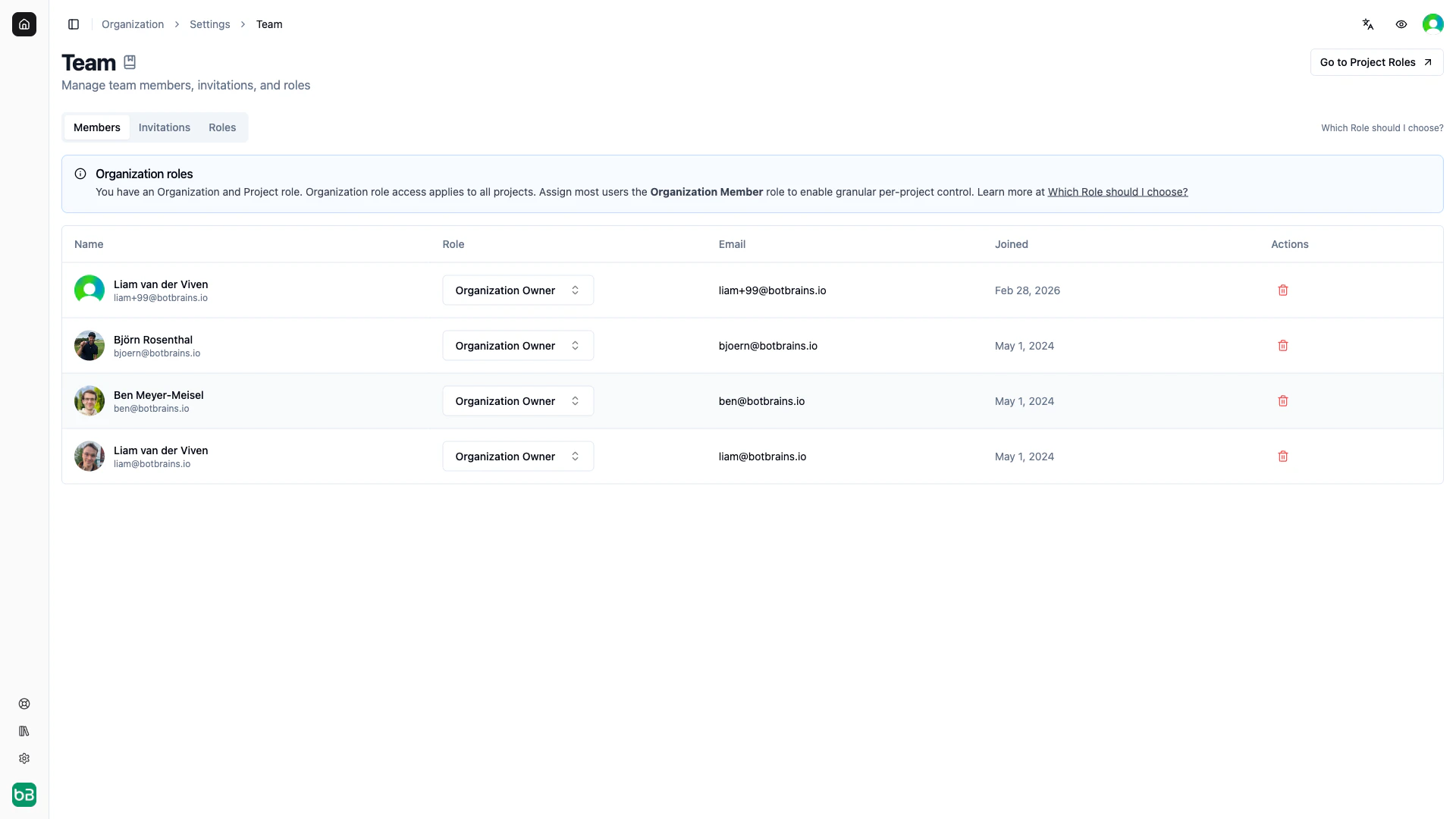
**Change organization role:**
1. Go to **Organization → Settings → Team → Members**
2. Find the member
3. Click role dropdown
4. Select new role - takes effect immediately
**Change project role:**
1. Go to **Project → Settings → Team → Members**
2. Find the member
3. Click **Project Role** dropdown
4. Select new role or "No Project Role" to remove access
### Permission Conflict Warnings
botBrains warns you when organization roles override project restrictions:
**What happens next:**
* Recipients receive email with join link
* They create an account or sign in
* Upon accepting, they join with assigned role
* New members appear in Members tab
You can paste multiple email addresses at once. Use **Organization Member** as the default for 90% of invitees.
### Project-Level Invitations
Invite people to join a specific project:
1. Go to **Project → Settings → Team**
2. Click the **Invitations** tab
3. Click **Invite User**
4. Enter email addresses
5. Select project role: **Owner**, **Contributor**, **Member**, **Viewer**, or custom role
6. Click **Send Invitations**
**Inviting new people directly to projects:**
When you invite someone who isn't an organization member yet, botBrains automatically creates both organization and project invitations in a single email.
### Managing Pending Invitations
Track invitations in the **Invitations** tab:
**View**: Email, assigned role, sent date, expiration, status
**Revoke**: Click trash icon to cancel before acceptance
**Resend**: Available if invitation wasn't received
Once accepted, invitations cannot be "un-accepted" - you must remove the member from the organization or project.
## Managing Team Access
### Changing Roles
**Change organization role:**
1. Go to **Organization → Settings → Team → Members**
2. Find the member
3. Click role dropdown
4. Select new role - takes effect immediately
**Change project role:**
1. Go to **Project → Settings → Team → Members**
2. Find the member
3. Click **Project Role** dropdown
4. Select new role or "No Project Role" to remove access
### Permission Conflict Warnings
botBrains warns you when organization roles override project restrictions:
 **Your options:**
1. Proceed anyway (user keeps broad access)
2. Cancel to reconsider
3. Demote organization role first, then assign restrictive project role
### Removing Team Members
**Remove from organization** (removes from all projects):
1. Go to **Organization → Settings → Team → Members**
2. Click trash icon in Actions column
3. Confirm removal
**Result**: Immediate access loss to all projects, API keys revoked
**Remove from specific project** (keep in organization):
1. Go to **Project → Settings → Team → Members**
2. Select **"No Project Role"** from dropdown
**Result**: Loses access to this project only, keeps other projects
Organization removal is immediate and irreversible. The user cannot access botBrains or recover their settings.
## Common Team Setups
### Small Team (2-5 people)
**Setup:**
* Assign Organization Member to everyone
* Give Project Contributor to team leads
* Give Project Member to other contributors
* Use built-in roles only
**Why it works:** Simple structure with minimal overhead.
### Department-Based Teams
**Setup:**
* Separate projects per department (Support Bot, Marketing Bot, Sales Bot)
* Organization Member for all employees
* Project Owner for department leads
* Project Member for department team members
* Executives get Organization Viewer to access all projects
**Why it works:** Clear separation of responsibilities. Marketing can't break Support Bot.
### Development, Staging, Production
**Setup:**
* Three projects (Dev, Staging, Prod)
* Developers: Project Contributor in Dev, Project Member in Staging, Project Viewer in Prod
* QA team: Project Contributor in Staging, Project Viewer in Dev/Prod
* Support team: Project Viewer in all three
* Senior engineers: Project Contributor in all three
**Why it works:** Prevents accidental production changes while enabling testing.
### External Consultants
**Setup:**
* Create custom "Consultant" role with limited read access
* Organization Member role
* Remove export and API key permissions
**Why it works:** Consultants can review without accessing sensitive data or making unauthorized changes.
### Multi-Brand Organizations
**Setup:**
* Separate projects per brand
* Organization Member for all team members
* Brand-specific Project Owners per brand
* Analysts get Project Viewer across brands
**Why it works:** Complete data isolation between brands. Brand managers control their AI independently.
## Best Practice
### Principle of Least Privilege
**Good practice:**
* Start with Organization Member for all users
* Grant project-specific roles based on actual responsibilities
* Use custom roles for specialized needs
* Regularly audit and reduce excessive permissions
**Bad practice:**
* Making everyone Organization Admin "just to be safe"
* Giving Project Owner to anyone who asks
* Using broad permissions when narrow ones would work
## Frequently Asked Questions
**Possible causes:**
1. Invitation not yet accepted - check Invitations tab
2. User assigned "No Project Role" - verify role assignment
3. User signed in with different email - check email match
4. Cache issue - have user sign out and back in
**Solution:**
1. Go to **Project → Settings → Team → Members**
2. Search for user by email
3. If not found, check Invitations tab
4. If found with "No Project Role", assign appropriate role
5. Have user refresh browser
**Cause:** User has permissive organization role that overrides project restrictions
**Solution:**
1. Go to **Organization → Settings → Team**
2. Check their organization role
3. If Organization Admin, change to Organization Member
4. Verify project role restrictions now work
**Possible causes:**
1. Only Organization Owners and Admins can remove members
2. Trying to remove yourself
3. Trying to remove the sole Organization Owner
**Solution:**
* Ask an Organization Owner or Admin to perform removal
* Organization Owner cannot be removed
* Have another admin remove you if needed
**Solution:**
1. Go to **Settings → Team → Invitations**
2. Find expired invitation
3. Revoke expired invitation
4. Send new invitation with same role
**Before acceptance:**
1. Revoke existing invitation
2. Send new invitation with correct role
**After acceptance:**
1. Go to **Settings → Team → Members**
2. Find the user
3. Change to correct role using dropdown
## Next Steps
Now that you understand roles and permissions:
* [API Keys](/concepts/api-keys) - Generate and manage programmatic access
* [Triggers](/concepts/triggers) - Automate actions based on events
* [Billing](/concepts/billing) - Monitor usage and manage your subscription
**Your options:**
1. Proceed anyway (user keeps broad access)
2. Cancel to reconsider
3. Demote organization role first, then assign restrictive project role
### Removing Team Members
**Remove from organization** (removes from all projects):
1. Go to **Organization → Settings → Team → Members**
2. Click trash icon in Actions column
3. Confirm removal
**Result**: Immediate access loss to all projects, API keys revoked
**Remove from specific project** (keep in organization):
1. Go to **Project → Settings → Team → Members**
2. Select **"No Project Role"** from dropdown
**Result**: Loses access to this project only, keeps other projects
Organization removal is immediate and irreversible. The user cannot access botBrains or recover their settings.
## Common Team Setups
### Small Team (2-5 people)
**Setup:**
* Assign Organization Member to everyone
* Give Project Contributor to team leads
* Give Project Member to other contributors
* Use built-in roles only
**Why it works:** Simple structure with minimal overhead.
### Department-Based Teams
**Setup:**
* Separate projects per department (Support Bot, Marketing Bot, Sales Bot)
* Organization Member for all employees
* Project Owner for department leads
* Project Member for department team members
* Executives get Organization Viewer to access all projects
**Why it works:** Clear separation of responsibilities. Marketing can't break Support Bot.
### Development, Staging, Production
**Setup:**
* Three projects (Dev, Staging, Prod)
* Developers: Project Contributor in Dev, Project Member in Staging, Project Viewer in Prod
* QA team: Project Contributor in Staging, Project Viewer in Dev/Prod
* Support team: Project Viewer in all three
* Senior engineers: Project Contributor in all three
**Why it works:** Prevents accidental production changes while enabling testing.
### External Consultants
**Setup:**
* Create custom "Consultant" role with limited read access
* Organization Member role
* Remove export and API key permissions
**Why it works:** Consultants can review without accessing sensitive data or making unauthorized changes.
### Multi-Brand Organizations
**Setup:**
* Separate projects per brand
* Organization Member for all team members
* Brand-specific Project Owners per brand
* Analysts get Project Viewer across brands
**Why it works:** Complete data isolation between brands. Brand managers control their AI independently.
## Best Practice
### Principle of Least Privilege
**Good practice:**
* Start with Organization Member for all users
* Grant project-specific roles based on actual responsibilities
* Use custom roles for specialized needs
* Regularly audit and reduce excessive permissions
**Bad practice:**
* Making everyone Organization Admin "just to be safe"
* Giving Project Owner to anyone who asks
* Using broad permissions when narrow ones would work
## Frequently Asked Questions
**Possible causes:**
1. Invitation not yet accepted - check Invitations tab
2. User assigned "No Project Role" - verify role assignment
3. User signed in with different email - check email match
4. Cache issue - have user sign out and back in
**Solution:**
1. Go to **Project → Settings → Team → Members**
2. Search for user by email
3. If not found, check Invitations tab
4. If found with "No Project Role", assign appropriate role
5. Have user refresh browser
**Cause:** User has permissive organization role that overrides project restrictions
**Solution:**
1. Go to **Organization → Settings → Team**
2. Check their organization role
3. If Organization Admin, change to Organization Member
4. Verify project role restrictions now work
**Possible causes:**
1. Only Organization Owners and Admins can remove members
2. Trying to remove yourself
3. Trying to remove the sole Organization Owner
**Solution:**
* Ask an Organization Owner or Admin to perform removal
* Organization Owner cannot be removed
* Have another admin remove you if needed
**Solution:**
1. Go to **Settings → Team → Invitations**
2. Find expired invitation
3. Revoke expired invitation
4. Send new invitation with same role
**Before acceptance:**
1. Revoke existing invitation
2. Send new invitation with correct role
**After acceptance:**
1. Go to **Settings → Team → Members**
2. Find the user
3. Change to correct role using dropdown
## Next Steps
Now that you understand roles and permissions:
* [API Keys](/concepts/api-keys) - Generate and manage programmatic access
* [Triggers](/concepts/triggers) - Automate actions based on events
* [Billing](/concepts/billing) - Monitor usage and manage your subscription