> ## Documentation Index
> Fetch the complete documentation index at: https://docs.botbrains.io/llms.txt
> Use this file to discover all available pages before exploring further.
# Slack Integration
> Connect botBrains with your Slack workspace
**Beta Feature**: The Slack integration is currently in beta. Some features may be unstable or subject to change.
Connect botBrains to your Slack workspace to provide AI-powered support directly in your team's communication platform. Your AI agent responds to direct messages and channel mentions, using the same knowledge and behavior configured in your botBrains project.
## Value Proposition
Bringing AI agents to Slack enhances team productivity and information access:
* **Internal Knowledge Base**: Give employees instant access to company documentation and procedures
* **IT Support Automation**: Handle common IT requests automatically within Slack
* **Community Management**: Automate responses in public Slack communities
* **onboarding Assistance**: Help new team members find information fast
* **Reduce Interruptions**: Answer common questions automatically, freeing up experts
* **Earn Time Back**: Employees spend [\~8 hours / week just searching internal information](https://www.mckinsey.com/industries/technology-media-and-telecommunications/our-insights/the-social-economy)
## Prerequisites
Before setting up the Slack integration:
* A botBrains project with configured knowledge and behavior
* Slack workspace admin permissions (to install apps)
* An active Slack workspace (free or paid tier)
## Setup Instructions
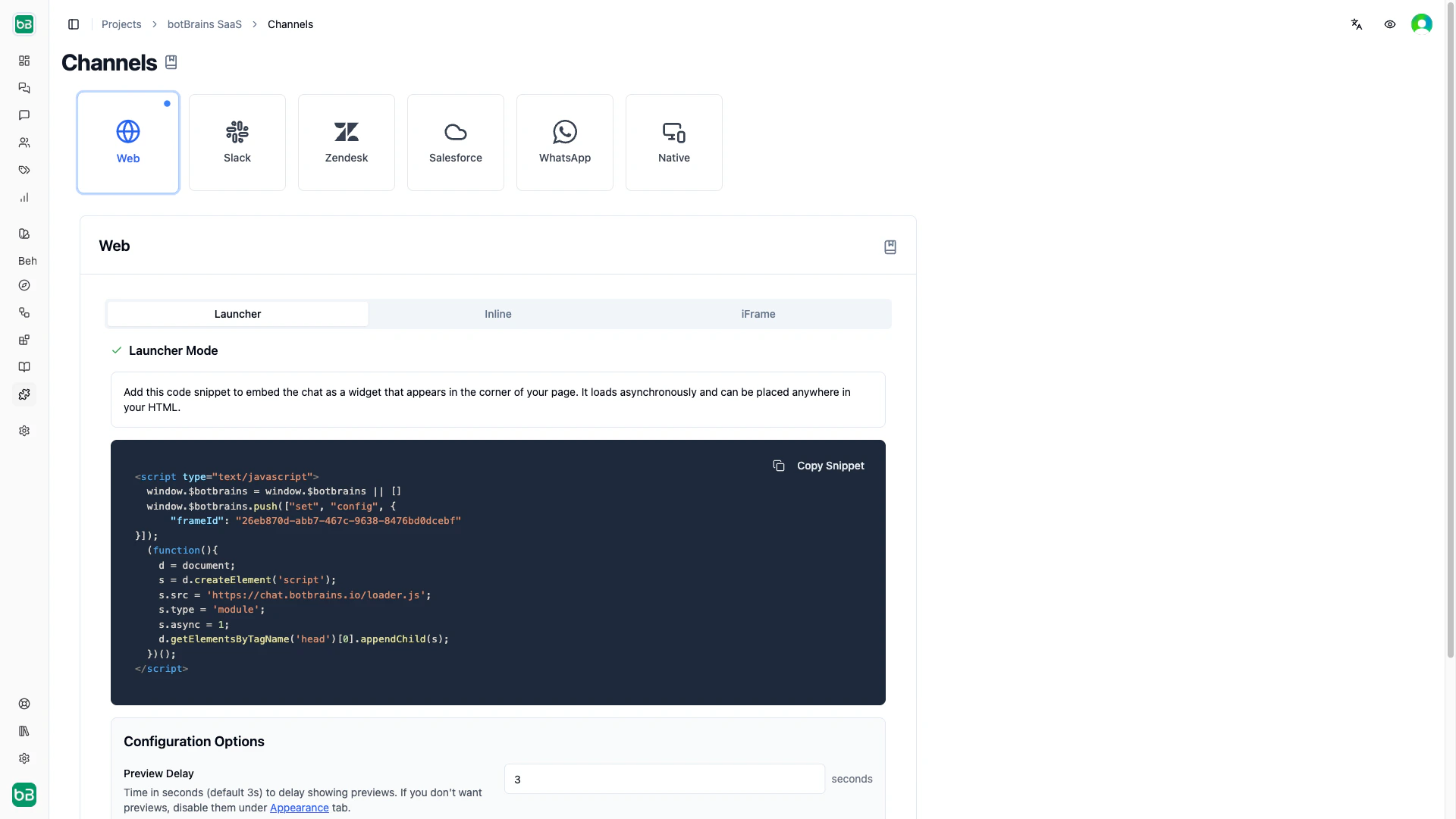
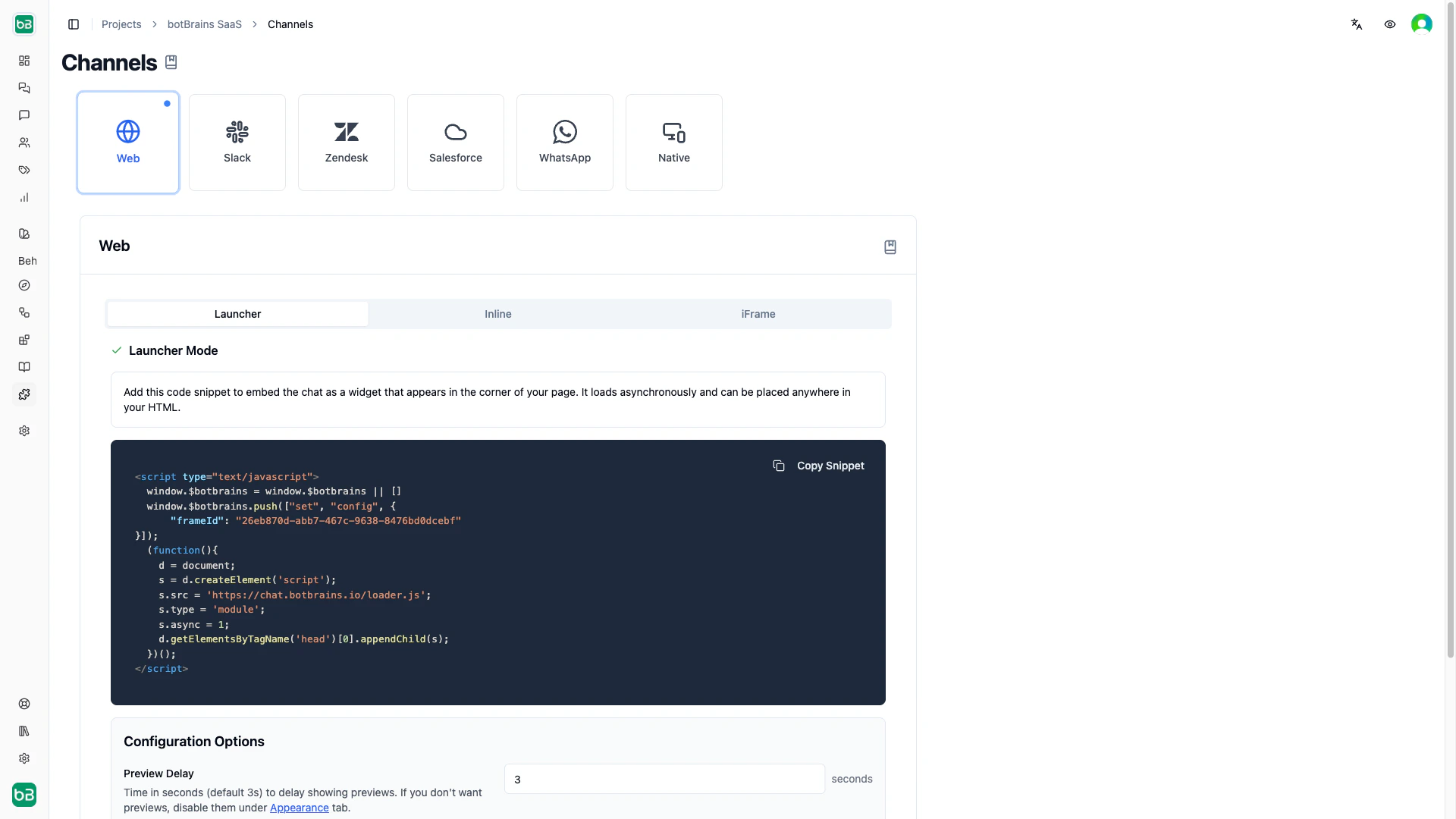
### Step 1: Navigate to Channels
1. Open your botBrains project
2. Go to **Channels** in the sidebar
3. Click on the **Slack** tab
### Step 2: Install the Bot
1. Click the **"Add to Slack"** button
2. A new window opens redirecting you to Slack's authorization page
3. Select the workspace where you want to install the bot (if you have multiple workspaces)
4. Review the permissions requested by the botBrains app
5. Click **Allow** to authorize the integration
6. The window closes and you return to botBrains
If the authorization window doesn't open, check your browser's popup blocker settings.
 ### Step 3: Verify Installation
After authorization:
1. The page refreshes automatically
2. The Slack integration appears in your Active Slack Integrations list
3. You'll see:
* Team name and Team ID
* Installation date
* Bot icon placeholder (or default icon if already customized)
## Configuring Your Slack Bot
### Customize Bot Icon
Make your agent recognizable in Slack:
1. Find your integration in the Active Slack Integrations list
2. Click the **Upload** icon button next to the bot image placeholder
3. Select a square image (PNG or JPEG)
* Images must have equal width and height (square aspect ratio)
* Images larger than 512x512 pixels will be automatically compressed
* Supported formats: PNG, JPEG
* Use your company logo or a custom agent avatar
The bot icon appears in Slack's app directory and in conversations. Choose an image that clearly identifies your AI agent to team members.
### Step 3: Verify Installation
After authorization:
1. The page refreshes automatically
2. The Slack integration appears in your Active Slack Integrations list
3. You'll see:
* Team name and Team ID
* Installation date
* Bot icon placeholder (or default icon if already customized)
## Configuring Your Slack Bot
### Customize Bot Icon
Make your agent recognizable in Slack:
1. Find your integration in the Active Slack Integrations list
2. Click the **Upload** icon button next to the bot image placeholder
3. Select a square image (PNG or JPEG)
* Images must have equal width and height (square aspect ratio)
* Images larger than 512x512 pixels will be automatically compressed
* Supported formats: PNG, JPEG
* Use your company logo or a custom agent avatar
The bot icon appears in Slack's app directory and in conversations. Choose an image that clearly identifies your AI agent to team members.
 ### Bot Behavior
The agent uses the same behavior and knowledge configured in your botBrains project:
* **Behavior Settings**: Navigate to **Behavior** to adjust tone, instructions, and tools
* **Knowledge Sources**: Manage in **Data Providers** and **Snippets**
* **Escalation Rules**: Configure in **Escalations**
Any changes to your project's configuration automatically apply to the Slack integration.
## Using the Bot in Slack
Your AI agent responds to interactions in three types of Slack conversations: direct messages, public channels, and private channels.
### Direct Messages
Users can have one-on-one conversations with the agent:
1. Find the bot in your Slack workspace's apps list
2. Click to open a direct message
3. Ask your questions
4. The agent responds using your configured knowledge
Direct messages are ideal for personal queries or sensitive information.
### Public Channel Mentions
The agent responds when mentioned in public channels:
1. Invite the agent to a channel: `/invite @YourBotName`
2. Mention the agent in a message: `@YourBotName how do I reset my password?`
3. The agent responds in the channel
**Use Threads**: Encourage users to mention the agent in threads to keep channels organized. The agent will continue the conversation within the thread context.
### Private Channels
The agent works the same way in private channels as in public channels:
1. Invite the agent to the private channel
2. Mention the agent with `@YourBotName`
3. The agent responds to the team members in that private channel
This is useful for team-specific knowledge or internal discussions.
## Common Use Cases
Deploy the agent for employee IT requests:
* Password resets
* Software installation guides
* Troubleshooting common issues
* Access request procedures
Configure your knowledge sources with IT documentation and common solutions.
Help new employees get up to speed:
* Company policies and benefits
* How-to internal processes
* Team structure and contacts
* Common procedures
Support engineering teams:
* API documentation lookup
* Code examples and snippets
* Architecture decisions
* Deployment procedures
Manage Slack communities:
* Answer common questions automatically
* Guide users to resources
* Moderate discussions
* Track popular topics
## Managing the Integration
### View Active Integrations
All connected Slack workspaces appear in the Active Slack Integrations list, showing:
* Team name and ID
* Installation date
* Current bot icon
You can install the agent in multiple Slack workspaces for the same project.
### Update Bot Icon
To change your agent's appearance:
1. Locate your integration in the Active Slack Integrations list
2. Click the upload icon button
3. Select a new square image (PNG or JPEG)
4. The icon updates immediately
### Monitor Usage
Track how your team uses the agent:
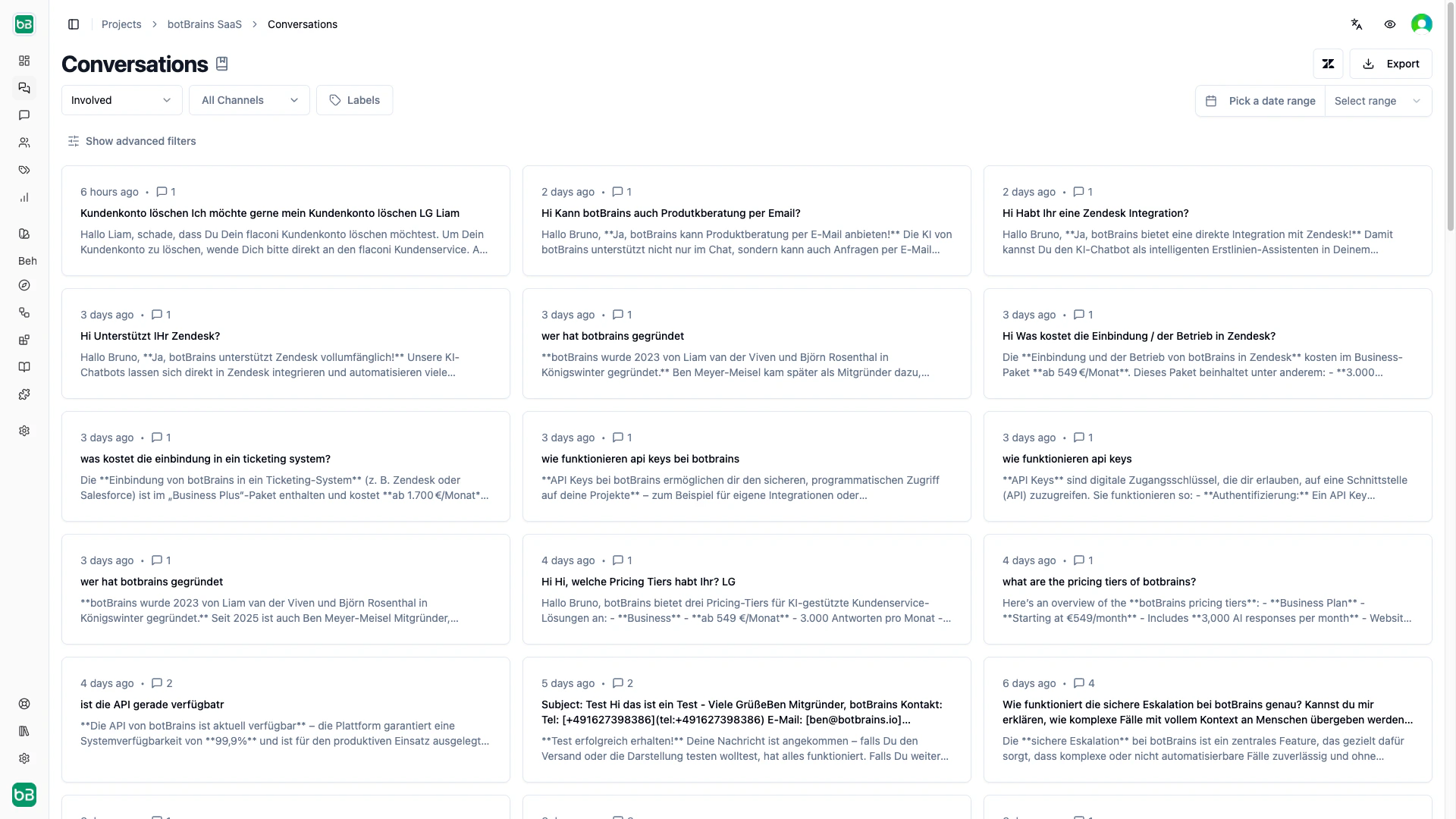
1. Navigate to **Conversations** in botBrains
2. Filter by channel to see Slack conversations
3. Each conversation shows:
* Workspace name
* Channel type (Direct Message, Public Channel, or Private Channel)
* Channel name (for channel conversations)
* Direct links to view in Slack
4. Review questions and responses
5. Identify knowledge gaps
### Bot Behavior
The agent uses the same behavior and knowledge configured in your botBrains project:
* **Behavior Settings**: Navigate to **Behavior** to adjust tone, instructions, and tools
* **Knowledge Sources**: Manage in **Data Providers** and **Snippets**
* **Escalation Rules**: Configure in **Escalations**
Any changes to your project's configuration automatically apply to the Slack integration.
## Using the Bot in Slack
Your AI agent responds to interactions in three types of Slack conversations: direct messages, public channels, and private channels.
### Direct Messages
Users can have one-on-one conversations with the agent:
1. Find the bot in your Slack workspace's apps list
2. Click to open a direct message
3. Ask your questions
4. The agent responds using your configured knowledge
Direct messages are ideal for personal queries or sensitive information.
### Public Channel Mentions
The agent responds when mentioned in public channels:
1. Invite the agent to a channel: `/invite @YourBotName`
2. Mention the agent in a message: `@YourBotName how do I reset my password?`
3. The agent responds in the channel
**Use Threads**: Encourage users to mention the agent in threads to keep channels organized. The agent will continue the conversation within the thread context.
### Private Channels
The agent works the same way in private channels as in public channels:
1. Invite the agent to the private channel
2. Mention the agent with `@YourBotName`
3. The agent responds to the team members in that private channel
This is useful for team-specific knowledge or internal discussions.
## Common Use Cases
Deploy the agent for employee IT requests:
* Password resets
* Software installation guides
* Troubleshooting common issues
* Access request procedures
Configure your knowledge sources with IT documentation and common solutions.
Help new employees get up to speed:
* Company policies and benefits
* How-to internal processes
* Team structure and contacts
* Common procedures
Support engineering teams:
* API documentation lookup
* Code examples and snippets
* Architecture decisions
* Deployment procedures
Manage Slack communities:
* Answer common questions automatically
* Guide users to resources
* Moderate discussions
* Track popular topics
## Managing the Integration
### View Active Integrations
All connected Slack workspaces appear in the Active Slack Integrations list, showing:
* Team name and ID
* Installation date
* Current bot icon
You can install the agent in multiple Slack workspaces for the same project.
### Update Bot Icon
To change your agent's appearance:
1. Locate your integration in the Active Slack Integrations list
2. Click the upload icon button
3. Select a new square image (PNG or JPEG)
4. The icon updates immediately
### Monitor Usage
Track how your team uses the agent:
1. Navigate to **Conversations** in botBrains
2. Filter by channel to see Slack conversations
3. Each conversation shows:
* Workspace name
* Channel type (Direct Message, Public Channel, or Private Channel)
* Channel name (for channel conversations)
* Direct links to view in Slack
4. Review questions and responses
5. Identify knowledge gaps
 ### Update Bot Behavior
Improve responses over time:
1. Review conversation history in the Conversations view
2. Add missing knowledge to Data Providers
3. Refine instructions in Behavior
4. Test changes in a private Slack channel first
Changes to your project configuration apply immediately to all Slack integrations.
## How It Works
The Slack integration connects your botBrains project to Slack using OAuth authentication:
1. **OAuth Installation**: When you click "Add to Slack," you authorize botBrains to access your workspace
2. **Event Handling**: The integration receives events when users mention the agent or send direct messages
3. **Context Preservation**: Conversations maintain thread context, allowing multi-turn interactions
4. **Project Configuration**: The agent uses your project's profiles, knowledge sources, and escalation rules
5. **Conversation Tracking**: The system logs all interactions in the Conversations view with metadata (channel type, workspace, links to Slack)
The agent responds to:
* Direct messages (DMs) from any user in the workspace
* Mentions (`@YourBotName`) in public channels where someone has invited the agent
* Mentions in private channels where someone has invited the agent
## Beta Limitations
As a beta feature, please note:
* **No self-service uninstall**: To remove a Slack integration, contact [support@botbrains.io](mailto:support@botbrains.io)
* **Limited configuration options**: We plan to add additional settings and customization options
* Features and functionality may change based on feedback
We're actively developing the Slack integration. Your feedback helps us improve!
## Frequently Asked Questions
If the agent doesn't respond:
1. **Check Installation**: Verify the integration appears in your Active Slack Integrations list
2. **Invite Bot**: For channels, make sure the agent is invited (`/invite @YourBotName`)
3. **Check Mentions**: In channels, the agent only responds when explicitly mentioned with `@YourBotName`
4. **Bot Permissions**: Ensure the agent has permission to read and write in the channel
5. **Project Status**: Verify your botBrains project has active knowledge sources configured
If responses are inaccurate:
1. **Review Knowledge**: Check that your Data Providers are up to date
2. **Refine Behavior**: Adjust instructions in Behavior → Guidance
3. **Test in botBrains**: Use the conversation interface to test responses before deploying
4. **Add Context**: Provide more specific documentation for common questions
5. **Review Conversations**: Check the Conversations view to see what the agent is receiving and responding
If you can't authorize the integration:
1. **Workspace Permissions**: Confirm you have admin rights in your Slack workspace
2. **App Approvals**: Check if your workspace requires app approval from an admin
3. **Browser Issues**: Try a different browser or clear your cache
4. **Popup Blockers**: Ensure popups are allowed for the botBrains platform
5. **Contact Support**: Reach out to [support@botbrains.io](mailto:support@botbrains.io) for assistance
## Best Practices
**Dedicated Test Channel**: Create a private Slack channel for testing agent responses before rolling out to your entire team. Invite the agent and experiment with different questions.
**Clear Bot Name**: Use a clear, descriptive name so team members know it's an AI agent. The name is configured in your Slack app settings, not in botBrains.
**Set Expectations**: Post a pinned message in channels explaining what the agent can help with and when to escalate to humans. Include examples of good questions.
**Monitor Conversations**: Regularly review conversations in the botBrains Conversations view to identify knowledge gaps and improve responses.
**Sensitive Information**: Be cautious about what knowledge you expose in public or shared Slack channels. Configure audience rules to limit information based on channel type if needed.
## Providing Feedback
Since this is a beta feature, we value your input:
* Report bugs or issues to [support@botbrains.io](mailto:support@botbrains.io)
* Suggest features you'd like to see
* Share your use cases and success stories
Your feedback helps shape the future of the Slack integration!
## Next Steps
After setting up Slack integration:
* [Configure Escalations](/concepts/escalations) - Set up human handoff for complex questions
* [Monitor Conversations](/concepts/conversations) - Review agent interactions
* [Analyze Topics](/concepts/topics) - Discover what your team asks about most
* [Add Knowledge](/concepts/data-providers) - Expand your agent's capabilities
## Support
Questions about the Slack integration?
* Email: [support@botbrains.io](mailto:support@botbrains.io)
* Documentation: Browse our guides
* Community: Join our Slack community (coming soon!)
### Update Bot Behavior
Improve responses over time:
1. Review conversation history in the Conversations view
2. Add missing knowledge to Data Providers
3. Refine instructions in Behavior
4. Test changes in a private Slack channel first
Changes to your project configuration apply immediately to all Slack integrations.
## How It Works
The Slack integration connects your botBrains project to Slack using OAuth authentication:
1. **OAuth Installation**: When you click "Add to Slack," you authorize botBrains to access your workspace
2. **Event Handling**: The integration receives events when users mention the agent or send direct messages
3. **Context Preservation**: Conversations maintain thread context, allowing multi-turn interactions
4. **Project Configuration**: The agent uses your project's profiles, knowledge sources, and escalation rules
5. **Conversation Tracking**: The system logs all interactions in the Conversations view with metadata (channel type, workspace, links to Slack)
The agent responds to:
* Direct messages (DMs) from any user in the workspace
* Mentions (`@YourBotName`) in public channels where someone has invited the agent
* Mentions in private channels where someone has invited the agent
## Beta Limitations
As a beta feature, please note:
* **No self-service uninstall**: To remove a Slack integration, contact [support@botbrains.io](mailto:support@botbrains.io)
* **Limited configuration options**: We plan to add additional settings and customization options
* Features and functionality may change based on feedback
We're actively developing the Slack integration. Your feedback helps us improve!
## Frequently Asked Questions
If the agent doesn't respond:
1. **Check Installation**: Verify the integration appears in your Active Slack Integrations list
2. **Invite Bot**: For channels, make sure the agent is invited (`/invite @YourBotName`)
3. **Check Mentions**: In channels, the agent only responds when explicitly mentioned with `@YourBotName`
4. **Bot Permissions**: Ensure the agent has permission to read and write in the channel
5. **Project Status**: Verify your botBrains project has active knowledge sources configured
If responses are inaccurate:
1. **Review Knowledge**: Check that your Data Providers are up to date
2. **Refine Behavior**: Adjust instructions in Behavior → Guidance
3. **Test in botBrains**: Use the conversation interface to test responses before deploying
4. **Add Context**: Provide more specific documentation for common questions
5. **Review Conversations**: Check the Conversations view to see what the agent is receiving and responding
If you can't authorize the integration:
1. **Workspace Permissions**: Confirm you have admin rights in your Slack workspace
2. **App Approvals**: Check if your workspace requires app approval from an admin
3. **Browser Issues**: Try a different browser or clear your cache
4. **Popup Blockers**: Ensure popups are allowed for the botBrains platform
5. **Contact Support**: Reach out to [support@botbrains.io](mailto:support@botbrains.io) for assistance
## Best Practices
**Dedicated Test Channel**: Create a private Slack channel for testing agent responses before rolling out to your entire team. Invite the agent and experiment with different questions.
**Clear Bot Name**: Use a clear, descriptive name so team members know it's an AI agent. The name is configured in your Slack app settings, not in botBrains.
**Set Expectations**: Post a pinned message in channels explaining what the agent can help with and when to escalate to humans. Include examples of good questions.
**Monitor Conversations**: Regularly review conversations in the botBrains Conversations view to identify knowledge gaps and improve responses.
**Sensitive Information**: Be cautious about what knowledge you expose in public or shared Slack channels. Configure audience rules to limit information based on channel type if needed.
## Providing Feedback
Since this is a beta feature, we value your input:
* Report bugs or issues to [support@botbrains.io](mailto:support@botbrains.io)
* Suggest features you'd like to see
* Share your use cases and success stories
Your feedback helps shape the future of the Slack integration!
## Next Steps
After setting up Slack integration:
* [Configure Escalations](/concepts/escalations) - Set up human handoff for complex questions
* [Monitor Conversations](/concepts/conversations) - Review agent interactions
* [Analyze Topics](/concepts/topics) - Discover what your team asks about most
* [Add Knowledge](/concepts/data-providers) - Expand your agent's capabilities
## Support
Questions about the Slack integration?
* Email: [support@botbrains.io](mailto:support@botbrains.io)
* Documentation: Browse our guides
* Community: Join our Slack community (coming soon!)