> ## Documentation Index
> Fetch the complete documentation index at: https://docs.botbrains.io/llms.txt
> Use this file to discover all available pages before exploring further.
# Snippets
> Create and curate knowledge with manual snippets
Snippets are manually created pieces of knowledge that you add directly to your AI agent's knowledge base. They give you complete control over specific information your AI uses to answer questions.
## When to Use Snippets
Use snippets to:
* **Fill knowledge gaps** - Add information missing from your documentation
* **Control messaging** - Ensure your AI uses specific, approved language for policies or procedures
* **Capture verified answers** - Save good responses from real conversations
* **Provide quick updates** - Make changes that take effect immediately
Save verified answers from conversations as snippets using the "Improve Answer" button. This builds your knowledge base from real customer interactions.
## How They Work
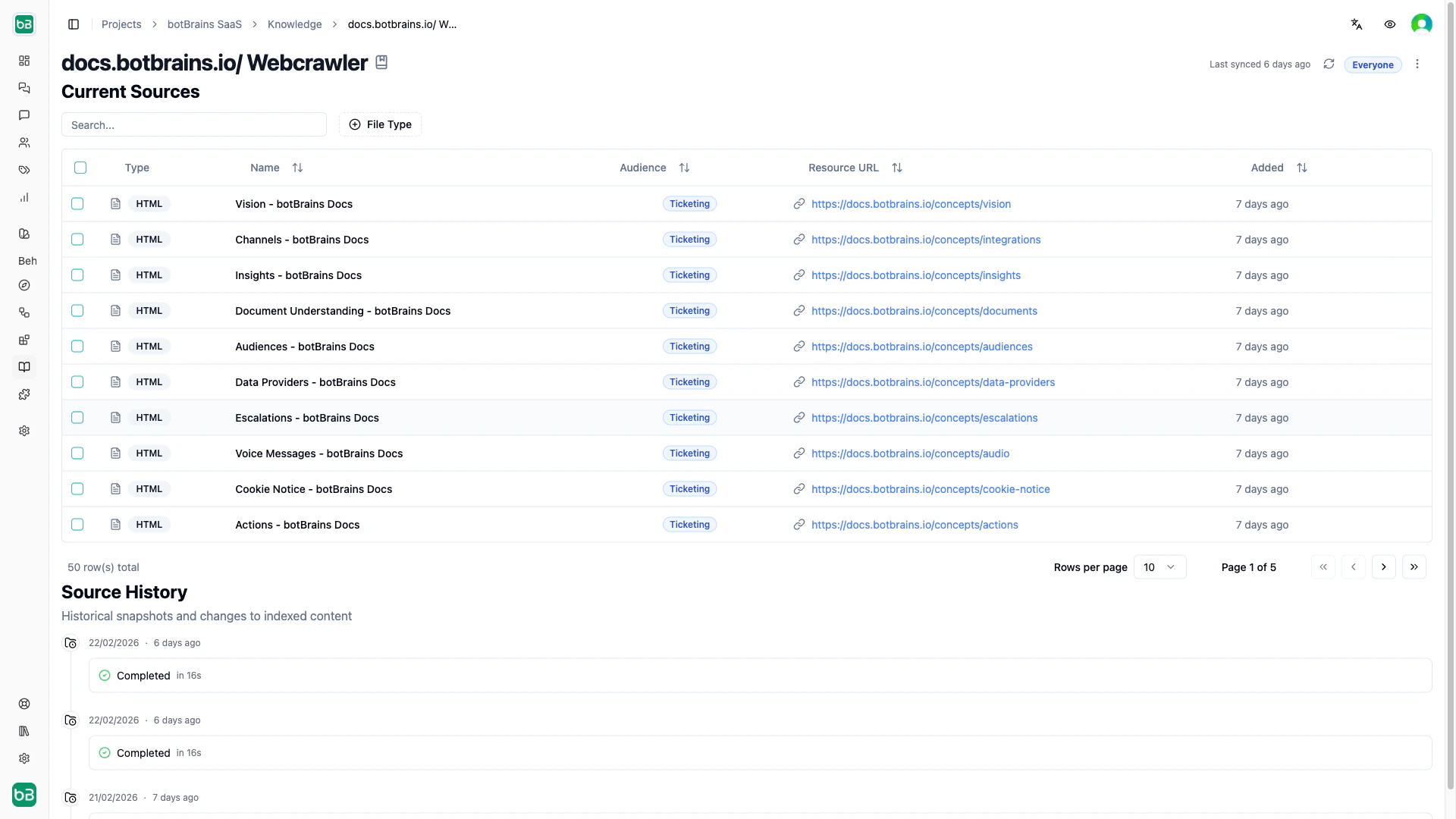
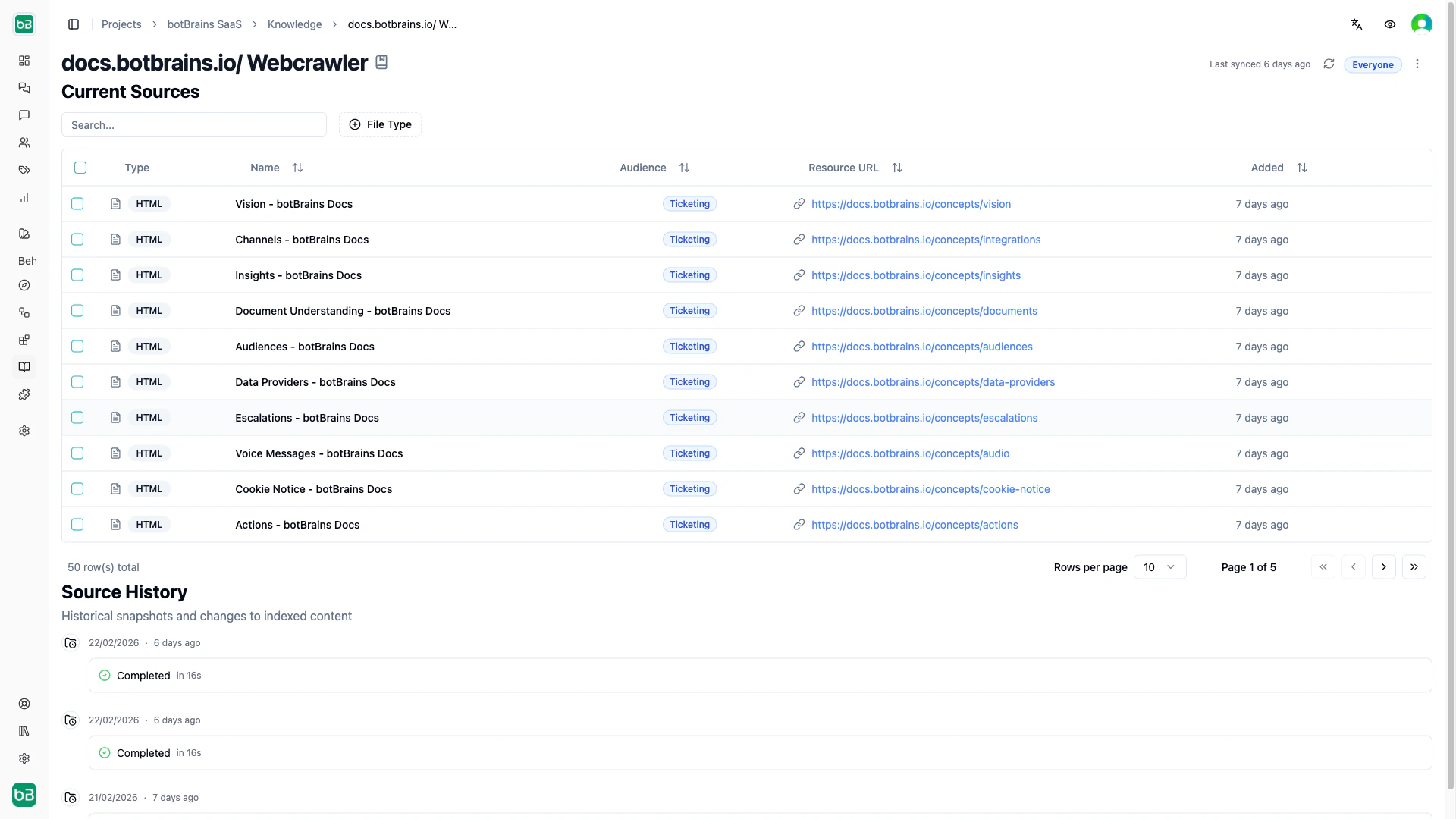
You store snippets in human data providers alongside other knowledge sources. When a customer asks a question, your AI searches all sources-including snippets-to find relevant information. Each snippet has a name, rich text content, and is automatically indexed for semantic search.
 ## Creating Snippets
**From a data provider:**
1. Navigate to Data Providers and select a human data provider
2. Click New Snippet
3. Enter a descriptive name and add your content
4. Click Save
**From a conversation:**
1. Click the "Improve Answer" button during a conversation
2. Click Add to Knowledge
3. Edit if needed and select a data provider
4. Click Save
Changes are available immediately.
## Creating Snippets
**From a data provider:**
1. Navigate to Data Providers and select a human data provider
2. Click New Snippet
3. Enter a descriptive name and add your content
4. Click Save
**From a conversation:**
1. Click the "Improve Answer" button during a conversation
2. Click Add to Knowledge
3. Edit if needed and select a data provider
4. Click Save
Changes are available immediately.
 ## Best Practices
**Keep snippets focused**
* Cover one topic or question per snippet
* Keep content concise (200-500 words)
* Include enough context for the AI to understand when to use it
**Use clear naming**
* Good: "How to request a refund after canceling a subscription"
* Avoid: "Policy #3" or generic labels
**Write for your AI**
* Start with the most important information
* Use clear, direct language
* Include specific conditions or limitations
* Make snippets self-contained with complete information
**Organize by collection**
Create separate human data providers for different categories like Product Knowledge, Policies, or Support FAQs.
## Formatting Support
The rich text editor supports bold, italic, headings, lists, links, and code blocks. You can also upload Markdown files (.md) which are automatically converted to HTML when edited.
Deleted snippets cannot be recovered. Download important snippets as HTML files before deletion if you need a backup.
## Best Practices
**Keep snippets focused**
* Cover one topic or question per snippet
* Keep content concise (200-500 words)
* Include enough context for the AI to understand when to use it
**Use clear naming**
* Good: "How to request a refund after canceling a subscription"
* Avoid: "Policy #3" or generic labels
**Write for your AI**
* Start with the most important information
* Use clear, direct language
* Include specific conditions or limitations
* Make snippets self-contained with complete information
**Organize by collection**
Create separate human data providers for different categories like Product Knowledge, Policies, or Support FAQs.
## Formatting Support
The rich text editor supports bold, italic, headings, lists, links, and code blocks. You can also upload Markdown files (.md) which are automatically converted to HTML when edited.
Deleted snippets cannot be recovered. Download important snippets as HTML files before deletion if you need a backup.