> ## Documentation Index
> Fetch the complete documentation index at: https://docs.botbrains.io/llms.txt
> Use this file to discover all available pages before exploring further.
# Topics
> Automatically discover and analyze what your customers are talking about with AI-powered topic detection
Topics help you understand what your customers are actually talking about. Instead of manually categorizing conversations, botBrains uses AI to automatically cluster similar conversations together, revealing patterns in customer needs, pain points, and requests.
## How TopicAI Works
TopicAI automatically analyzes your conversations and groups them into meaningful categories on a recurring schedule:
* **Nightly categorization.** Every night, TopicAI assigns the most relevant topics to all conversations based on semantic similarity.
* **Weekly discovery.** Every Monday morning, TopicAI scans recent conversations to detect emerging patterns and creates new topic categories.
* **Topic finalization.** Conversations older than the most recent Monday have stable topic assignments, while recent conversations may be recategorized as the model improves.
Each topic has a **title**, a **description**, a **conversation count**, and a **trend indicator** (new, growing, declining, stable, or inactive).
## Activating Topics
Open the [topics page](https://platform.botbrains.io/~/topics) and request TopicAI activation. Once activated, choose how to guide the analysis:
| Option | When to use |
| ------------------------------------------ | -------------------------------------------------------------------------- |
| **Industry template** (E-Commerce or SaaS) | You want 15–25 common topics as a starting point |
| **Custom seed topics** | You want to control granularity with 5–15 topics specific to your business |
| **Fully automatic** | Your business model doesn't fit templates and you have 50+ conversations |
Seed topics don't constrain what the system can detect. They guide how specific or broad the categories should be. The system discovers additional topics automatically over time.
Initial topic detection takes a few minutes. The model stabilizes over 1–2 weeks as it processes more conversations.
## Using the Topics Dashboard
The [topics dashboard](https://platform.botbrains.io/~/topics) helps you answer specific questions about your AI's performance by topic. Use the date range, channel, and label filters at the top to narrow the analysis.
 ### Find topics that need attention first
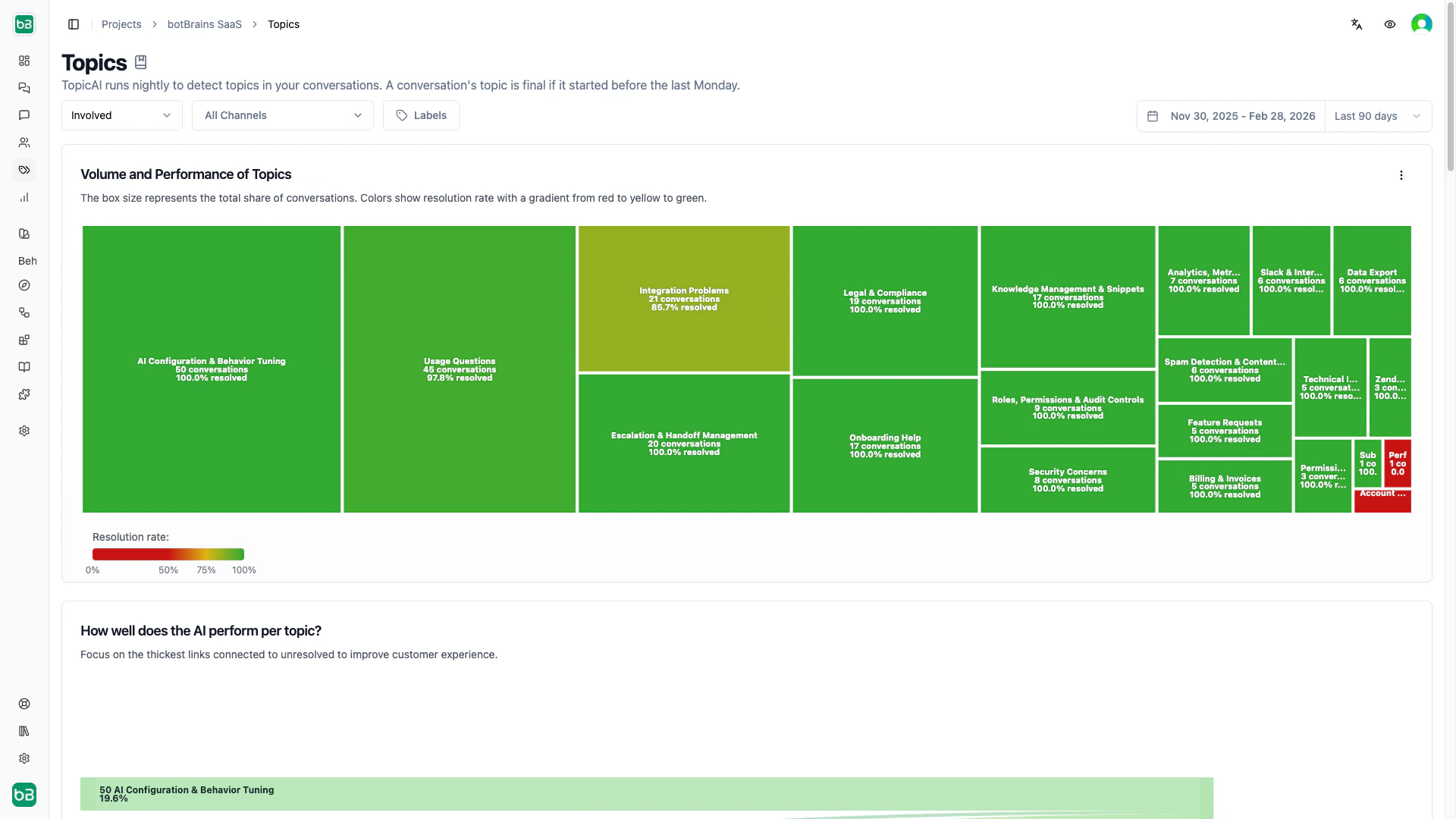
The **Resolution treemap** gives you an at-a-glance priority map. Rectangle size indicates conversation volume, color indicates resolution rate (green = high, red = low). Start with large red boxes. They represent high-volume topics where the AI struggles most.
### See where conversations go wrong
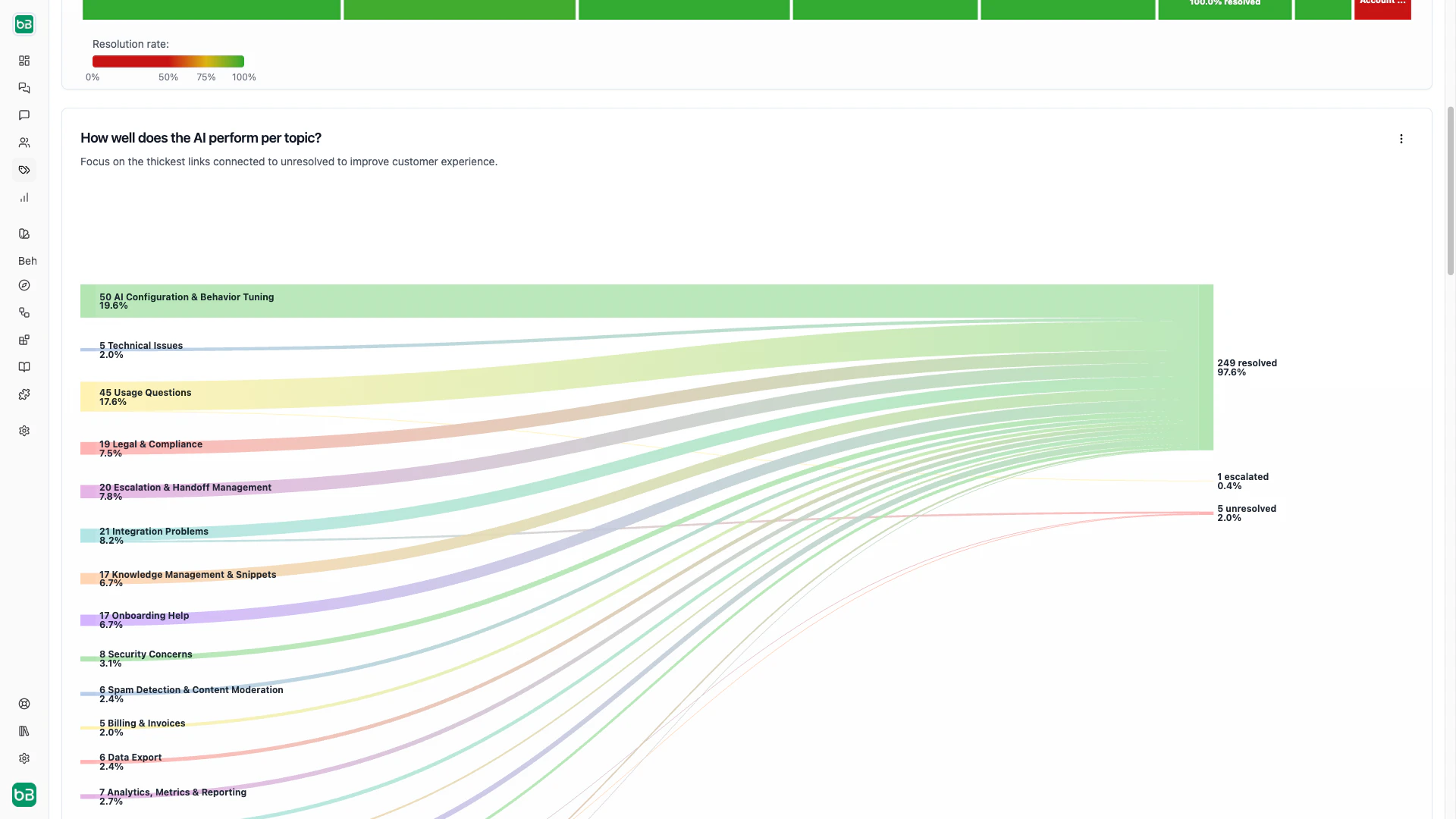
The **Resolution Sankey** connects each topic to its resolution outcomes (resolved, escalated, unresolved). Look for wide flows into "escalated" or "unresolved" to find topics that need better knowledge or escalation rules.
### Track how your topic mix changes over time
The **Trend Chart** combines a donut chart (overall distribution) with a weekly bar chart (volume over time). Toggle between absolute numbers and relative percentages to spot shifts in topic mix or emerging trends.
### Find topics the AI doesn't handle autonomously
The **Involvement Sankey** maps topics to AI involvement levels (autonomous, public, private, not involved). Topics with low autonomy are candidates for better knowledge or guidance.
### Browsing all topics
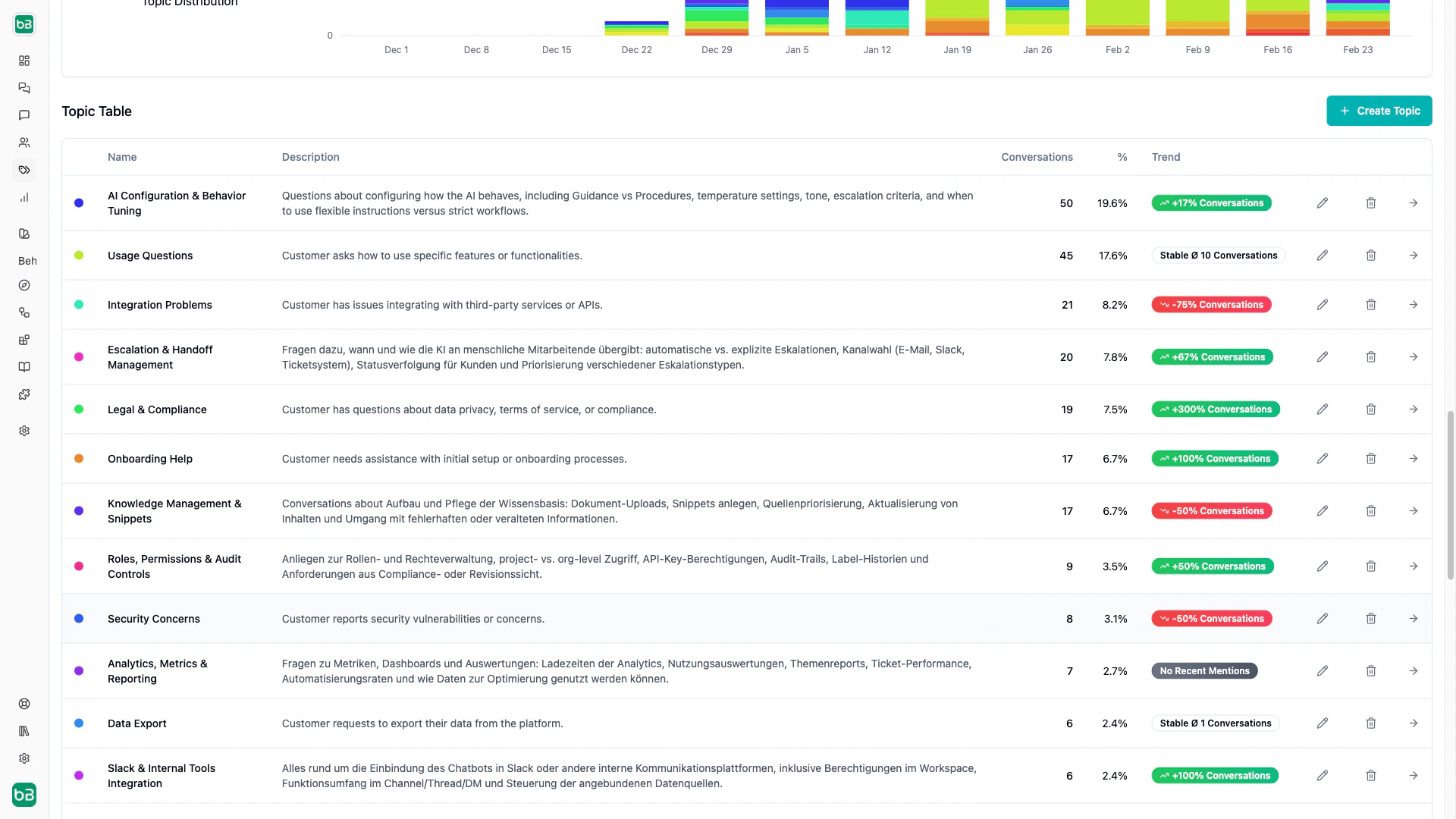
The **Topic Table** lists every topic with its conversation count, percentage share, and trend badge. Click the arrow icon to view a topic's conversations. Click the pencil icon to edit a topic's title or description.
### Find topics that need attention first
The **Resolution treemap** gives you an at-a-glance priority map. Rectangle size indicates conversation volume, color indicates resolution rate (green = high, red = low). Start with large red boxes. They represent high-volume topics where the AI struggles most.
### See where conversations go wrong
The **Resolution Sankey** connects each topic to its resolution outcomes (resolved, escalated, unresolved). Look for wide flows into "escalated" or "unresolved" to find topics that need better knowledge or escalation rules.
### Track how your topic mix changes over time
The **Trend Chart** combines a donut chart (overall distribution) with a weekly bar chart (volume over time). Toggle between absolute numbers and relative percentages to spot shifts in topic mix or emerging trends.
### Find topics the AI doesn't handle autonomously
The **Involvement Sankey** maps topics to AI involvement levels (autonomous, public, private, not involved). Topics with low autonomy are candidates for better knowledge or guidance.
### Browsing all topics
The **Topic Table** lists every topic with its conversation count, percentage share, and trend badge. Click the arrow icon to view a topic's conversations. Click the pencil icon to edit a topic's title or description.
 | Trend badge | Meaning |
| --------------- | --------------------------------- |
| New (purple) | Detected in the past 7 days |
| Growing (green) | Volume increased by more than 5% |
| Declining (red) | Volume decreased by more than 5% |
| Stable (gray) | Volume changed by less than 5% |
| Inactive (gray) | No conversations in recent period |
## Managing Topics
Click **Create Topic** in the topic table to add a new topic with a title and description. Edit any existing topic by clicking the pencil icon. The system applies changes during the next nightly categorization run, or you can use **Categorize Now** to run it immediately. Use **Find New Topics** to trigger topic discovery on demand instead of waiting for the weekly Monday run.
| Trend badge | Meaning |
| --------------- | --------------------------------- |
| New (purple) | Detected in the past 7 days |
| Growing (green) | Volume increased by more than 5% |
| Declining (red) | Volume decreased by more than 5% |
| Stable (gray) | Volume changed by less than 5% |
| Inactive (gray) | No conversations in recent period |
## Managing Topics
Click **Create Topic** in the topic table to add a new topic with a title and description. Edit any existing topic by clicking the pencil icon. The system applies changes during the next nightly categorization run, or you can use **Categorize Now** to run it immediately. Use **Find New Topics** to trigger topic discovery on demand instead of waiting for the weekly Monday run.
 To start over, click **Delete Topics** to remove all topic assignments. Use this when your business model has changed significantly or the initial seed topics were a poor fit.
## Next Steps
* [Metrics](/concepts/metrics) - Analyze CSAT and resolution rates segmented by topic
* [Data Providers](/concepts/data-providers) - Fill knowledge gaps identified through topic analysis
* [Labels](/concepts/labels) - Combine manual labels with automatic topics
* [Improve Answers](/guides/improve-answers) - Use topic insights to refine your AI's responses
To start over, click **Delete Topics** to remove all topic assignments. Use this when your business model has changed significantly or the initial seed topics were a poor fit.
## Next Steps
* [Metrics](/concepts/metrics) - Analyze CSAT and resolution rates segmented by topic
* [Data Providers](/concepts/data-providers) - Fill knowledge gaps identified through topic analysis
* [Labels](/concepts/labels) - Combine manual labels with automatic topics
* [Improve Answers](/guides/improve-answers) - Use topic insights to refine your AI's responses