> ## Documentation Index
> Fetch the complete documentation index at: https://docs.botbrains.io/llms.txt
> Use this file to discover all available pages before exploring further.
# Triggers
> Automate security, moderation, and routing with event-based triggers
Triggers execute actions immediately and deterministically when conversation events match rules you define. Use them to block spam, label conversations, and enforce business policies - all before the AI processes the message.
## How Triggers Work
Triggers follow an if-then model: **when** an event occurs and an **audience** matches, **then** execute one or more actions.
1. **Event occurs** - a user sends a message (currently the only supported event)
2. **Audience evaluation** - the trigger checks if the conversation, user, and message match your criteria
3. **Action execution** - if the audience matches, all configured actions run immediately
4. **Conversation proceeds** - if not blocked, the conversation continues to AI processing
 All matching triggers execute in priority order (top to bottom). Triggers do not stop processing when one matches.
## Audience Criteria
Audiences determine which conversations match your trigger. Build rules using the visual query builder with AND/OR logic and NOT toggles.
**Available fields:**
| Category | Fields |
| -------------------- | -------------------------------------------------------------------- |
| User attributes | Email, phone, timezone, labels, external IDs, platform-specific IDs |
| Channel properties | Channel type (Browser, WhatsApp, Zendesk, Slack), subdomain, team ID |
| Conversation context | Message count, created date, labels, external IDs |
| Time conditions | Current date/time, hour, day of week, timezone |
**Examples:**
```
Block email domain: user.email ends with "@marketplace.example.com"
After-hours labeling: current_hour < 9 OR current_hour >= 17
VIP on specific channel: user.labels contains "vip" AND channel.type is "Zendesk"
```
Audience definitions use the same field structure as [Audiences](/concepts/audiences), but evaluate in real-time as messages arrive rather than as stored segments.
## Actions
When a trigger's audience matches, it executes one or more actions in sequence.
| Action | Description | Entity types |
| ------------------ | ------------------------------------------------------------------------------------------------------------------------- | --------------------------- |
| **Block** | Prevents the conversation from continuing. No AI response is generated, the user receives no notification (silent block). | Conversation |
| **Assign Label** | Adds a label to the entity. Labels appear in conversation lists, analytics, and can be used by other triggers. | Conversation, User, Message |
| **Unassign Label** | Removes a label from the entity. No error if the label doesn't exist. | Conversation, User, Message |
You can combine multiple actions in a single trigger. Place label actions before block actions to ensure labels apply even when the conversation is blocked.
Blocking is permanent and silent. Use it only for clear policy violations, not borderline cases. For uncertain situations, assign a review label instead.
## Creating a Trigger
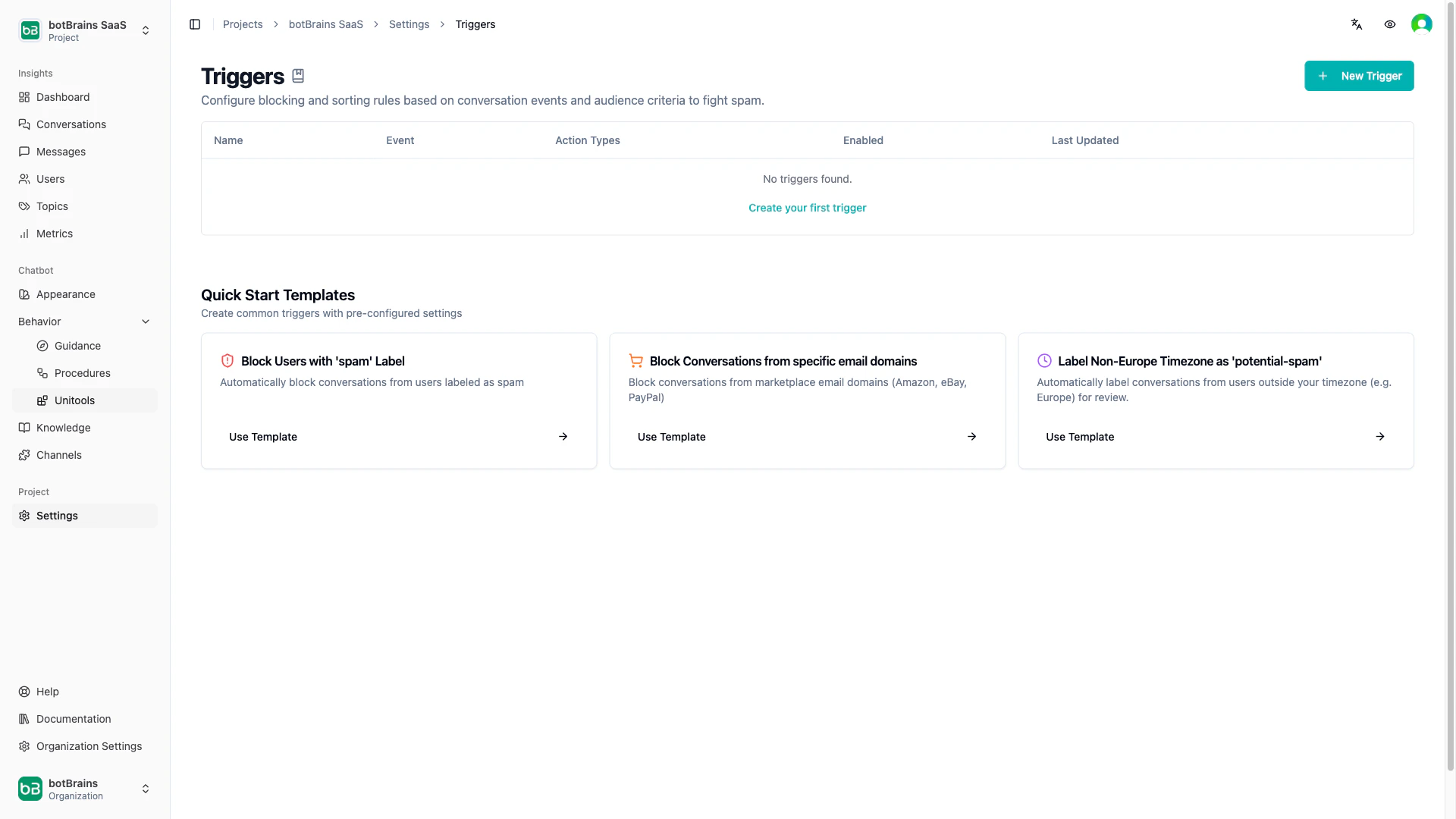
Open your [trigger settings](https://platform.botbrains.io/~/settings/triggers) to get started. You can use a **quick-start template** (Block Spam Users, Block Marketplace Emails, Label Non-Europe Timezone) or create a custom trigger:
Click **New Trigger**, enter a descriptive name (for example "Block marketplace notifications")
Select the event (User Message Received) and define audience criteria using the query builder
Add one or more actions (Block, Assign Label, Unassign Label) and arrange them in execution order
Toggle "Active" to enable, then click **Create Trigger**
Create triggers in a disabled state first. Use label actions (not block) to verify your audience criteria matches correctly, then switch to blocking once you're confident.
## Managing Triggers
The [trigger list](https://platform.botbrains.io/~/settings/triggers) shows each trigger's name, event, action types, and enabled status. From there you can:
* **Enable / disable** a trigger with the toggle switch - disabled triggers are ignored entirely
* **Edit** a trigger by clicking its row - changes take effect immediately
* **Delete** a trigger with the trash icon - deletion is permanent, previously blocked/labeled conversations are unaffected
* **Reorder** by deleting and recreating in the desired sequence (priority runs top to bottom)
All matching triggers execute in priority order (top to bottom). Triggers do not stop processing when one matches.
## Audience Criteria
Audiences determine which conversations match your trigger. Build rules using the visual query builder with AND/OR logic and NOT toggles.
**Available fields:**
| Category | Fields |
| -------------------- | -------------------------------------------------------------------- |
| User attributes | Email, phone, timezone, labels, external IDs, platform-specific IDs |
| Channel properties | Channel type (Browser, WhatsApp, Zendesk, Slack), subdomain, team ID |
| Conversation context | Message count, created date, labels, external IDs |
| Time conditions | Current date/time, hour, day of week, timezone |
**Examples:**
```
Block email domain: user.email ends with "@marketplace.example.com"
After-hours labeling: current_hour < 9 OR current_hour >= 17
VIP on specific channel: user.labels contains "vip" AND channel.type is "Zendesk"
```
Audience definitions use the same field structure as [Audiences](/concepts/audiences), but evaluate in real-time as messages arrive rather than as stored segments.
## Actions
When a trigger's audience matches, it executes one or more actions in sequence.
| Action | Description | Entity types |
| ------------------ | ------------------------------------------------------------------------------------------------------------------------- | --------------------------- |
| **Block** | Prevents the conversation from continuing. No AI response is generated, the user receives no notification (silent block). | Conversation |
| **Assign Label** | Adds a label to the entity. Labels appear in conversation lists, analytics, and can be used by other triggers. | Conversation, User, Message |
| **Unassign Label** | Removes a label from the entity. No error if the label doesn't exist. | Conversation, User, Message |
You can combine multiple actions in a single trigger. Place label actions before block actions to ensure labels apply even when the conversation is blocked.
Blocking is permanent and silent. Use it only for clear policy violations, not borderline cases. For uncertain situations, assign a review label instead.
## Creating a Trigger
Open your [trigger settings](https://platform.botbrains.io/~/settings/triggers) to get started. You can use a **quick-start template** (Block Spam Users, Block Marketplace Emails, Label Non-Europe Timezone) or create a custom trigger:
Click **New Trigger**, enter a descriptive name (for example "Block marketplace notifications")
Select the event (User Message Received) and define audience criteria using the query builder
Add one or more actions (Block, Assign Label, Unassign Label) and arrange them in execution order
Toggle "Active" to enable, then click **Create Trigger**
Create triggers in a disabled state first. Use label actions (not block) to verify your audience criteria matches correctly, then switch to blocking once you're confident.
## Managing Triggers
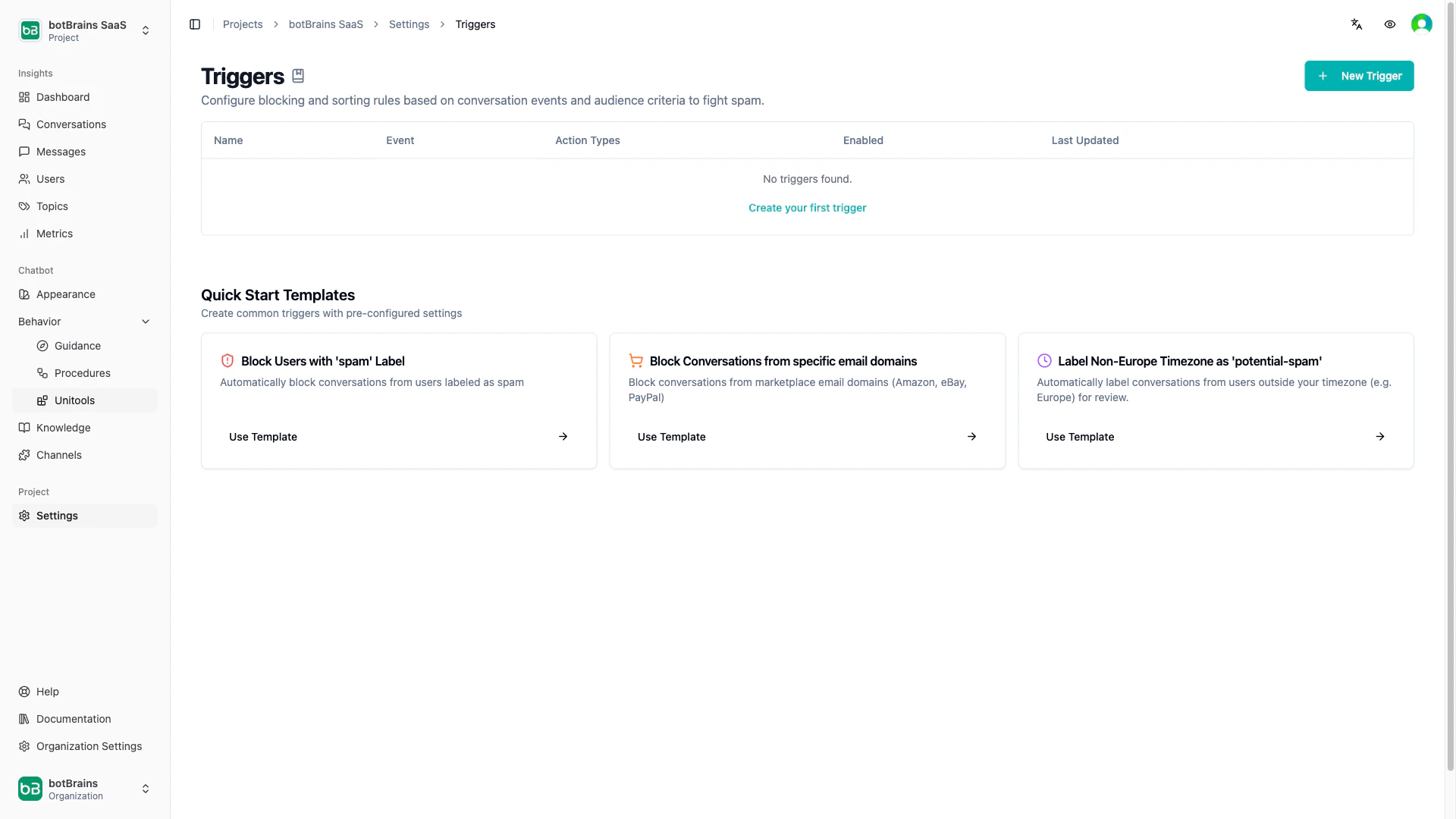
The [trigger list](https://platform.botbrains.io/~/settings/triggers) shows each trigger's name, event, action types, and enabled status. From there you can:
* **Enable / disable** a trigger with the toggle switch - disabled triggers are ignored entirely
* **Edit** a trigger by clicking its row - changes take effect immediately
* **Delete** a trigger with the trash icon - deletion is permanent, previously blocked/labeled conversations are unaffected
* **Reorder** by deleting and recreating in the desired sequence (priority runs top to bottom)
 ## Next Steps
* [Audiences](/concepts/audiences) - Build audience segments used in triggers
* [Actions](/concepts/actions) - Configure AI-powered actions (vs. deterministic triggers)
* [Labels](/concepts/labels) - Organize and filter conversations with custom labels
* [Roles and Permissions](/concepts/roles-permissions) - Control who can create and manage triggers
## Next Steps
* [Audiences](/concepts/audiences) - Build audience segments used in triggers
* [Actions](/concepts/actions) - Configure AI-powered actions (vs. deterministic triggers)
* [Labels](/concepts/labels) - Organize and filter conversations with custom labels
* [Roles and Permissions](/concepts/roles-permissions) - Control who can create and manage triggers