> ## Documentation Index
> Fetch the complete documentation index at: https://docs.botbrains.io/llms.txt
> Use this file to discover all available pages before exploring further.

# Versioning

> Manage AI versions and deploy changes with confidence

Versioning makes your trained AI available to users. Each version is an immutable snapshot of your AI's complete configuration at a point in time, including guidance, tools, and knowledge. You can continue editing while users interact with a stable, deployed version.

## Core Concepts

### Profiles

A profile is your AI's current working configuration: guidance instructions, tool settings, LLM parameters, and audience rules. You edit profiles at any time, then "build" to save everything into a new version.

### Versions

Versions are sequentially numbered snapshots (#1, #2, #3). Each captures the full profile configuration plus a knowledge snapshot of all data provider sources at build time. Versions are **immutable**. Once built, they never change.

### Aliases

An alias is a named pointer to a specific version. The **Production** alias represents what users see. All channels connect to aliases, not directly to versions. When you update an alias from version #12 to #13, every channel switches immediately.

```mermaid theme={null}
graph LR
    W[Website Widget] --> PA[Production Alias]
    Z[Zendesk] --> PA
    SF[Salesforce] --> PA
    SL[Slack] --> PA
    PA --> V5["Version #5 (active)"]

    style PA fill:#fff4e6
    style V5 fill:#e8f5e9
```

## Building and Deploying

1. **Edit** your profile: update guidance, add knowledge, enable tools
2. **Test** using the preview in **Behavior → Guidance**, or run [test suites](/guides/testing)
3. **Build** via **Behavior → \[Review your changes]**

Build options:

| Option                        | Effect                                                                                    |
| ----------------------------- | ----------------------------------------------------------------------------------------- |
| **Build Version, Set Active** | Creates version and deploys to all channels immediately                                   |
| **Build Version**             | Creates version without deploying. Set active later via **Behavior → General → Versions** |

Build time is typically 30–60 seconds.
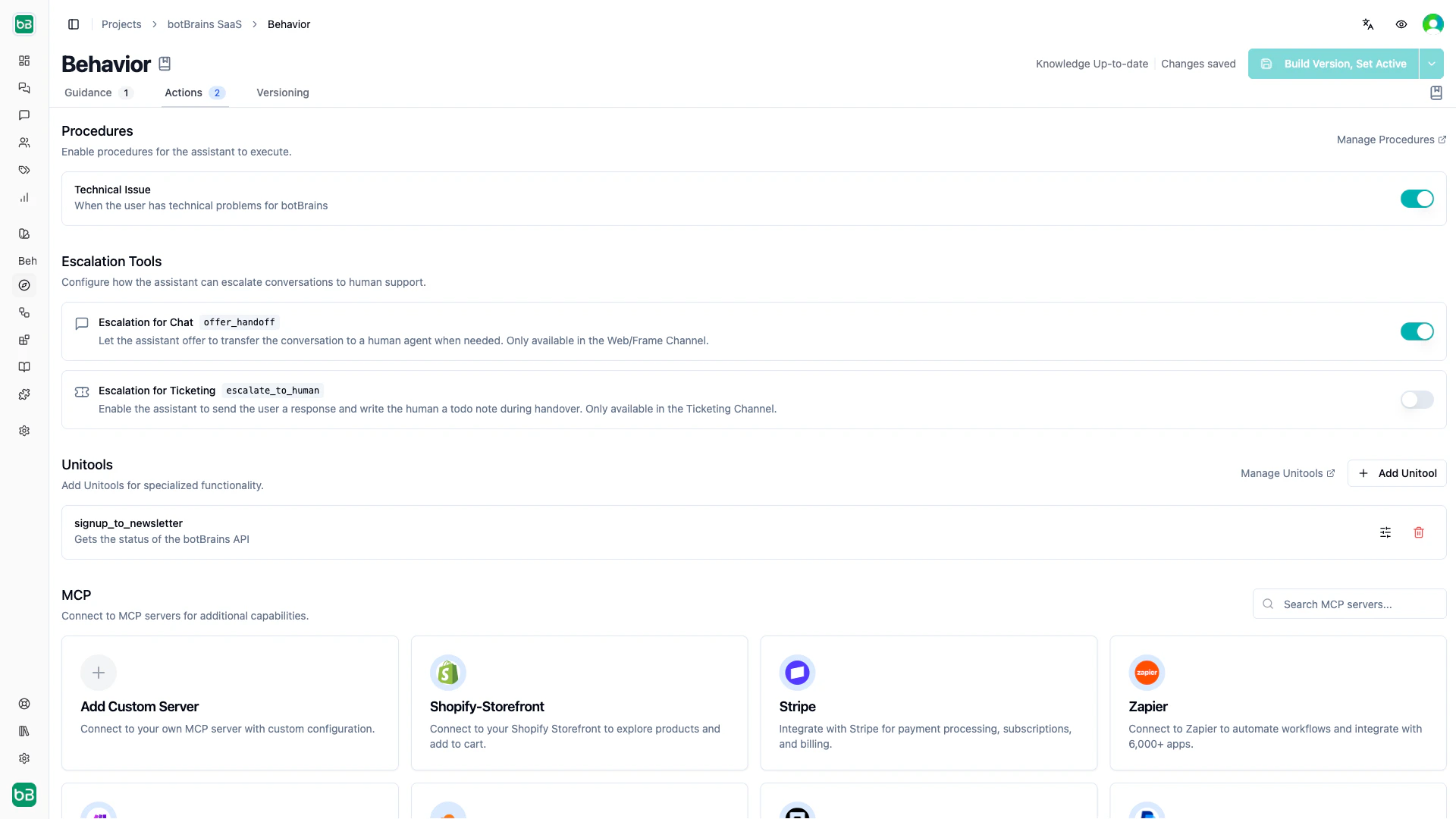
<img src="https://mintcdn.com/botbrains/iwe7EG2H5FvzvT9J/images/versioning/build-version-dialog.png?fit=max&auto=format&n=iwe7EG2H5FvzvT9J&q=85&s=afd902f19f09120fa23933fb2a247adf" alt="Build version dialog showing the two deployment options: Build Version Set Active and Build Version" data-generation-prompt="Navigate to platform.botbrains.io/~/profiles?tab=guidance. Make a small change to a guidance instruction (e.g. add a space). Click the blue 'Review your changes' button that appears. Capture the modal dialog showing both 'Build Version, Set Active' and 'Build Version' options. Use 1920x1080 viewport, collapse sidebar." width="1920" height="1080" data-path="images/versioning/build-version-dialog.png" />

<Warning>
  "Build Version, Set Active" deploys to **all** connected channels immediately. Test thoroughly before using this for significant changes.
</Warning>

## Rolling Back

If a deployment causes issues, roll back by setting a previous version as active:

1. Go to **Behavior → General → Versions**
2. Click **⋮** next to the previous good version
3. Select **Set as Active**

All channels revert immediately. The problematic version remains in your history for review.
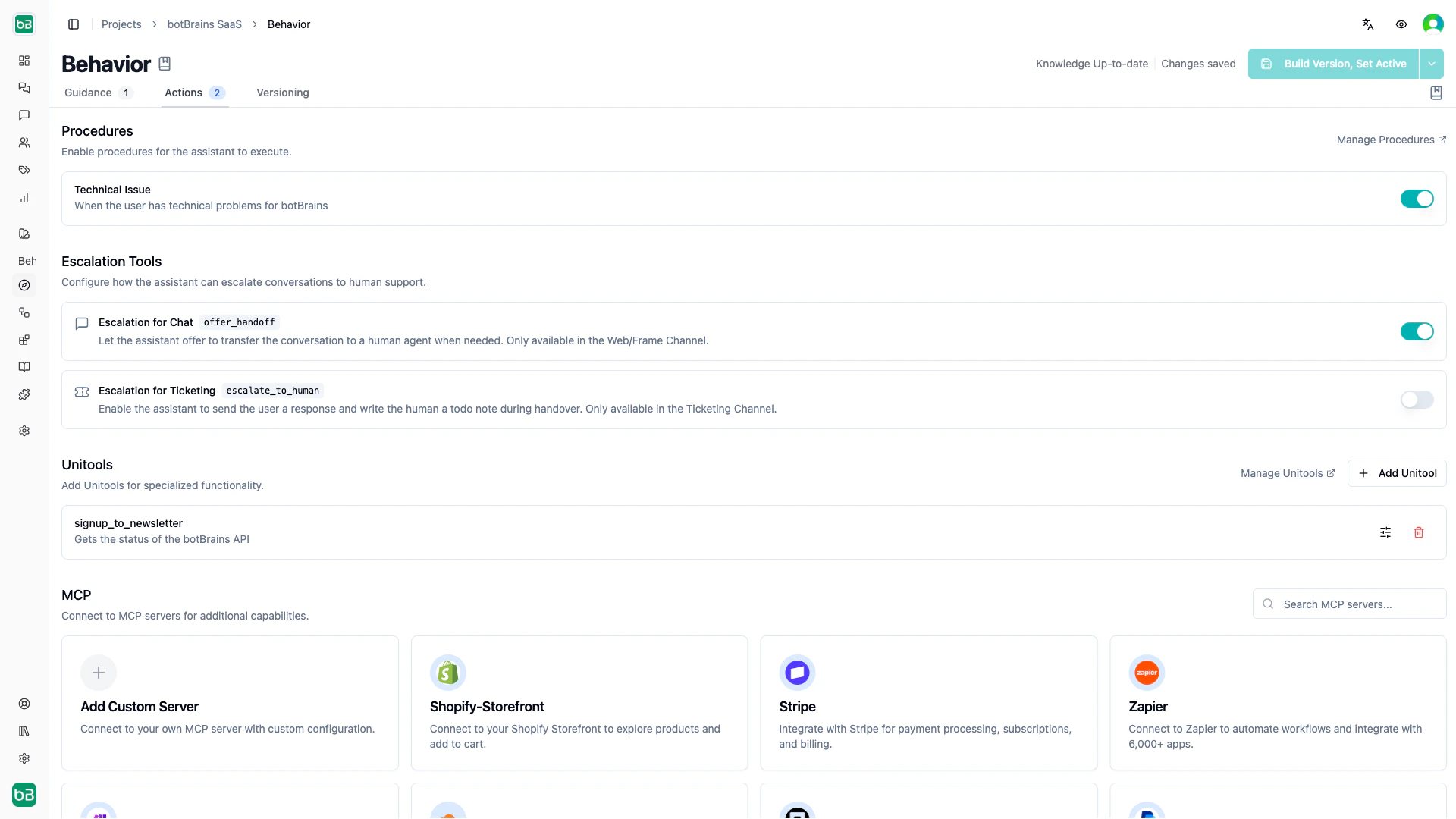
<img src="https://mintcdn.com/botbrains/iwe7EG2H5FvzvT9J/images/versioning/rollback-versions-list.png?fit=max&auto=format&n=iwe7EG2H5FvzvT9J&q=85&s=b003b6dd76b4a418621cd9106624d32d" alt="Versions management interface showing version history with menu buttons to set as active or view details" data-generation-prompt="Navigate to Behavior > General > Versions tab. Show a list with at least 3-4 versions (e.g., Version #5, #4, #3). Highlight the menu icon (three dots) next to a non-active version to show it's clickable. Capture the full versions interface with clear visibility of version numbers, their descriptions, build times, and the menu buttons. Use 1920x1080 viewport, collapse sidebar." data-og-width="1920" width="1920" data-og-height="1080" height="1080" data-path="images/versioning/rollback-versions-list.png" data-optimize="true" data-opv="3" srcset="https://mintcdn.com/botbrains/iwe7EG2H5FvzvT9J/images/versioning/rollback-versions-list.png?w=280&fit=max&auto=format&n=iwe7EG2H5FvzvT9J&q=85&s=0fce6315de219118d7db87dab16801ba 280w, https://mintcdn.com/botbrains/iwe7EG2H5FvzvT9J/images/versioning/rollback-versions-list.png?w=560&fit=max&auto=format&n=iwe7EG2H5FvzvT9J&q=85&s=2d70e21ae817be44419ab05f3a6e1cff 560w, https://mintcdn.com/botbrains/iwe7EG2H5FvzvT9J/images/versioning/rollback-versions-list.png?w=840&fit=max&auto=format&n=iwe7EG2H5FvzvT9J&q=85&s=718721155d362107cf0484098963f82c 840w, https://mintcdn.com/botbrains/iwe7EG2H5FvzvT9J/images/versioning/rollback-versions-list.png?w=1100&fit=max&auto=format&n=iwe7EG2H5FvzvT9J&q=85&s=2e079341c7c4df1d79eacf725d557758 1100w, https://mintcdn.com/botbrains/iwe7EG2H5FvzvT9J/images/versioning/rollback-versions-list.png?w=1650&fit=max&auto=format&n=iwe7EG2H5FvzvT9J&q=85&s=98b5a09822602702ff4c747a9edd38e5 1650w, https://mintcdn.com/botbrains/iwe7EG2H5FvzvT9J/images/versioning/rollback-versions-list.png?w=2500&fit=max&auto=format&n=iwe7EG2H5FvzvT9J&q=85&s=a4728febcb148b473c396ee274746f7d 2500w" />

## Knowledge Snapshots

Each version freezes your knowledge sources at build time. When data providers sync new content, you see an orange indicator prompting you to rebuild. Schedule regular builds (weekly, monthly) based on how often your content changes.
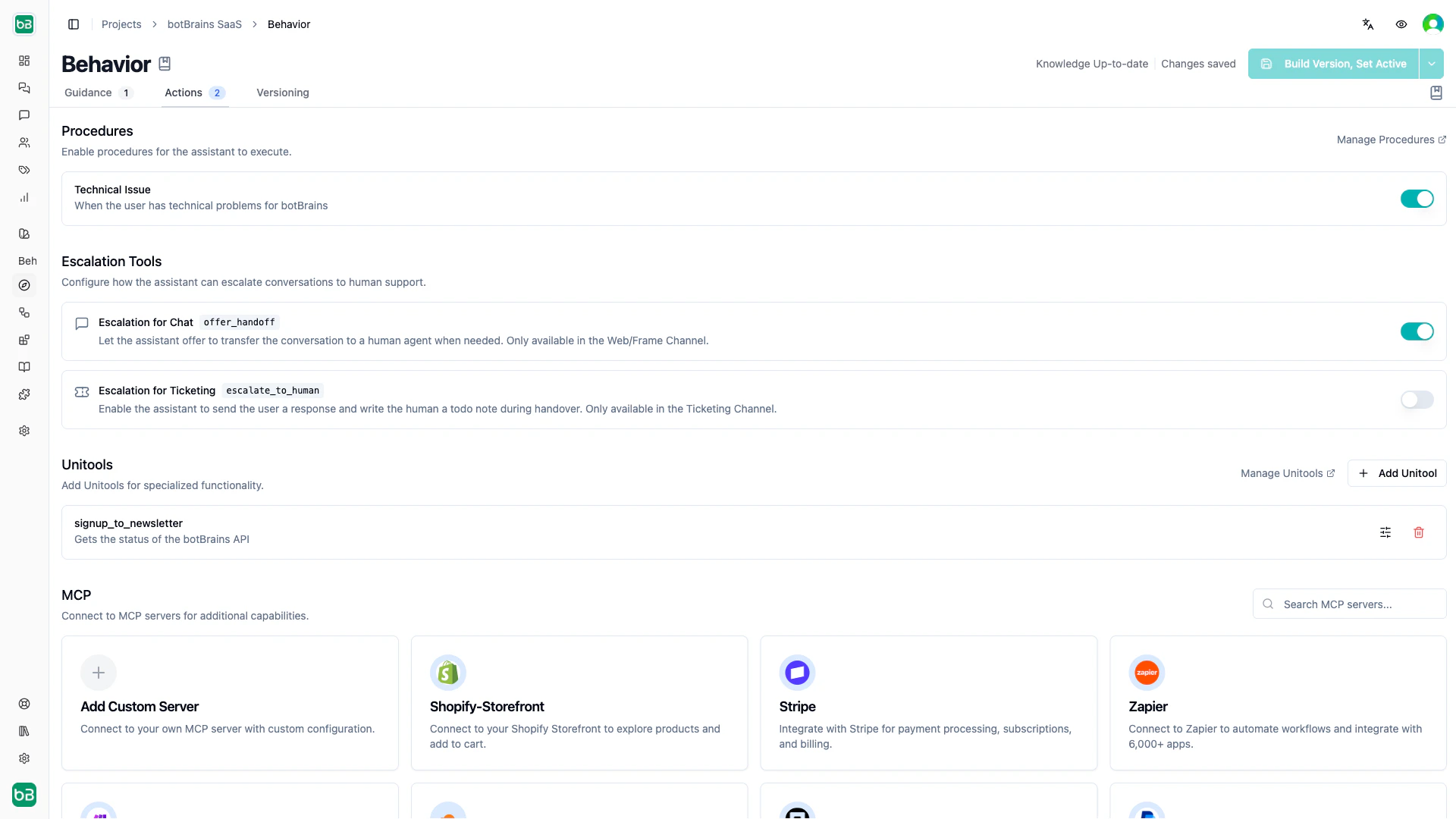
<img src="https://mintcdn.com/botbrains/iwe7EG2H5FvzvT9J/images/versioning/knowledge-update-indicator.png?fit=max&auto=format&n=iwe7EG2H5FvzvT9J&q=85&s=b3232b33a552a98b8913bbc305c767d5" alt="Orange update indicator on the Behavior tab showing that knowledge sources have been updated since the last build" data-generation-prompt="Navigate to Behavior tab. Look for the orange badge or indicator (typically on the tab itself or near 'Review your changes'). If not visible naturally, navigate to a data provider integration (e.g., Behavior > Data Sources) and verify content has been synced since the last version build. Capture the orange indicator that prompts a rebuild. Use 1920x1080 viewport, collapse sidebar." data-og-width="1920" width="1920" data-og-height="1080" height="1080" data-path="images/versioning/knowledge-update-indicator.png" data-optimize="true" data-opv="3" srcset="https://mintcdn.com/botbrains/iwe7EG2H5FvzvT9J/images/versioning/knowledge-update-indicator.png?w=280&fit=max&auto=format&n=iwe7EG2H5FvzvT9J&q=85&s=c20004bb6441394ec7a0148e8f063b6f 280w, https://mintcdn.com/botbrains/iwe7EG2H5FvzvT9J/images/versioning/knowledge-update-indicator.png?w=560&fit=max&auto=format&n=iwe7EG2H5FvzvT9J&q=85&s=d200cf53ad817b9cd8c788529ac49940 560w, https://mintcdn.com/botbrains/iwe7EG2H5FvzvT9J/images/versioning/knowledge-update-indicator.png?w=840&fit=max&auto=format&n=iwe7EG2H5FvzvT9J&q=85&s=50088cf11cbe5dd279d7c3ed712695d0 840w, https://mintcdn.com/botbrains/iwe7EG2H5FvzvT9J/images/versioning/knowledge-update-indicator.png?w=1100&fit=max&auto=format&n=iwe7EG2H5FvzvT9J&q=85&s=401951d2627757f7c2d040e6cf6b8769 1100w, https://mintcdn.com/botbrains/iwe7EG2H5FvzvT9J/images/versioning/knowledge-update-indicator.png?w=1650&fit=max&auto=format&n=iwe7EG2H5FvzvT9J&q=85&s=fd13b292e8e3e726f04a777a8d213c63 1650w, https://mintcdn.com/botbrains/iwe7EG2H5FvzvT9J/images/versioning/knowledge-update-indicator.png?w=2500&fit=max&auto=format&n=iwe7EG2H5FvzvT9J&q=85&s=34bcf1c445d07afe0f1a50130b23d9d4 2500w" />

<Tip>
  Knowledge updates don't reach users until you build a new version. If your data providers sync frequently, rebuild regularly to keep the AI current.
</Tip>
