> ## Documentation Index
> Fetch the complete documentation index at: https://docs.botbrains.io/llms.txt
> Use this file to discover all available pages before exploring further.
# Website Integration
> Integrate the botBrains AI agent into your website
Add an AI-powered chat to your website to provide instant customer support 24/7. The botBrains integration is customizable, lightweight, and easy to install - giving your visitors immediate access to answers without leaving your site.
## Value Proposition
The website chat integration transforms your customer experience:
* **Instant Answers**: Customers get immediate responses without waiting for email support or business hours
* **Reduced Bounce Rates**: Visitors find answers in real-time instead of leaving to search elsewhere
* **Lead Capture**: Engage prospects at the moment of interest with intelligent conversation
* **Seamless Integration**: Works with your existing website without complex setup or code changes
* **Brand Consistency**: Customize appearance to match your brand identity
## Prerequisites
Before integrating, you'll need:
* A botBrains project with configured AI behavior and knowledge sources
* A published frame (chat interface design)
* Access to edit your website's HTML
* Basic familiarity with adding code snippets to your website
## Integration Modes
botBrains offers three integration modes to fit different use cases. Choose the right mode based on your use case and page layout.
### Decision Matrix
| Mode | Best For | When to Use | When to Avoid |
| -------------------------- | --------------------------- | ----------------------------------------------------------------------------------------------------------------------------------------------------------- | ----------------------------------------------------------------------------------------------------------------------------- |
| **Launcher** (Recommended) | General website integration | • Multi-page support across entire site
• Non-intrusive engagement
• Standard support widget
• Mobile-responsive sites | • Pages where floating elements conflict
• Full-page applications |
| **Inline** | Dedicated support pages | • FAQ pages
• Contact/support pages
• Application sidebars
• Replacing traditional contact forms
• Full control over placement and size | • General site-wide integration
• When you want floating/minimizable chat |
| **iframe** (Deprecated) | Legacy compatibility only | • Only if technical constraints prevent launcher/inline
• Third-party embeds with strict isolation | • New integrations (use launcher or inline instead)
• When you need Web SDK features
• Mobile-optimized experiences |
### Mode Details
**Launcher Mode (Recommended)**
* Floating chat button in corner of page
* Minimizes to button when not in use
* Works across all pages with single embed
* Automatically responsive on mobile
* Supports all Web SDK features
**Inline Mode**
* Embeds directly into page content
* Always visible (no minimize)
* You control height/width via CSS
* Ideal for dedicated support sections
* Supports all Web SDK features
**iframe Mode (Deprecated)**
* Full-page iframe embed
* Limited Web SDK support
* Not recommended for new integrations
* Use launcher or inline instead
You cannot use both launcher and inline modes on the same page. Choose one per page, though you can use different modes on different pages of your site.
## Get Your Embed Code
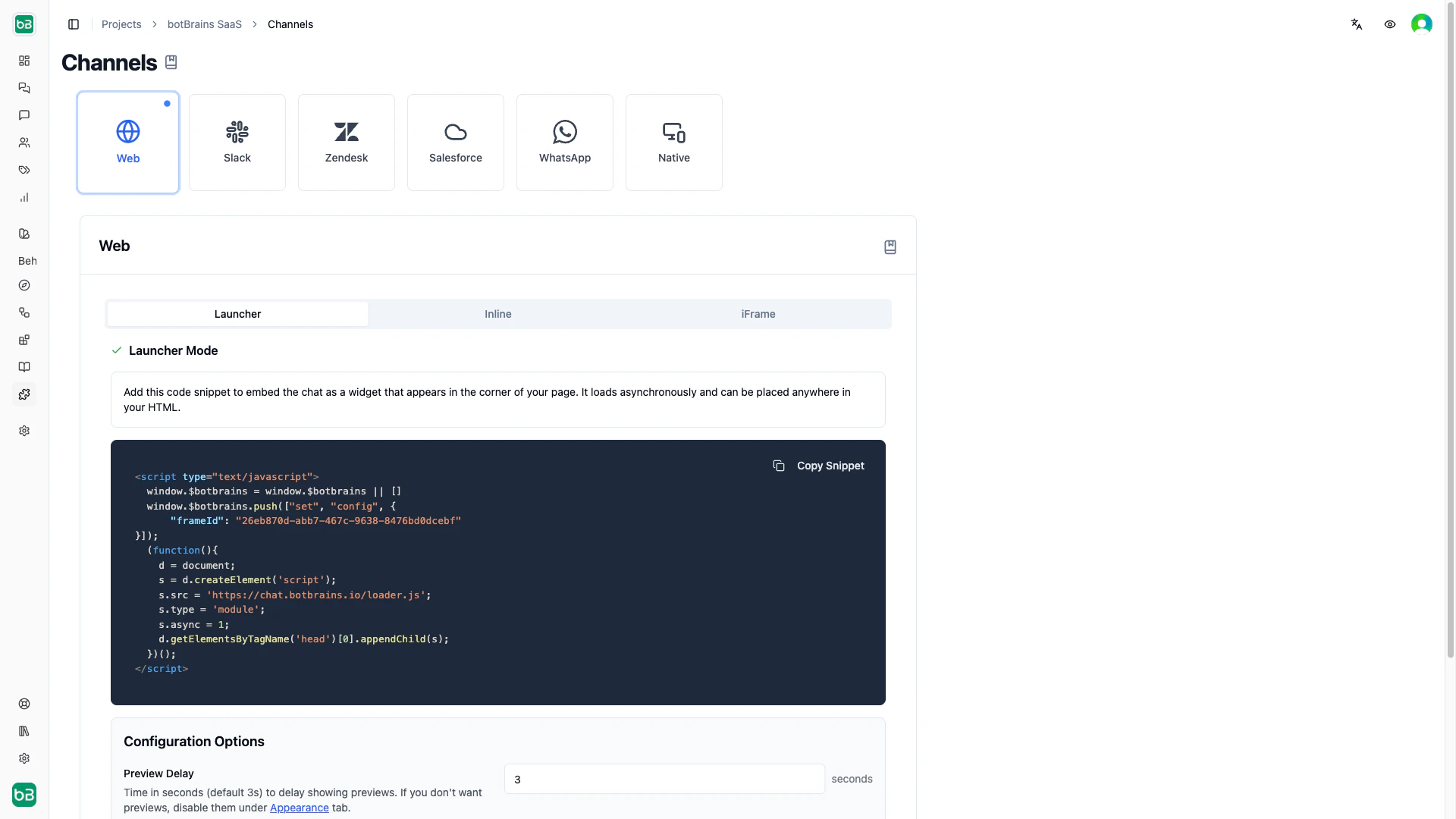
1. Navigate to **Channels** in your botBrains project
2. Click on **Web** integration
3. Select your desired mode (Launcher, Inline, or iframe)
4. Configure options as needed
5. Copy the generated code snippet
 ## Launcher Mode Integration
### Basic Setup
Add this code snippet as early as possible in your HTML, ideally in the `` section. This ensures `$botbrains` is available immediately:
```html theme={null}
```
Replace `your-frame-id` with your actual frame ID from the platform.
### Configuration Options
You can customize the launcher behavior by adding options to the config object:
```html theme={null}
```
#### Available Configuration Options
| Option | Type | Default | Description |
| ------------------------------- | ------- | ------------ | ---------------------------------------------------------------------------------------------------------------------------------------------------- |
| `frameId` | string | *required* | Your frame ID from botBrains |
| `previewDelayMs` | number | `3000` | Time in milliseconds to delay showing message previews (default 3 seconds) |
| `cookieDomain` | string | autodetected | Domain for session cookies. Leave empty for automatic top-level domain detection (for example, `.example.com` shares sessions across all subdomains) |
| `sessionRefreshLifetime` | number | `268320` | Session lifetime in minutes (default: 6 months) |
| `whatsappId` | string | - | WhatsApp integration ID issued by botBrains team |
| `experimentalListConversations` | boolean | `false` | Enable experimental UI for viewing and continuing multiple conversations |
The `previewDelayMs` option only controls the delay before showing previews. To disable previews entirely, configure this in the Frame settings under the Appearance tab.
The `cookieDomain` option affects how user sessions are shared across your domain. By default, sessions are shared across all subdomains (for example, [www.example.com](http://www.example.com), app.example.com). Only set this explicitly if you need to limit session sharing to a specific subdomain.
## Inline Mode Integration
### Basic Setup
Inline mode requires two code snippets - one for the script and one for the container element.
#### Step 1: Add the Script
Add this as early as possible in your HTML, ideally in the `` section:
```html theme={null}
```
#### Step 2: Add the Container
Place this `div` element where you want the chat to appear:
```html theme={null}
```
You control the height and width of the chat through the container's CSS.
**Important**: You must choose either launcher mode or inline mode per page. Using both on the same page is not supported. However, you can use different modes on different pages of your website.
### Configuration Options
Inline mode supports the same configuration options as launcher mode, plus:
| Option | Type | Default | Description |
| ---------- | ------ | -------------------------- | -------------------------------------------------------------------------------------------------- |
| `mode` | string | `"inline"` | Set this to `"inline"` for inline mode |
| `selector` | string | `"#botbrains-inline-chat"` | CSS selector where the loader renders the chat (must be a valid `document.querySelector()` target) |
All other options (`previewDelayMs`, `cookieDomain`, `sessionRefreshLifetime`, `whatsappId`, `experimentalListConversations`) work the same as in launcher mode.
## iframe Mode Integration (Deprecated)
**Deprecated**: iframe mode provides limited functionality and does not support the Web SDK. Use launcher or inline mode instead for the best experience.
If you need to use iframe mode for legacy compatibility:
```html theme={null}
```
## Platform-Specific Integration
### WordPress
1. Go to **Appearance** > **Theme File Editor**
2. Select your theme's `header.php` file (or `footer.php` if preferred)
3. Add the embed code in the `` section or early in the template
4. Click **Update File**
**Or use a plugin:**
1. Install the "Insert Headers and Footers" plugin
2. Go to **Settings** > **Insert Headers and Footers**
3. Paste the embed code in the "Scripts in Footer" section
4. Click **Save**
### Shopify
1. Go to **Online Store** > **Themes**
2. Click **Actions** > **Edit code** on your active theme
3. Find and open `theme.liquid`
4. Scroll to the bottom and add the embed code before ``
5. Click **Save**
### Webflow
1. Go to your project settings
2. Click on the **Custom Code** tab
3. Paste the embed code in the **Footer Code** section
4. Click **Save Changes** and republish your site
### React/Next.js
```jsx theme={null}
// Add to your layout component or _app.tsx
useEffect(() => {
window.$botbrains = window.$botbrains || [];
window.$botbrains.push(["set", "config", {
frameId: "your-frame-id",
// Add other config options here
}]);
const script = document.createElement('script');
script.src = 'https://chat.botbrains.io/loader.js';
script.type = 'module';
script.async = true;
document.head.appendChild(script);
return () => {
document.head.removeChild(script);
};
}, []);
```
## Customizing Appearance
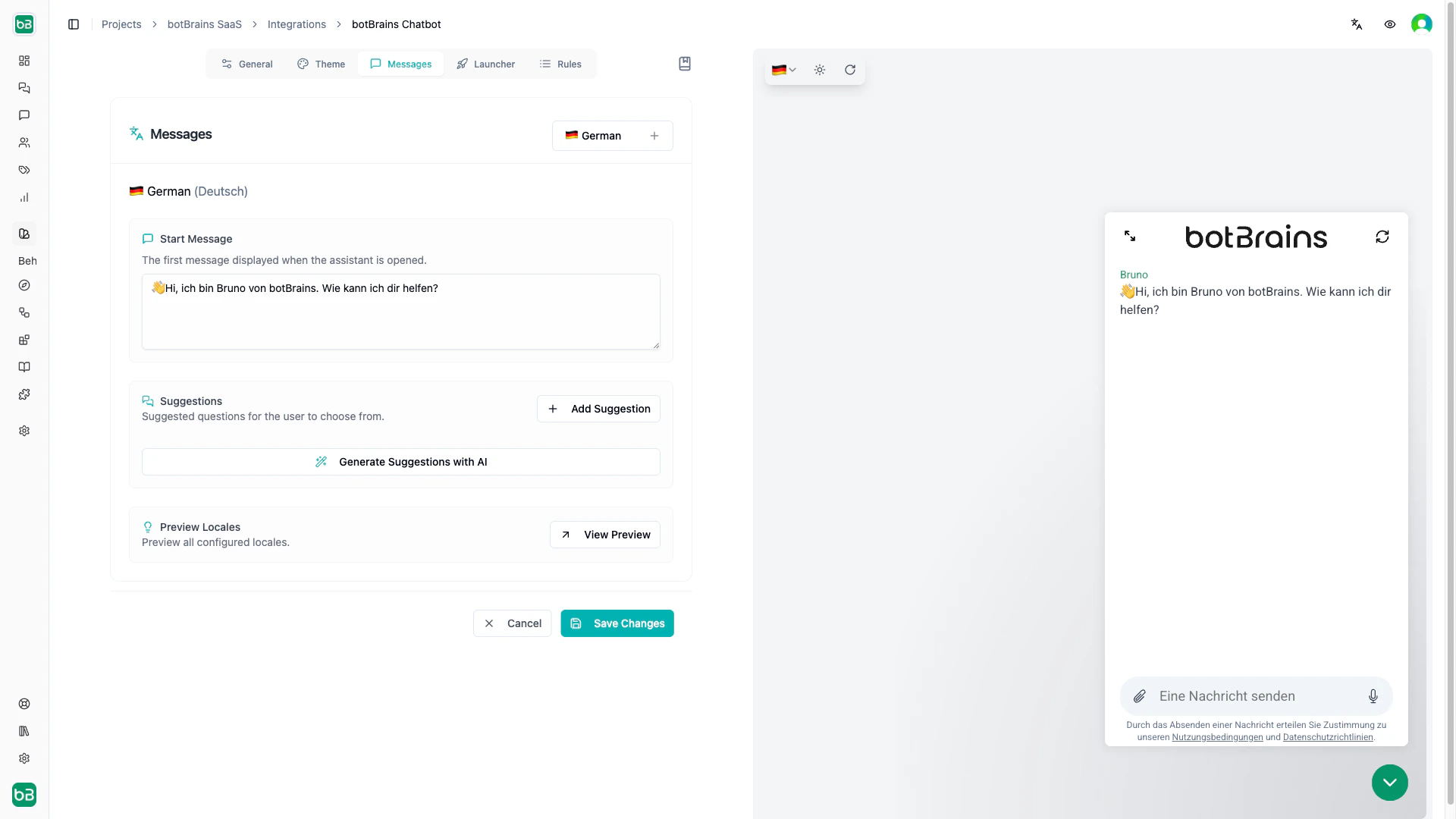
You customize the visual appearance through the Frame settings in your botBrains project:
1. Navigate to **Frames** in botBrains
2. Click **Edit** on your frame
3. Configure in the **Appearance** tab:
* Colors: Primary color, background, text colors
* Position: Bottom right, bottom left (launcher mode only)
* Branding: Logo, avatar, welcome message
* Language: Widget text and labels
* Previews: Enable/disable message previews
## Launcher Mode Integration
### Basic Setup
Add this code snippet as early as possible in your HTML, ideally in the `` section. This ensures `$botbrains` is available immediately:
```html theme={null}
```
Replace `your-frame-id` with your actual frame ID from the platform.
### Configuration Options
You can customize the launcher behavior by adding options to the config object:
```html theme={null}
```
#### Available Configuration Options
| Option | Type | Default | Description |
| ------------------------------- | ------- | ------------ | ---------------------------------------------------------------------------------------------------------------------------------------------------- |
| `frameId` | string | *required* | Your frame ID from botBrains |
| `previewDelayMs` | number | `3000` | Time in milliseconds to delay showing message previews (default 3 seconds) |
| `cookieDomain` | string | autodetected | Domain for session cookies. Leave empty for automatic top-level domain detection (for example, `.example.com` shares sessions across all subdomains) |
| `sessionRefreshLifetime` | number | `268320` | Session lifetime in minutes (default: 6 months) |
| `whatsappId` | string | - | WhatsApp integration ID issued by botBrains team |
| `experimentalListConversations` | boolean | `false` | Enable experimental UI for viewing and continuing multiple conversations |
The `previewDelayMs` option only controls the delay before showing previews. To disable previews entirely, configure this in the Frame settings under the Appearance tab.
The `cookieDomain` option affects how user sessions are shared across your domain. By default, sessions are shared across all subdomains (for example, [www.example.com](http://www.example.com), app.example.com). Only set this explicitly if you need to limit session sharing to a specific subdomain.
## Inline Mode Integration
### Basic Setup
Inline mode requires two code snippets - one for the script and one for the container element.
#### Step 1: Add the Script
Add this as early as possible in your HTML, ideally in the `` section:
```html theme={null}
```
#### Step 2: Add the Container
Place this `div` element where you want the chat to appear:
```html theme={null}
```
You control the height and width of the chat through the container's CSS.
**Important**: You must choose either launcher mode or inline mode per page. Using both on the same page is not supported. However, you can use different modes on different pages of your website.
### Configuration Options
Inline mode supports the same configuration options as launcher mode, plus:
| Option | Type | Default | Description |
| ---------- | ------ | -------------------------- | -------------------------------------------------------------------------------------------------- |
| `mode` | string | `"inline"` | Set this to `"inline"` for inline mode |
| `selector` | string | `"#botbrains-inline-chat"` | CSS selector where the loader renders the chat (must be a valid `document.querySelector()` target) |
All other options (`previewDelayMs`, `cookieDomain`, `sessionRefreshLifetime`, `whatsappId`, `experimentalListConversations`) work the same as in launcher mode.
## iframe Mode Integration (Deprecated)
**Deprecated**: iframe mode provides limited functionality and does not support the Web SDK. Use launcher or inline mode instead for the best experience.
If you need to use iframe mode for legacy compatibility:
```html theme={null}
```
## Platform-Specific Integration
### WordPress
1. Go to **Appearance** > **Theme File Editor**
2. Select your theme's `header.php` file (or `footer.php` if preferred)
3. Add the embed code in the `` section or early in the template
4. Click **Update File**
**Or use a plugin:**
1. Install the "Insert Headers and Footers" plugin
2. Go to **Settings** > **Insert Headers and Footers**
3. Paste the embed code in the "Scripts in Footer" section
4. Click **Save**
### Shopify
1. Go to **Online Store** > **Themes**
2. Click **Actions** > **Edit code** on your active theme
3. Find and open `theme.liquid`
4. Scroll to the bottom and add the embed code before ``
5. Click **Save**
### Webflow
1. Go to your project settings
2. Click on the **Custom Code** tab
3. Paste the embed code in the **Footer Code** section
4. Click **Save Changes** and republish your site
### React/Next.js
```jsx theme={null}
// Add to your layout component or _app.tsx
useEffect(() => {
window.$botbrains = window.$botbrains || [];
window.$botbrains.push(["set", "config", {
frameId: "your-frame-id",
// Add other config options here
}]);
const script = document.createElement('script');
script.src = 'https://chat.botbrains.io/loader.js';
script.type = 'module';
script.async = true;
document.head.appendChild(script);
return () => {
document.head.removeChild(script);
};
}, []);
```
## Customizing Appearance
You customize the visual appearance through the Frame settings in your botBrains project:
1. Navigate to **Frames** in botBrains
2. Click **Edit** on your frame
3. Configure in the **Appearance** tab:
* Colors: Primary color, background, text colors
* Position: Bottom right, bottom left (launcher mode only)
* Branding: Logo, avatar, welcome message
* Language: Widget text and labels
* Previews: Enable/disable message previews
 ## Testing Your Integration
Before going live:
1. **Preview Mode**: Test the integration in a staging environment first
2. **Responsive Design**: Verify the chat works on mobile, tablet, and desktop
3. **Browser Testing**: Check compatibility across Chrome, Firefox, Safari, and Edge
4. **Performance**: Ensure the integration doesn't slow down your page load
5. **Functionality**: Test conversations, escalations, and edge cases
Use Browser DevTools: Open your browser's console to see any errors or warnings during testing.
## Frequently Asked Questions
If the chat doesn't show up:
1. **Check the code placement**: Ensure the script is in your HTML (ideally in ``)
2. **Verify frameId**: Confirm your frame ID is correct in the config object
3. **Check browser console**: Look for JavaScript errors
4. **Clear cache**: Try hard-refreshing your page (Ctrl+Shift+R / Cmd+Shift+R)
5. **Check frame status**: Ensure the frame is published in botBrains
6. **Inline mode**: Verify the container element exists and has a valid selector
If the integration slows down your site:
1. **Async loading**: The script already loads asynchronously with `s.async = 1`
2. **Optimize frame**: Reduce custom CSS and heavy assets in your frame design
3. **Preview delay**: Increase `previewDelayMs` to reduce initial loading impact
If the chat looks broken:
1. **CSS specificity**: Your site's CSS might be overriding chat styles
2. **Z-index issues**: Ensure the chat appears above other elements (especially in launcher mode)
3. **Inline mode**: Check that the container element has appropriate dimensions set
If your configuration changes aren't working:
1. **Clear cookies**: Your browser may be caching an old session
2. **Hard refresh**: Clear browser cache with Ctrl+Shift+R / Cmd+Shift+R
3. **Check syntax**: Ensure your config object is valid JSON
4. **Cookie domain**: If using `cookieDomain`, verify it matches your domain structure
## Best Practices
**Start Simple**: Begin with the basic integration and minimal configuration. Add advanced options only when needed.
**Mobile-First**: Test on mobile devices where space is limited. Consider using inline mode on mobile for FAQ pages.
**Clear Welcome Message**: Configure a welcome message in your frame that tells visitors what the AI agent can help with.
**Session Management**: The default 6-month session lifetime works well for most use cases. Only adjust if you have specific privacy or security requirements.
**Test Before Launch**: Always test the integration thoroughly in a staging environment before deploying to production.
**Monitor Performance**: Keep an eye on page load times to ensure the integration doesn't negatively impact user experience.
## Frequently Asked Questions
### Does botBrains slow down my website
No, the botBrains team designed the widget to have zero impact on your website's performance. Here's why:
**Asynchronous Loading**: The script loads asynchronously with `s.async = 1`, which means it never blocks your page from rendering. Your website content loads and displays regardless of how fast the botBrains widget loads.
**Low Priority Execution**: The widget initializes with low priority, ensuring critical page resources (images, fonts, stylesheets) load first.
**Lazy Chat Interface**: The full chat interface only loads when a user clicks the launcher button, not on initial page load.
**Minimal Footprint**: The initial script is lightweight (\< 10KB gzipped), comparable to a small image.
**CDN Distribution**: A global CDN with edge caching serves the scripts, ensuring fast delivery from locations close to your users.
**Smart Caching**: Once loaded, the browser caches the widget, making subsequent page visits even faster.
### Does botBrains block my renders
No. The browser loads the script with `async` and `type="module"`, which means:
* Your page HTML renders immediately
* Critical rendering path is never blocked
* First Contentful Paint (FCP) and Largest Contentful Paint (LCP) metrics remain unaffected
* The launcher button appears after page content is visible
You can verify this yourself using Google PageSpeed Insights or Chrome DevTools Performance tab - you'll see the botBrains script has no impact on your Core Web Vitals scores.
## Next Steps
After integrating:
* [Customize Your Frame](/concepts/frames) - Design the perfect chat interface for your brand
* [Configure Escalations](/concepts/escalations) - Set up human handoff for complex issues
* [Monitor Conversations](/concepts/conversations) - Review how customers are using the chat
* [Analyze Topics](/concepts/topics) - Discover what questions customers ask most
## Testing Your Integration
Before going live:
1. **Preview Mode**: Test the integration in a staging environment first
2. **Responsive Design**: Verify the chat works on mobile, tablet, and desktop
3. **Browser Testing**: Check compatibility across Chrome, Firefox, Safari, and Edge
4. **Performance**: Ensure the integration doesn't slow down your page load
5. **Functionality**: Test conversations, escalations, and edge cases
Use Browser DevTools: Open your browser's console to see any errors or warnings during testing.
## Frequently Asked Questions
If the chat doesn't show up:
1. **Check the code placement**: Ensure the script is in your HTML (ideally in ``)
2. **Verify frameId**: Confirm your frame ID is correct in the config object
3. **Check browser console**: Look for JavaScript errors
4. **Clear cache**: Try hard-refreshing your page (Ctrl+Shift+R / Cmd+Shift+R)
5. **Check frame status**: Ensure the frame is published in botBrains
6. **Inline mode**: Verify the container element exists and has a valid selector
If the integration slows down your site:
1. **Async loading**: The script already loads asynchronously with `s.async = 1`
2. **Optimize frame**: Reduce custom CSS and heavy assets in your frame design
3. **Preview delay**: Increase `previewDelayMs` to reduce initial loading impact
If the chat looks broken:
1. **CSS specificity**: Your site's CSS might be overriding chat styles
2. **Z-index issues**: Ensure the chat appears above other elements (especially in launcher mode)
3. **Inline mode**: Check that the container element has appropriate dimensions set
If your configuration changes aren't working:
1. **Clear cookies**: Your browser may be caching an old session
2. **Hard refresh**: Clear browser cache with Ctrl+Shift+R / Cmd+Shift+R
3. **Check syntax**: Ensure your config object is valid JSON
4. **Cookie domain**: If using `cookieDomain`, verify it matches your domain structure
## Best Practices
**Start Simple**: Begin with the basic integration and minimal configuration. Add advanced options only when needed.
**Mobile-First**: Test on mobile devices where space is limited. Consider using inline mode on mobile for FAQ pages.
**Clear Welcome Message**: Configure a welcome message in your frame that tells visitors what the AI agent can help with.
**Session Management**: The default 6-month session lifetime works well for most use cases. Only adjust if you have specific privacy or security requirements.
**Test Before Launch**: Always test the integration thoroughly in a staging environment before deploying to production.
**Monitor Performance**: Keep an eye on page load times to ensure the integration doesn't negatively impact user experience.
## Frequently Asked Questions
### Does botBrains slow down my website
No, the botBrains team designed the widget to have zero impact on your website's performance. Here's why:
**Asynchronous Loading**: The script loads asynchronously with `s.async = 1`, which means it never blocks your page from rendering. Your website content loads and displays regardless of how fast the botBrains widget loads.
**Low Priority Execution**: The widget initializes with low priority, ensuring critical page resources (images, fonts, stylesheets) load first.
**Lazy Chat Interface**: The full chat interface only loads when a user clicks the launcher button, not on initial page load.
**Minimal Footprint**: The initial script is lightweight (\< 10KB gzipped), comparable to a small image.
**CDN Distribution**: A global CDN with edge caching serves the scripts, ensuring fast delivery from locations close to your users.
**Smart Caching**: Once loaded, the browser caches the widget, making subsequent page visits even faster.
### Does botBrains block my renders
No. The browser loads the script with `async` and `type="module"`, which means:
* Your page HTML renders immediately
* Critical rendering path is never blocked
* First Contentful Paint (FCP) and Largest Contentful Paint (LCP) metrics remain unaffected
* The launcher button appears after page content is visible
You can verify this yourself using Google PageSpeed Insights or Chrome DevTools Performance tab - you'll see the botBrains script has no impact on your Core Web Vitals scores.
## Next Steps
After integrating:
* [Customize Your Frame](/concepts/frames) - Design the perfect chat interface for your brand
* [Configure Escalations](/concepts/escalations) - Set up human handoff for complex issues
* [Monitor Conversations](/concepts/conversations) - Review how customers are using the chat
* [Analyze Topics](/concepts/topics) - Discover what questions customers ask most