> ## Documentation Index
> Fetch the complete documentation index at: https://docs.botbrains.io/llms.txt
> Use this file to discover all available pages before exploring further.
# Ticket Field Prediction
> Automatically categorize and fill ticket fields with AI
Every dropdown, multiselect, priority, custom status, assignee, group assignee is a **ticket field** in Zendesk. Ticket Field Prediction uses AI to predict these values using LLMs. You can use it to categorize tickets, annotate topics, set priorities, and fill custom fields based on ticket content. This reduces manual data entry, ensures consistent categorization, and enables automated routing and SLA tracking.
It can also predict the correct ticket form. This ensures tickets use the right fields and workflows from the start.
## Why It Matters
Zendesk uses ticket fields to power critical workflows:
* **Routing** - Direct tickets to the right team based on category, product, or priority
* **SLAs** - Track response times using priority levels
* **Automation** - Trigger workflows based on field values
* **Reporting** - Analyze support trends by category, product, or custom fields
When AI predicts these fields accurately, tickets move through your support pipeline faster with less agent effort.
## What Gets Predicted
* **Ticket Forms** - Select the appropriate form (Bug Report, Billing, Feature Request, etc.)
* **Built-in Fields** - Set urgency level (Low, Normal, High, Urgent), assignee, group assignee, brand, ...
* **Custom Fields** - Fill dropdowns, checkboxes, and text fields (product, category, issue type, etc.)
Since tags power the built-in fields, we can also predict arbitrary tags.
Assignee, group, lookup, and status fields cannot be predicted-these require manual intervention or separate automation rules.
## How It Works
Access the predictor from your Zendesk integration card in **Channels**.
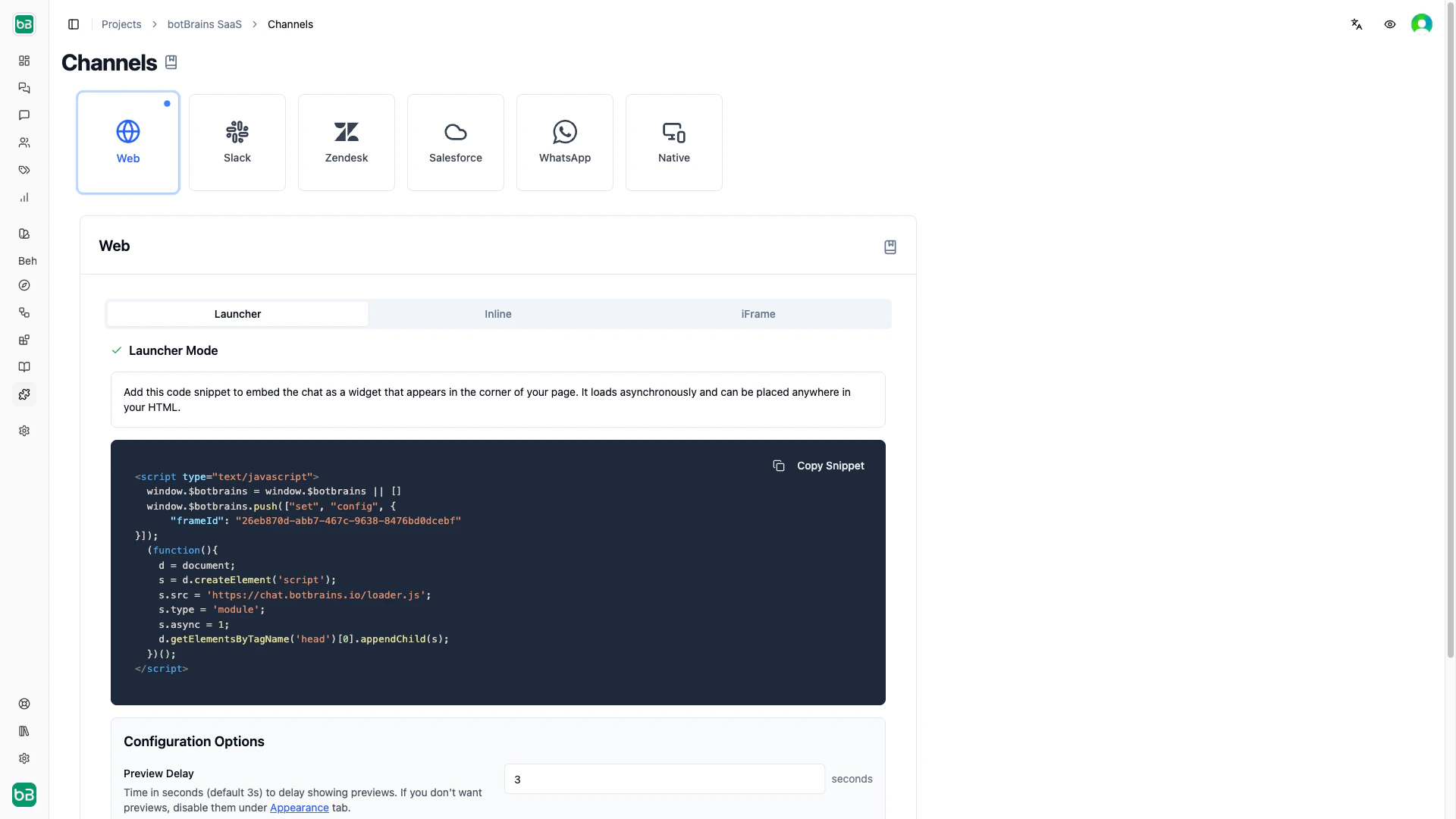 The ticket values are automatically imported from Zendesk after the integration.
You can:
* Enable/disable the predictor globally
* Configure which fields to predict
* Provide instructions for how to classify each field
* Choose whether the predictor fills fields before or after the AI response
* Test predictions with real tickets before going live
* Validate your configuration for errors
The ticket values are automatically imported from Zendesk after the integration.
You can:
* Enable/disable the predictor globally
* Configure which fields to predict
* Provide instructions for how to classify each field
* Choose whether the predictor fills fields before or after the AI response
* Test predictions with real tickets before going live
* Validate your configuration for errors
 The predictor fills **pre-completion fields** before generating the AI response, and they can influence response quality (for example, product category, customer segment). The predictor fills **post-completion fields** after the response, and they describe the resolution.
Start with 2-3 post-completion fields like priority and category. Only use pre-completion for fields that genuinely affect response quality.
Field predictions work both in **public mode** and in **private mode**. See [Operating Modes](/concepts/zendesk-integration#operating-modes) in the integration guide.
## Next Steps
1. Access the predictor via your Zendesk integration card
2. Test with historical tickets to verify prediction accuracy
3. Start in private mode to review predictions without affecting customers
4. Monitor accuracy and refine instructions weekly
5. Enable public mode when confident in automatic field updates
For integration setup, see [Zendesk Integration](/concepts/zendesk-integration).
The predictor fills **pre-completion fields** before generating the AI response, and they can influence response quality (for example, product category, customer segment). The predictor fills **post-completion fields** after the response, and they describe the resolution.
Start with 2-3 post-completion fields like priority and category. Only use pre-completion for fields that genuinely affect response quality.
Field predictions work both in **public mode** and in **private mode**. See [Operating Modes](/concepts/zendesk-integration#operating-modes) in the integration guide.
## Next Steps
1. Access the predictor via your Zendesk integration card
2. Test with historical tickets to verify prediction accuracy
3. Start in private mode to review predictions without affecting customers
4. Monitor accuracy and refine instructions weekly
5. Enable public mode when confident in automatic field updates
For integration setup, see [Zendesk Integration](/concepts/zendesk-integration).