> ## Documentation Index
> Fetch the complete documentation index at: https://docs.botbrains.io/llms.txt
> Use this file to discover all available pages before exploring further.

# Zendesk Integration

> Connect botBrains with your Zendesk account

The botBrains Zendesk integration enables AI-powered automation for your customer support team. By connecting your Zendesk account, botBrains can automatically respond to tickets, predict ticket fields, and help resolve customer inquiries faster.

<Note>
  The trigger formerly called **"Assign botBrains \[DO NOT EDIT]"** has been renamed to **"\[botBrains] Assign AI"**. If your account still uses the old name, it works the same way.
</Note>

## The 3 Necessary Triggers

You need at least 3 triggers to make botBrains work in your Zendesk:

<AccordionGroup>
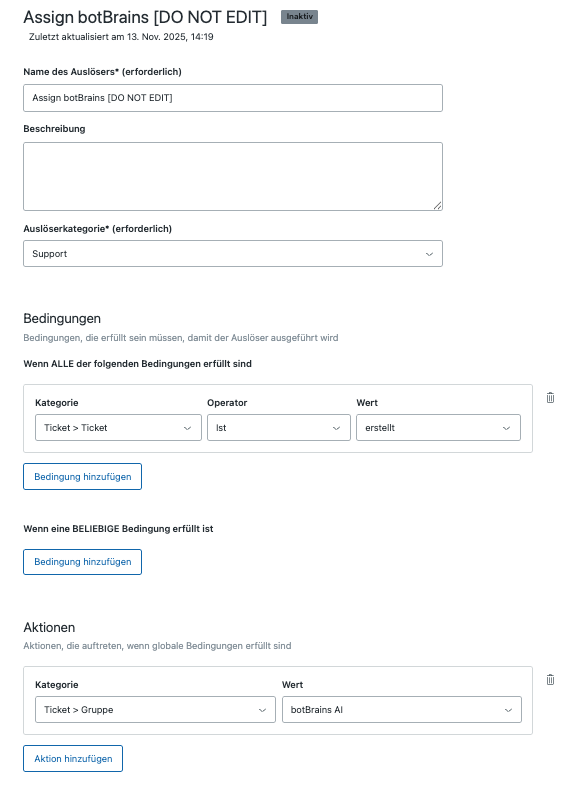
  <Accordion title="[botBrains] Assign AI">
    This trigger is auto-created and by default targets all new tickets created.

    <Frame>
      <img src="https://mintcdn.com/botbrains/DRJyGA8Db2BtcVEo/images/zendesk-trigger-assign-ai.png?fit=max&auto=format&n=DRJyGA8Db2BtcVEo&q=85&s=ea0ab80ef4c6894c2060912536ff86d0" alt="Zendesk trigger configuration for assigning tickets to botBrains AI" width="581" height="785" data-path="images/zendesk-trigger-assign-ai.png" />
    </Frame>

    You can scope the conditions down as you like. See [Configuring When botBrains Should Answer](#configuring-when-botbrains-should-answer) for common customizations.
  </Accordion>

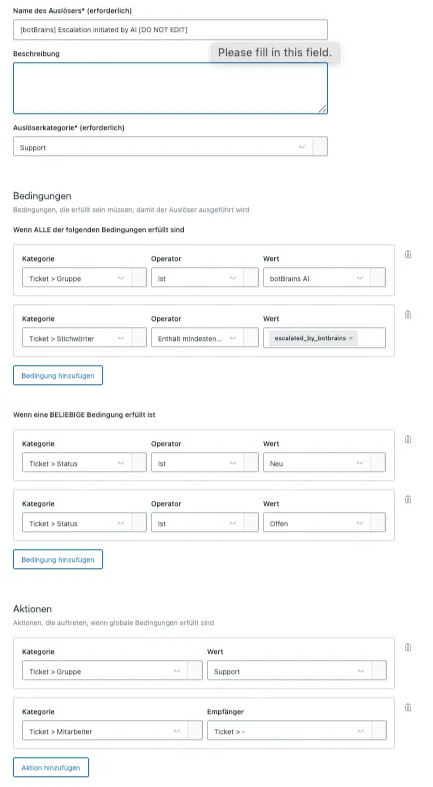
  <Accordion title="[botBrains] Escalated by AI">
    This handles how escalations from the botBrains AI are handled in your system. If you want to escalate to different groups based on a field (for example, Topic annotated by AI), duplicate this rule and add the additional field under ALL conditions and change the target group.

    <Frame>
      <img src="https://mintcdn.com/botbrains/DRJyGA8Db2BtcVEo/images/zendesk-trigger-escalated-by-ai.png?fit=max&auto=format&n=DRJyGA8Db2BtcVEo&q=85&s=a990bce0ab5aba6fe1bc9ea247ba7a06" alt="Zendesk trigger configuration for AI-initiated escalations" width="433" height="787" data-path="images/zendesk-trigger-escalated-by-ai.png" />
    </Frame>
  </Accordion>

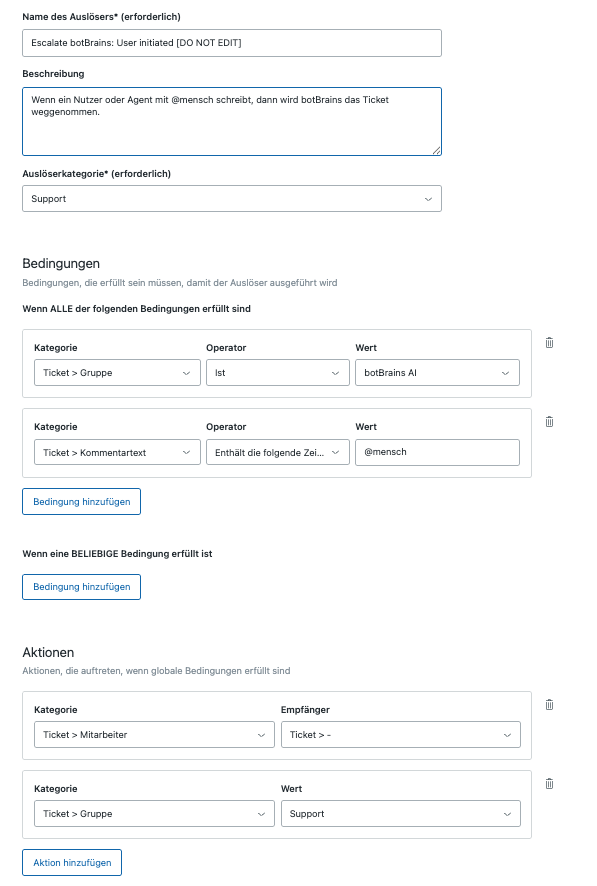
  <Accordion title="[botBrains] Escalated by Human">
    This handles how escalations by your customers forcing to speak to a human will be handled.

    <Frame>
      <img src="https://mintcdn.com/botbrains/DRJyGA8Db2BtcVEo/images/zendesk-trigger-escalated-by-human.png?fit=max&auto=format&n=DRJyGA8Db2BtcVEo&q=85&s=c1646f2bdd1494c55c40b8085c5cbeff" alt="Zendesk trigger configuration for human-initiated escalations" width="597" height="886" data-path="images/zendesk-trigger-escalated-by-human.png" />
    </Frame>
  </Accordion>
</AccordionGroup>

## Configuring When botBrains Should Answer

You can configure which tickets botBrains should process with the trigger **"\[botBrains] Assign AI"**.

While the name suggests differently, it's actually intended that you steer in which cases botBrains should run. Common customizations include:

1. **Exclude automated requestors** - Some email addresses belong to automated systems. Examples include `service@paypal.de` and `ebay@ebay.com`. If it's difficult to exclude them in Zendesk, you can also use **Settings > Triggers** and configure Block rules in botBrains.

2. **Limit channels** - If you support emails and voice calls, you likely don't want to respond to empty ticket transcripts. Filter by `Ticket > Channel` any of `email` and `webform`.

3. **Limit brands** - Use filters like `Ticket > Brand is XY` to restrict botBrains to specific brands.

## Adding the Legal Disclaimer

In Germany, you must declare automated systems. Edit your trigger **"Inform requestor of Comment Changes"** to include a disclaimer when the current group is `botBrains AI`.

<Tabs>
  <Tab title="With Brands access">
    Add the disclaimer via the brand-specific signature text:

    ```liquid theme={null}
    Ihre Anfrage ({{ticket.id}}) wurde aktualisiert. Um zusätzliche Informationen hinzuzufügen, antworten Sie auf diese E-Mail.
    {{ticket.comments_formatted}}

    {% if ticket.group.name == 'botBrains AI' %}

    Diese Antwort wurde automatisch von einer künstlichen Intelligenz generiert, um Ihnen schnellstmöglich weiterzuhelfen. Falls Sie feststellen, dass Informationen fehlen, unklar oder fehlerhaft sind, antworten Sie bitte direkt auf dieses Ticket mit dem Stichwort "Kundensupport". Ihre Anfrage wird dann umgehend an uns weitergeleitet. Die KI stammt vom deutschen Technologie-Unternehmen <a href="https://www.botbrains.io?utm_source=zendesk&utm_medium=email&utm_campaign=YOUR_COMPANY_NAME" target="_blank">botBrains</a>.

    {% endif %}
    ```
  </Tab>

  <Tab title="Without Brands access">
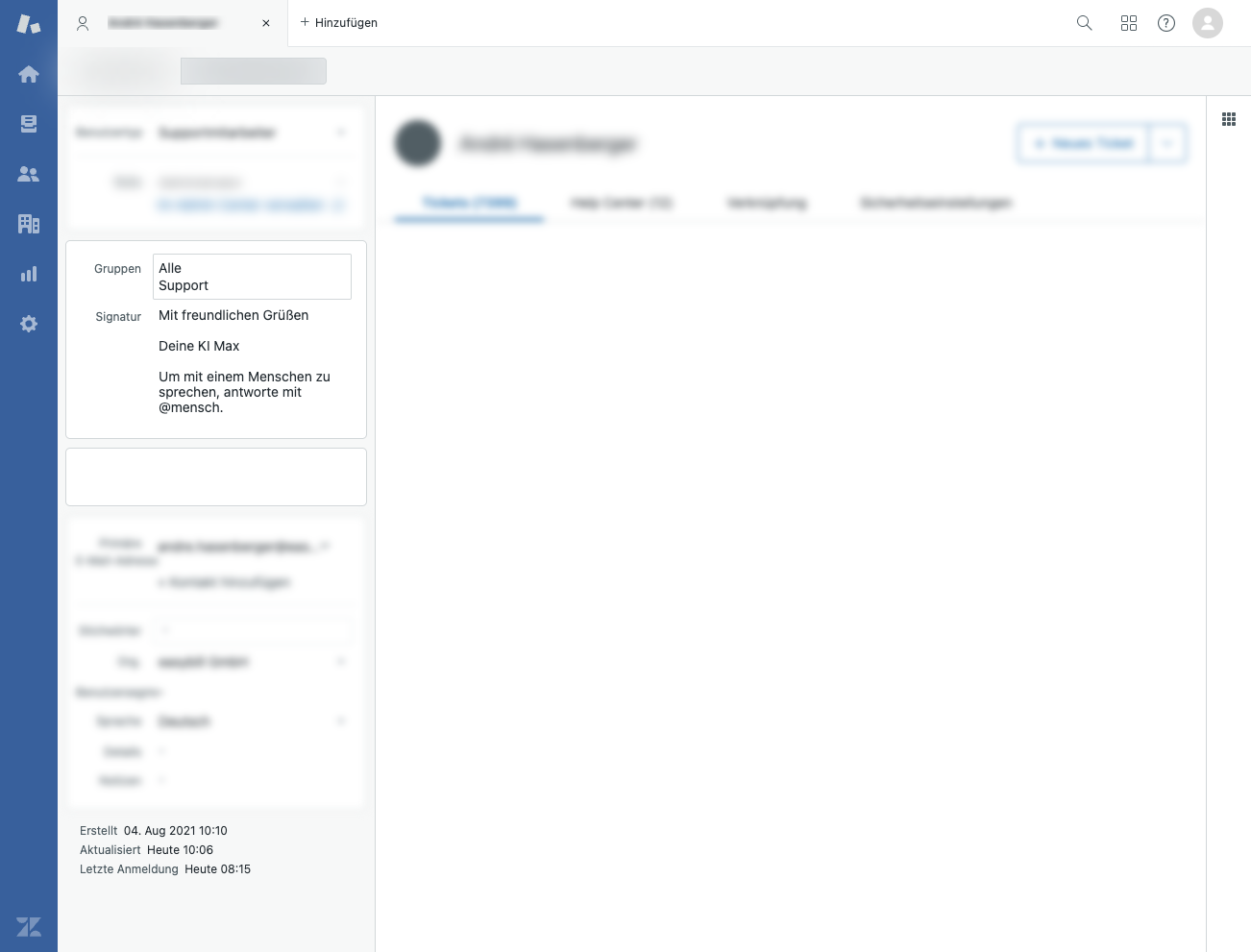
    Add the disclaimer via the user-specific signature in the person detail view.

    <Frame>
      <img src="https://mintcdn.com/botbrains/DRJyGA8Db2BtcVEo/images/zendesk-user-signature.png?fit=max&auto=format&n=DRJyGA8Db2BtcVEo&q=85&s=bc9c3e42f6168c94ce912a2c1a20c152" alt="Zendesk user signature configuration for legal disclaimer" width="1302" height="991" data-path="images/zendesk-user-signature.png" />
    </Frame>
  </Tab>
</Tabs>

## Adding an Escalation Link to Emails

You can add an escalation link to Zendesk email notifications so customers can request a human agent with one click or by typing a keyword. The link only appears when the ticket is handled by botBrains.

1. In your Zendesk Admin Center, go to **Objects and rules > Business rules > Triggers**.
2. Find the trigger that notifies requesters about comment updates (e.g. "Notify requester and CCs of comment update" / "Anfragenden und CCs über Kommentaraktualisierung benachrichtigen").
3. In the **Action** section, append this snippet to the email body:

```liquid theme={null}
{% if ticket.group.name == "botBrains AI" %}
<div style="font-family: system-ui, -apple-system, BlinkMacSystemFont, 'Segoe UI', Roboto, 'Helvetica Neue', Arial, sans-serif; font-size: 12px; line-height: 1.5; color: #49545c; margin: 10px 0 14px 0; padding-top: 10px;">
  Antwort ist KI generiert. Die KI leitet dich wenn nötig an die menschlichen Kollegen weiter.
  Wenn Du in jedem Fall mit einem Menschen sprechen möchtest, schreibe in deine nächste Nachricht @mensch oder <a href="https://api.botbrains.io/v1/zendesk/YOUR_INTEGRATION_ID/actions/escalate?tid={{ticket.id}}&trid={{ticket.requester.id}}" style="color: #1a0dab; text-decoration: none;">klicke hier</a>.
</div><br/>
{% endif %}
```

4. Replace `YOUR_INTEGRATION_ID` with your integration UUID (e.g. `a1b2c3d4-e5f6-7890-abcd-ef1234567890`). You find it in your [integration settings](https://platform.botbrains.io/~/integrations).
5. Save the trigger.

## Understanding the Processing of Tickets

<Steps>
  <Step title="Show the ticket to botBrains">
    You can trigger the execution of botBrains on a ticket by assigning it to the `botBrains AI` group. Adding comments (public or private) will also trigger a rerun.
  </Step>

  <Step title="Decide Response">
    botBrains skips the ticket if any of the following are true:

    * The ticket is not assigned to the `botBrains AI` group.
    * The last public comment is not from the requestor (for example, an agent replied).
    * There is any response (note or public comment) after the requestor's last public comment.
    * botBrains already added an internal note to the ticket. Agents can add more notes, but those will not wake up the AI again. A requestor reply will though, so you can comment on botBrains performance, answer the human. Then let botBrains take the conversation from there to answer any follow-up questions.

    This prevents botBrains from interrupting ongoing agent work or replying after a human has already responded. The same rules apply to metadata prediction.
  </Step>

  <Step title="Generate Response">
    botBrains will first predict the ticket form and then the relevant custom fields for that ticket form. It will then generate a comment. The configuration and a different system decide if that answer will be a public or a private comment (note).

    A ticket that is processed by botBrains will receive the `processed_by_botbrains` tag. If botBrains decided that it should be a private comment, the ticket will always be escalated.
  </Step>
</Steps>

```mermaid theme={null}
flowchart TD
    A[Webhook Event] --> B{Requestor blocked?}
    B -->|Yes| C["tags: [escalated]"]
    B -->|No| D{In traffic sampling rollout<br/>or force_sample tag?}
    D -->|No| E["tags: [escalated]"]
    D -->|Yes| F{Thank you reopen?<br/>non-private only}
    F -->|Yes| G[thankyou_gpt]
    F -->|No| H[chatbot_reply]
    H -->|ConversationIsBlockedException| I["tags: [escalated, blocked]"]
    H -->|QuotaExceededException| J["tags: [escalated, blocked]"]
    H -->|Success| K{LLM says escalate?}
    K -->|Yes| L[Post customer reply + internal todos]
    L --> M["tags: [processed, escalated]"]
    K -->|No| N{Reply private / status open / private mode?}
    N -->|Yes| O[Post as internal note]
    O --> P["tags: [processed, escalated]"]
    N -->|No| Q[Post public reply]
    Q --> R["tags: [processed]"]

    style C fill:#f97,stroke:#333
    style E fill:#f97,stroke:#333
    style I fill:#f66,stroke:#333
    style J fill:#f66,stroke:#333
    style M fill:#fa0,stroke:#333
    style P fill:#fa0,stroke:#333
    style R fill:#6c6,stroke:#333
    style G fill:#6c6,stroke:#333
```

## Tags Used by botBrains

The **User Agent** `botBrains Agent` makes all changes from botBrains via API.

| Tags                                                         | Meaning                                                             |
| ------------------------------------------------------------ | ------------------------------------------------------------------- |
| `processed_by_botbrains`                                     | AI replied to the ticket.                                           |
| `processed_by_botbrains` + `escalated_by_botbrains`          | AI processed, then escalated.                                       |
| `escalated_by_botbrains` + `blocked_by_botbrains`            | Quota or blocking rule, escalated without reply.                    |
| `escalated_by_botbrains`                                     | Skipped without processing (blocked requestor or traffic sampling). |
| `escalated_by_botbrains` + `escalated_by_botbrains_failsafe` | Failsafe after 2 hours.                                             |

**Customer-settable tags.** Add these tags to a ticket (e.g. via Zendesk triggers) to control botBrains behavior.

| Tag                            | Effect                                                                     |
| ------------------------------ | -------------------------------------------------------------------------- |
| `botbrains_force_private_mode` | Forces private mode for that ticket (replies as internal notes).           |
| `botbrains_force_sample`       | Bypasses traffic sampling rollout, forces botBrains to process the ticket. |

## How to Escalate

botBrains will escalate all tickets that are in status New or Open after generation. This can happen through:

1. **The AI agent calling `escalate_to_human`** - The AI decides the situation needs escalation
2. **Custom Field Prediction** - When choosing **Custom Status** setting to `Open` as the next correct step

## How to Retrigger Processing

To make botBrains reprocess a ticket, reassign it away from the `botBrains AI` group (e.g. to any other agent or group) and then assign it back to the `botBrains AI` group.

Note that botBrains will choose to not reply if any of the conditions for skipping processing are met.

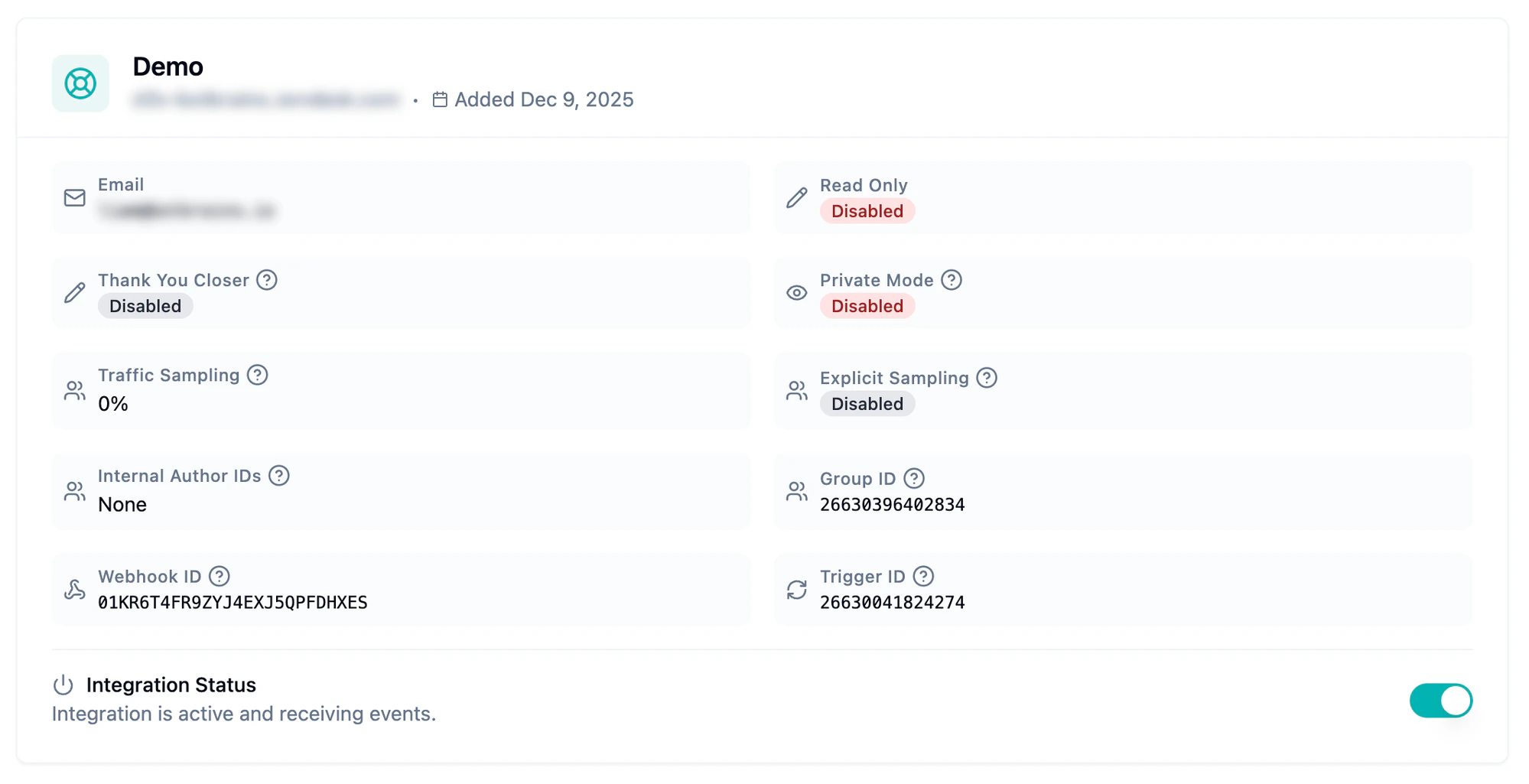
## Integration Settings

<Frame>
  <img src="https://mintcdn.com/botbrains/Fj_M8AGInBuQX629/images/zendesk-integration-settings.png?fit=max&auto=format&n=Fj_M8AGInBuQX629&q=85&s=b769707716de7ab8ea6cfb886ded3310" alt="botBrains Zendesk integration settings panel showing Traffic Sampling, Explicit Sampling, Thank You Closer, and other configuration options" data-generation-prompt="Screenshot of the botBrains Zendesk integration settings card showing Email, Read Only, Thank You Closer, Private Mode, Traffic Sampling, Explicit Sampling, Internal Author IDs, Group ID, Webhook ID, Trigger ID, and Integration Status fields" width="1999" height="1025" data-path="images/zendesk-integration-settings.png" />
</Frame>

### Ticket Status: New vs Open

When you assign a ticket to the `botBrains AI` group, Zendesk automatically moves it from **New** to **Open**. This happens because of two built-in Zendesk rules:

1. Zendesk automatically assigns all tickets in a group with a single agent to that agent.
2. That assignment changes the ticket status from New to Open.

This is a Zendesk platform limitation and not something botBrains controls.

**Adjust your views.** Update your "New tickets" views to show tickets that are New **or** Open and don't yet have a human assignee (the group assignee can still be set, for example "Support").

### Traffic Sampling

If you have high ticket volume and want to roll out botBrains gradually, use **Traffic Sampling**. Set a percentage (for example 50%) to control how many newly created tickets botBrains processes. botBrains selects tickets uniformly at random, so the actual number of processed tickets matches the configured percentage.

botBrains escalates tickets that fall outside the sample immediately without a reply.

### Explicit Sampling

Enable **Explicit Sampling** to make the sampling decision visible via tags. When active, botBrains adds one of two tags to every newly created ticket:

| Tag                     | Meaning                                                   |
| ----------------------- | --------------------------------------------------------- |
| `botbrains_sampled`     | Ticket is in the sample; botBrains will process it.       |
| `botbrains_not_sampled` | Ticket is outside the sample; botBrains won't process it. |

You **must** then scope your "Assign AI" trigger to only match tickets with the `botbrains_sampled` tag. Because the tags follow a uniform distribution, the processed ticket volume stays close to your configured percentage.

### Thank You Closer

**Thank You Closer** handles a common scenario: a customer reopens a solved ticket just to say "thank you." When enabled, botBrains evaluates every ticket that moves from Solved back to Open. If the reply is a pure expression of gratitude with no open tasks, botBrains re-solves the ticket. If there are outstanding tasks, the ticket stays open. This protects your SLAs from unnecessary reopens.

<Warning>
  The detection of open tasks depends on the information documented in the ticket. Monitor auto-closed tickets for 1-2 weeks after enabling this feature. Edge cases can occur when an agent asks the customer to confirm an action, and the customer replies "Yes, thank you so much" meaning "yes, please proceed"—but the pending work is not explicitly documented in the ticket, so botBrains concludes there is nothing left to do.
</Warning>

## Ticket Field Prediction

botBrains can automatically categorize tickets and fill custom fields using AI. The Field Predictor selects ticket forms, sets priorities, fills custom fields, and adds tags based on ticket content.

To configure field prediction:

1. Click the **Predictor** button on your integration card
2. Enable the predictor and configure which fields to predict
3. Provide instructions for each field
4. Test with historical tickets

For detailed configuration instructions, see [Ticket Field Prediction](/concepts/zendesk-field-prediction).

## Common Questions

<AccordionGroup>
  <Accordion title="Automated systems post public comments on tickets and botBrains stops responding. How do I fix this?">
    botBrains skips a ticket when the last public comment isn't from the requestor. If an automated system (for example, a payment provider or shipping notification) posts a public comment, botBrains treats it as an agent reply and backs off.

    Set the **Internal Author IDs** field in your integration settings to the Zendesk user IDs of these automated systems. botBrains then ignores their comments when deciding whether to respond.
  </Accordion>

  <Accordion title="I want to try botBrains on a small portion of tickets first. How?">
    Use **Traffic Sampling** to set a percentage of tickets that botBrains processes. For example, start at 10% and increase as you gain confidence. Combine with **Explicit Sampling** if you want to see which tickets were sampled via tags. See [Traffic Sampling](#traffic-sampling) and [Explicit Sampling](#explicit-sampling).
  </Accordion>

  <Accordion title="Customers keep reopening solved tickets just to say thanks. Can botBrains handle that?">
    Enable **Thank You Closer**. botBrains evaluates every ticket that moves from Solved back to Open and re-solves it if the reply is pure gratitude with no outstanding tasks. This keeps your SLA metrics clean. See [Thank You Closer](#thank-you-closer).
  </Accordion>

  <Accordion title="I want botBrains to draft replies for review instead of sending them directly.">
    Enable **Private Mode**. botBrains posts all replies as internal notes instead of public comments and escalates the ticket so an agent can review and send the response. Because the AI never posts a customer-visible reply in this mode, these tickets count as [Private involvement](/concepts/ticketing-performance#why-involvement-rate-not-resolution-rate), never Autonomous, which lowers your Autonomous Rate by design.
  </Accordion>

  <Accordion title="Can I force private mode for specific tickets only?">
    Add the tag `botbrains_force_private_mode` to a ticket (for example via a Zendesk trigger). botBrains will post its reply as an internal note for that ticket only, without enabling Private Mode globally.
  </Accordion>

  <Accordion title="I want botBrains to only handle tickets from certain channels or brands.">
    Edit the **"\[botBrains] Assign AI"** trigger in Zendesk. Add conditions like `Ticket > Channel is email` or `Ticket > Brand is XY` to control which tickets reach botBrains. See [Configuring When botBrains Should Answer](#configuring-when-botbrains-should-answer).
  </Accordion>

  <Accordion title="How do I make botBrains reprocess a ticket it already handled?">
    Reassign the ticket away from the `botBrains AI` group (for example to another agent or group), then assign it back. This triggers a fresh processing run. See [How to Retrigger Processing](#how-to-retrigger-processing).
  </Accordion>

  <Accordion title="I want to use botBrains Insights without botBrains changing anything in my Zendesk setup.">
    Enable **Read Only** mode. botBrains receives and analyzes ticket events for Insights but won't post any comments or modify ticket fields.
  </Accordion>
</AccordionGroup>