

Understanding Roles
botBrains uses a two-tier role system to give you precise control over who can access, view, and modify your AI agent projects.Two-Tier System
Every team member has both an organization role and a project role for each project they access: Organization Roles - Baseline access across your entire account:- Apply to all projects by default
- Control administrative capabilities like billing and team management
- You can’t customize these - use built-in roles only
- Best practice: Assign most team members Organization Member
- Only apply within a single project
- You can customize these with granular permissions
- Enable per-project access control
Organization Roles
Project Roles
Custom Roles
Create custom roles with precise permission combinations tailored to your team’s workflow. Why create custom roles:- QA teams who can label conversations but not edit knowledge
- Contractor access with limited permissions
- Compliance requirements separating conversation access from configuration
- Development workflows with different permissions per environment
- Go to Project → Settings → Team → Roles tab
- Click Add Role
- Enter name and description
- Select specific permissions grouped by functional area
- Save and assign to team members
- Permissions: conversation:read, conversation:write, label:*, metric:read, topic:read
- Permissions: knowledge:, conversation:read, table:, file:read
- Permissions: metric:read, topic:read, conversation:read, export:read, label:read
Which Role Should I Choose
Organizations have one or more projects. Permissions are defined at organization level and project level. Organizational roles and permissions are automatically inherited in projects. For explicit project-level control, assign Organization Member and then grant specific project roles.
Organization-Level Roles
Project-Level Roles
Key Principles
- Every user has one organization role and up to one role per project
- Organization roles use the
o_prefix, project roles usep_(built-in) orpc_(custom) - Every user can have at max 50 project roles
- Custom roles are always project scoped
- If any role allows an action, the user can perform it (union of permissions)
- You can’t edit your own role
- By default, users are organization members with no permissions - admins must explicitly grant project access
Inviting Team Members
How to Invite Colleagues
Organization-Level Invitations
Invite people to join your botBrains organization:- Go to Organization → Settings → Team
- Click the Invitations tab
- Click Invite User button
- Enter email addresses (press space or enter after each)
- Select organization role: Owner, Admin, Billing, Member, or Viewer
- Click Send Invitations
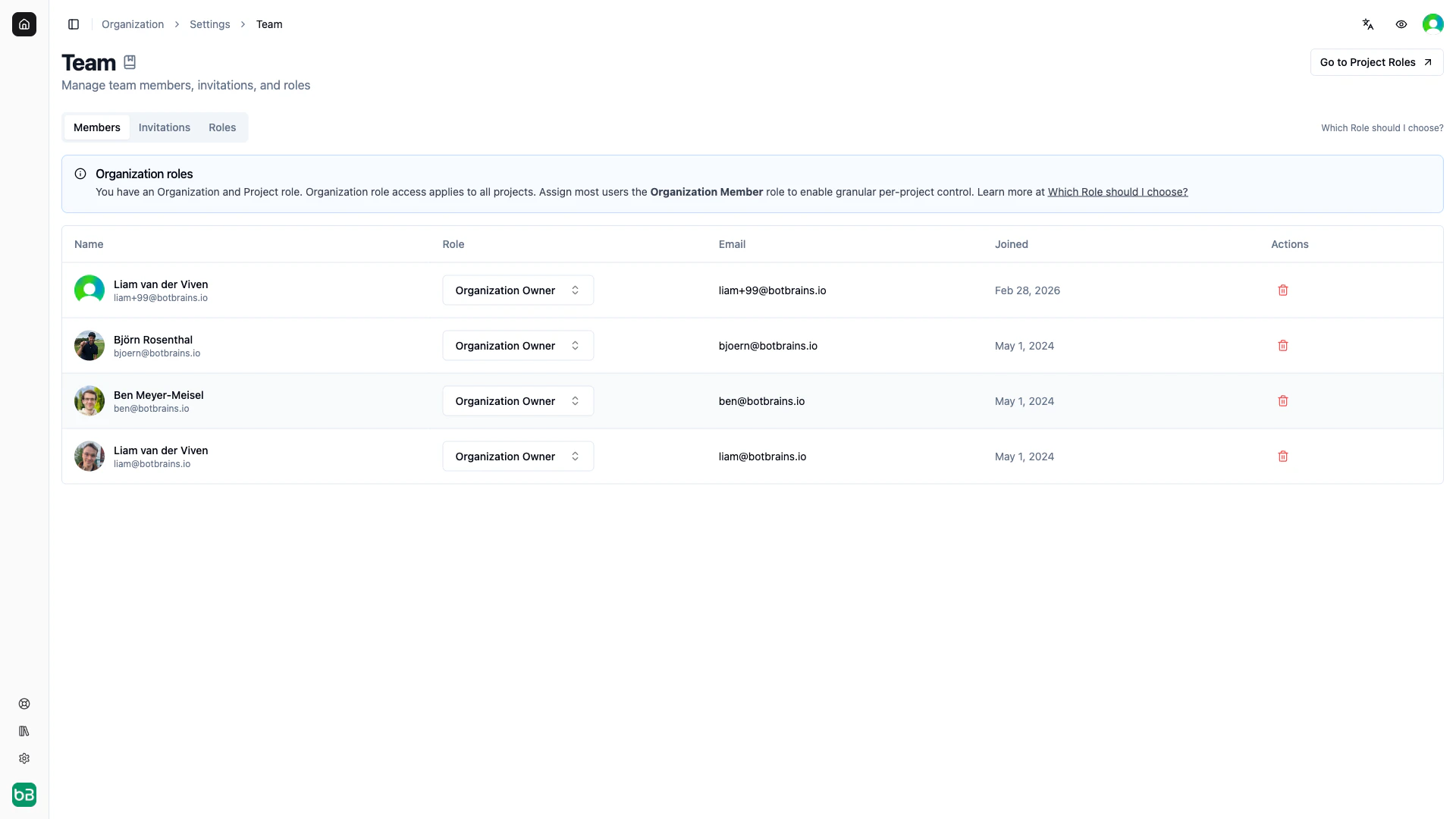
- Recipients receive email with join link
- They create an account or sign in
- Upon accepting, they join with assigned role
- New members appear in Members tab
Project-Level Invitations
Invite people to join a specific project:- Go to Project → Settings → Team
- Click the Invitations tab
- Click Invite User
- Enter email addresses
- Select project role: Owner, Contributor, Member, Viewer, or custom role
- Click Send Invitations
Managing Pending Invitations
Track invitations in the Invitations tab: View: Email, assigned role, sent date, expiration, status Revoke: Click trash icon to cancel before acceptance Resend: Available if invitation wasn’t receivedManaging Team Access
Changing Roles
Change organization role:- Go to Organization → Settings → Team → Members
- Find the member
- Click role dropdown
- Select new role - takes effect immediately
- Go to Project → Settings → Team → Members
- Find the member
- Click Project Role dropdown
- Select new role or “No Project Role” to remove access
Permission Conflict Warnings
botBrains warns you when organization roles override project restrictions:
- Proceed anyway (user keeps broad access)
- Cancel to reconsider
- Demote organization role first, then assign restrictive project role
Removing Team Members
Remove from organization (removes from all projects):- Go to Organization → Settings → Team → Members
- Click trash icon in Actions column
- Confirm removal
- Go to Project → Settings → Team → Members
- Select “No Project Role” from dropdown
Common Team Setups
Small Team (2-5 people)
Setup:- Assign Organization Member to everyone
- Give Project Contributor to team leads
- Give Project Member to other contributors
- Use built-in roles only
Department-Based Teams
Setup:- Separate projects per department (Support Bot, Marketing Bot, Sales Bot)
- Organization Member for all employees
- Project Owner for department leads
- Project Member for department team members
- Executives get Organization Viewer to access all projects
Development, Staging, Production
Setup:- Three projects (Dev, Staging, Prod)
- Developers: Project Contributor in Dev, Project Member in Staging, Project Viewer in Prod
- QA team: Project Contributor in Staging, Project Viewer in Dev/Prod
- Support team: Project Viewer in all three
- Senior engineers: Project Contributor in all three
External Consultants
Setup:- Create custom “Consultant” role with limited read access
- Organization Member role
- Remove export and API key permissions
Multi-Brand Organizations
Setup:- Separate projects per brand
- Organization Member for all team members
- Brand-specific Project Owners per brand
- Analysts get Project Viewer across brands
Best Practice
Principle of Least Privilege
Principle of Least Privilege
Principle of Least Privilege
Good practice:- Start with Organization Member for all users
- Grant project-specific roles based on actual responsibilities
- Use custom roles for specialized needs
- Regularly audit and reduce excessive permissions
- Making everyone Organization Admin “just to be safe”
- Giving Project Owner to anyone who asks
- Using broad permissions when narrow ones would work
Frequently Asked Questions
User can't see invited project
User can't see invited project
Possible causes:
- Invitation not yet accepted - check Invitations tab
- User assigned “No Project Role” - verify role assignment
- User signed in with different email - check email match
- Cache issue - have user sign out and back in
- Go to Project → Settings → Team → Members
- Search for user by email
- If not found, check Invitations tab
- If found with “No Project Role”, assign appropriate role
- Have user refresh browser
Role change didn't restrict access
Role change didn't restrict access
Cause: User has permissive organization role that overrides project restrictionsSolution:
- Go to Organization → Settings → Team
- Check their organization role
- If Organization Admin, change to Organization Member
- Verify project role restrictions now work
Can't remove team member
Can't remove team member
Possible causes:
- Only Organization Owners and Admins can remove members
- Trying to remove yourself
- Trying to remove the sole Organization Owner
- Ask an Organization Owner or Admin to perform removal
- Organization Owner cannot be removed
- Have another admin remove you if needed
Invitation expired
Invitation expired
Solution:
- Go to Settings → Team → Invitations
- Find expired invitation
- Revoke expired invitation
- Send new invitation with same role
Wrong role assigned
Wrong role assigned
Before acceptance:
- Revoke existing invitation
- Send new invitation with correct role
- Go to Settings → Team → Members
- Find the user
- Change to correct role using dropdown