

How Triggers Work
Triggers follow an if-then model: when an event occurs and an audience matches, then execute one or more actions.- Event occurs - a user sends a message (currently the only supported event)
- Audience evaluation - the trigger checks if the conversation, user, and message match your criteria
- Action execution - if the audience matches, all configured actions run immediately
- Conversation proceeds - if not blocked, the conversation continues to AI processing
All matching triggers execute in priority order (top to bottom). Triggers do not stop processing when one matches.
Audience Criteria
Audiences determine which conversations match your trigger. Build rules using the visual query builder with AND/OR logic and NOT toggles. Available fields:
Examples:
Audience definitions use the same field structure as Audiences, but evaluate in real-time as messages arrive rather than as stored segments.
Actions
When a trigger’s audience matches, it executes one or more actions in sequence.
You can combine multiple actions in a single trigger. Place label actions before block actions to ensure labels apply even when the conversation is blocked.
Creating a Trigger
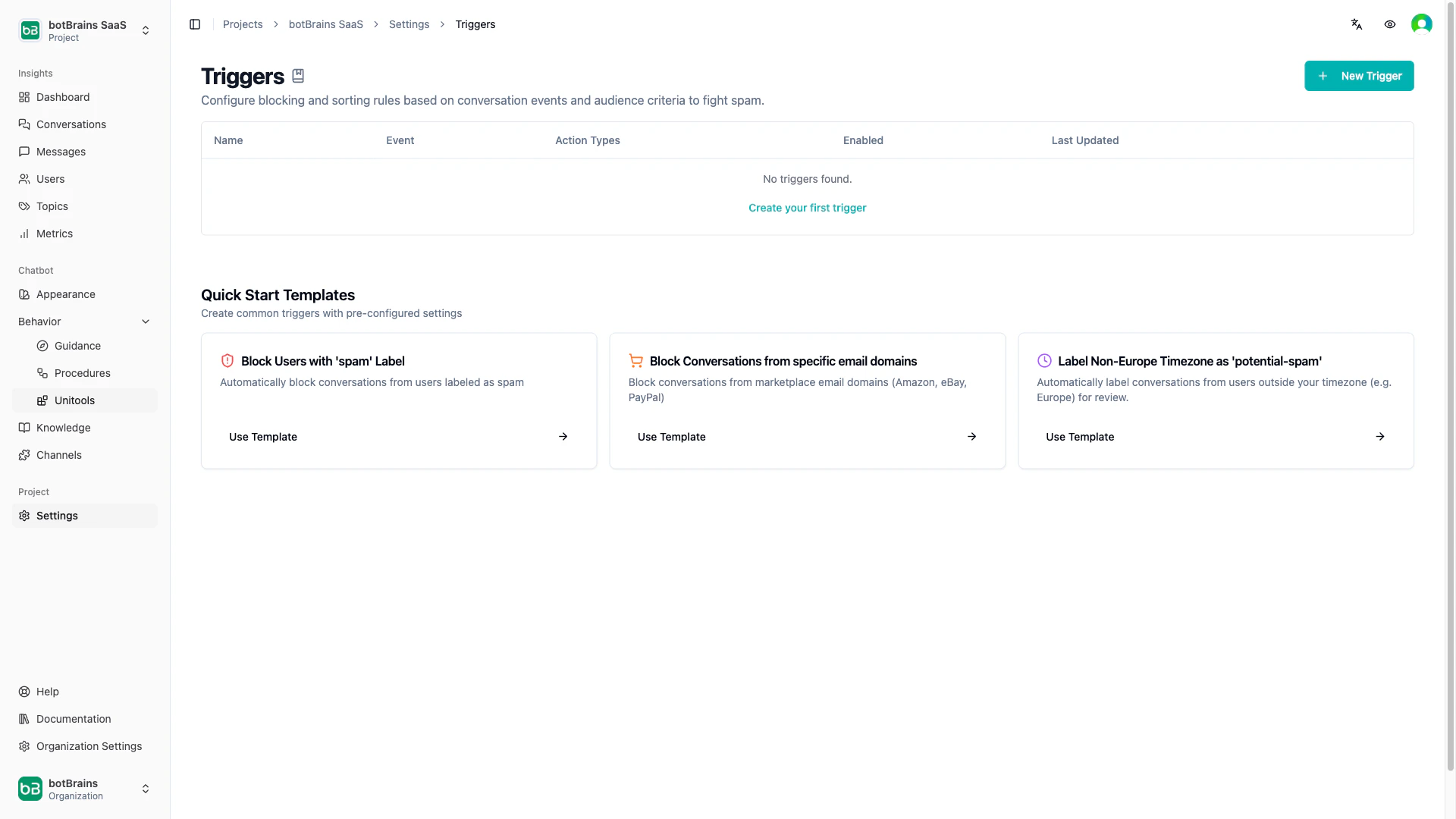
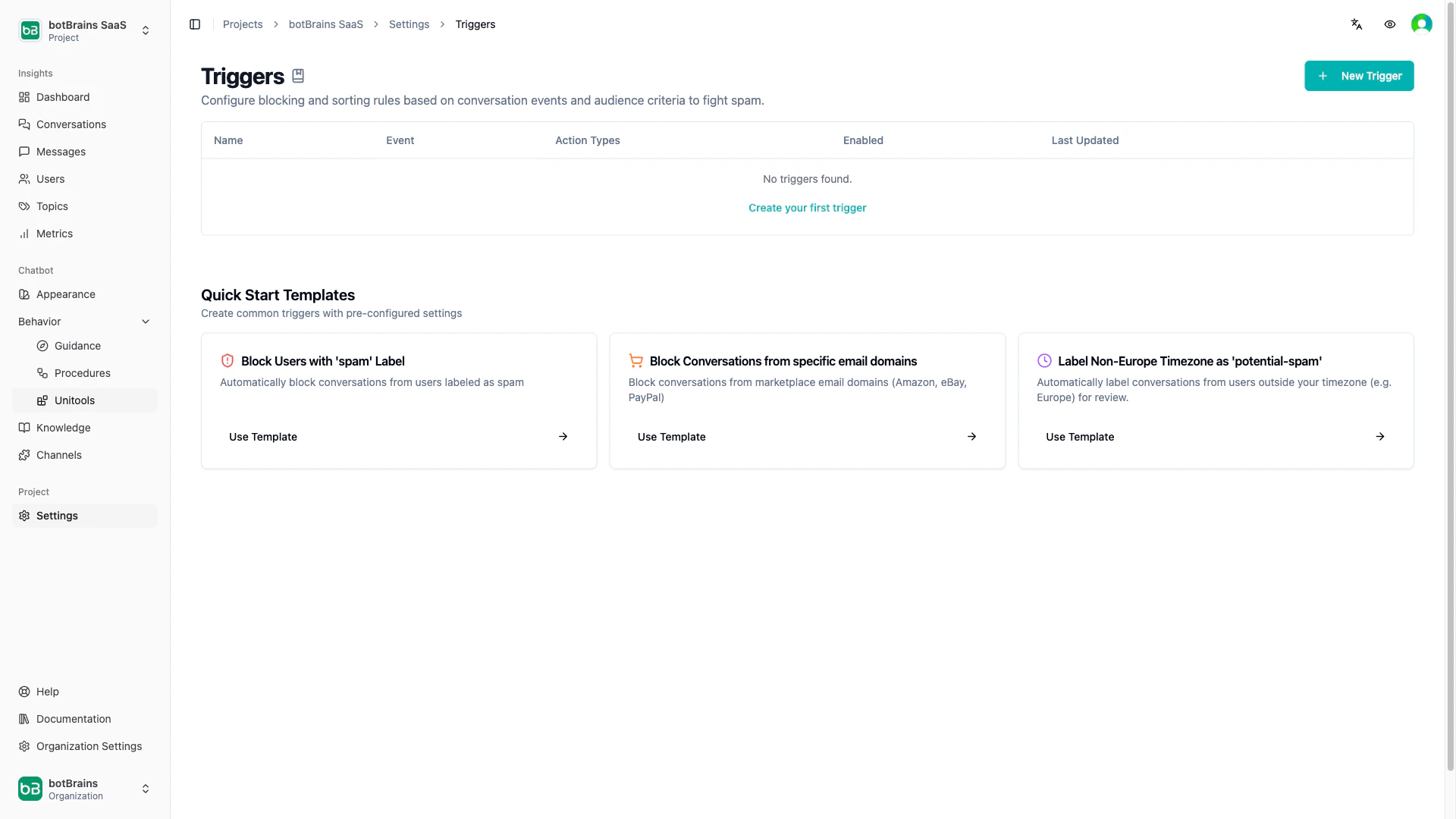
Open your trigger settings to get started. You can use a quick-start template (Block Spam Users, Block Marketplace Emails, Label Non-Europe Timezone) or create a custom trigger:1
Create new trigger
Click New Trigger, enter a descriptive name (for example “Block marketplace notifications”)
2
Configure When
Select the event (User Message Received) and define audience criteria using the query builder
3
Configure Then
Add one or more actions (Block, Assign Label, Unassign Label) and arrange them in execution order
4
Enable and save
Toggle “Active” to enable, then click Create Trigger
Managing Triggers
The trigger list shows each trigger’s name, event, action types, and enabled status. From there you can:- Enable / disable a trigger with the toggle switch - disabled triggers are ignored entirely
- Edit a trigger by clicking its row - changes take effect immediately
- Delete a trigger with the trash icon - deletion is permanent, previously blocked/labeled conversations are unaffected
- Reorder by deleting and recreating in the desired sequence (priority runs top to bottom)
Next Steps
- Audiences - Build audience segments used in triggers
- Actions - Configure AI-powered actions (vs. deterministic triggers)
- Labels - Organize and filter conversations with custom labels
- Roles and Permissions - Control who can create and manage triggers