

Why It Matters
Zendesk uses ticket fields to power critical workflows:- Routing - Direct tickets to the right team based on category, product, or priority
- SLAs - Track response times using priority levels
- Automation - Trigger workflows based on field values
- Reporting - Analyze support trends by category, product, or custom fields
What Gets Predicted
- Ticket Forms - Select the appropriate form (Bug Report, Billing, Feature Request, etc.)
- Built-in Fields - Set urgency level (Low, Normal, High, Urgent), assignee, group assignee, brand, …
- Custom Fields - Fill dropdowns, checkboxes, and text fields (product, category, issue type, etc.)
Assignee, group, lookup, and status fields cannot be predicted-these require manual intervention or separate automation rules.
How It Works
Access the predictor from your Zendesk integration card in Channels.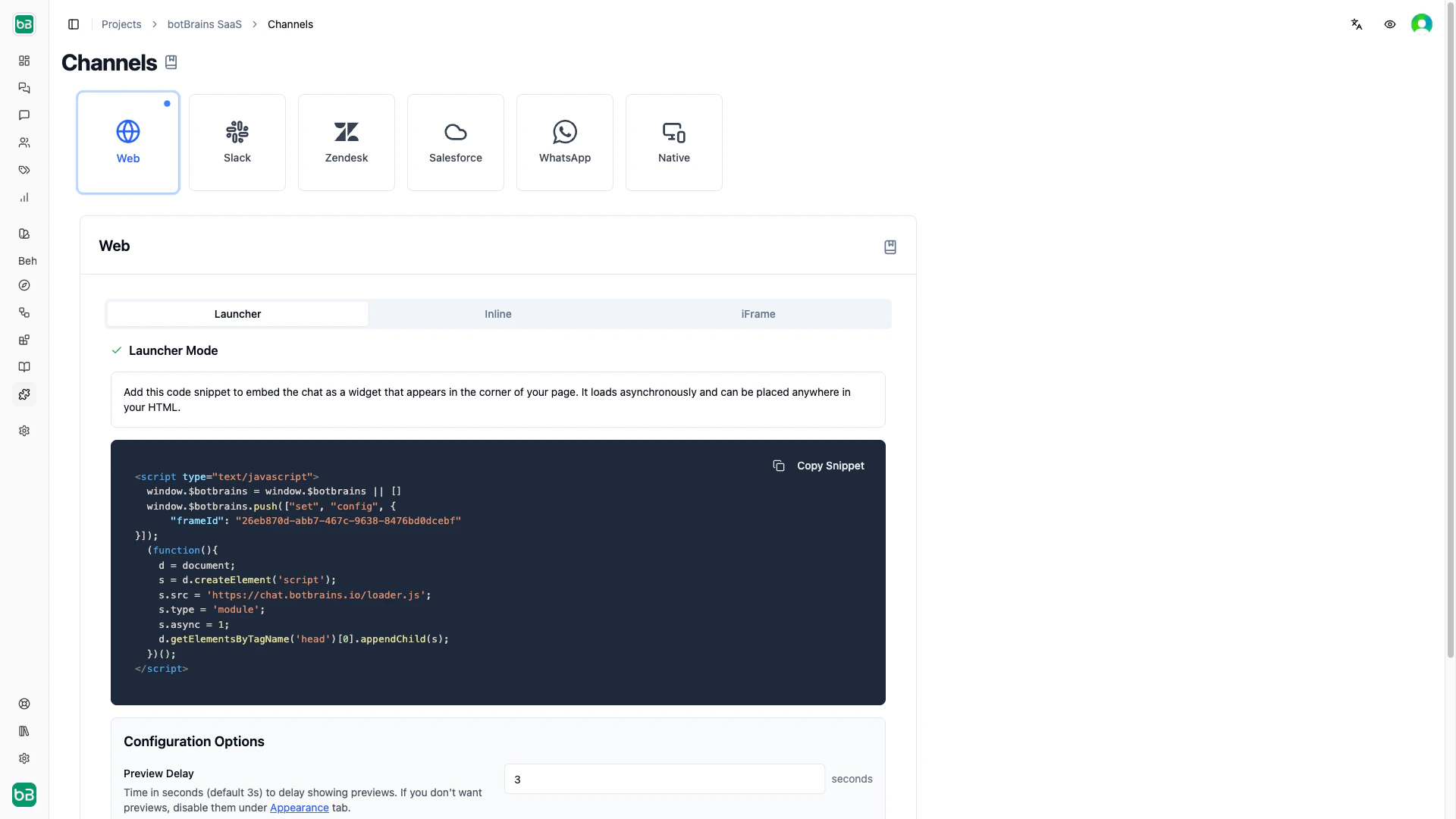
- Enable/disable the predictor globally
- Configure which fields to predict
- Provide instructions for how to classify each field
- Choose whether the predictor fills fields before or after the AI response
- Test predictions with real tickets before going live
- Validate your configuration for errors
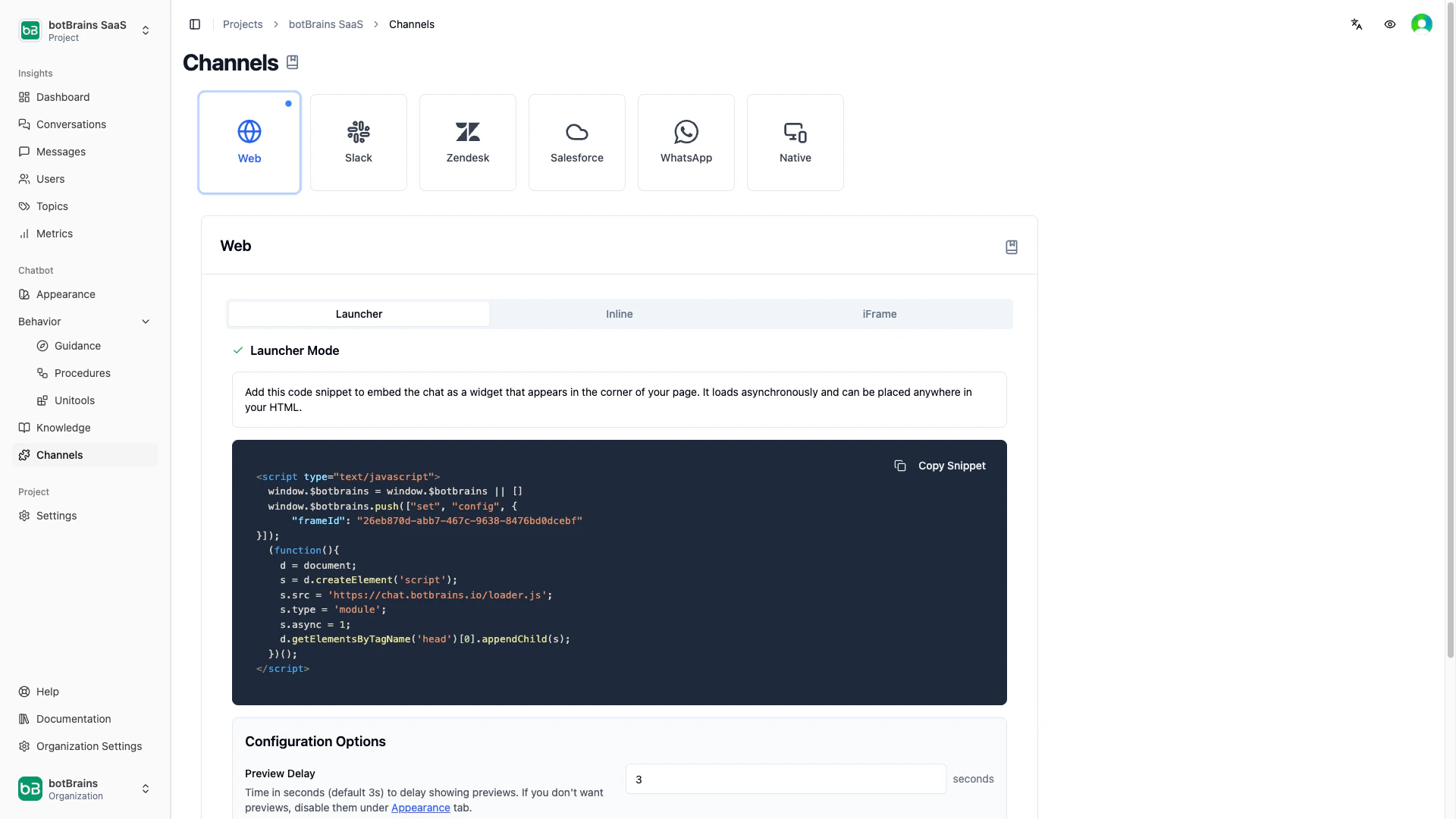
Field predictions work both in public mode and in private mode. See Operating Modes in the integration guide.
Next Steps
- Access the predictor via your Zendesk integration card
- Test with historical tickets to verify prediction accuracy
- Start in private mode to review predictions without affecting customers
- Monitor accuracy and refine instructions weekly
- Enable public mode when confident in automatic field updates