

Sign Up to botBrains
The only step you need to get started is to sign up for a botBrains account. It’s free to get started. Once logged in, the onboarding flow will automatically guide you through:- Creating your first project (think of it as a workspace for your AI agent)
- Adding initial knowledge from a website or help center
- Setting up your AI’s behavior and instructions
- Testing your first AI agent
Expand Your AI Agent
Now that you have a working AI agent from onboarding, here’s how to make it better:Step 1: Test with Real Conversations
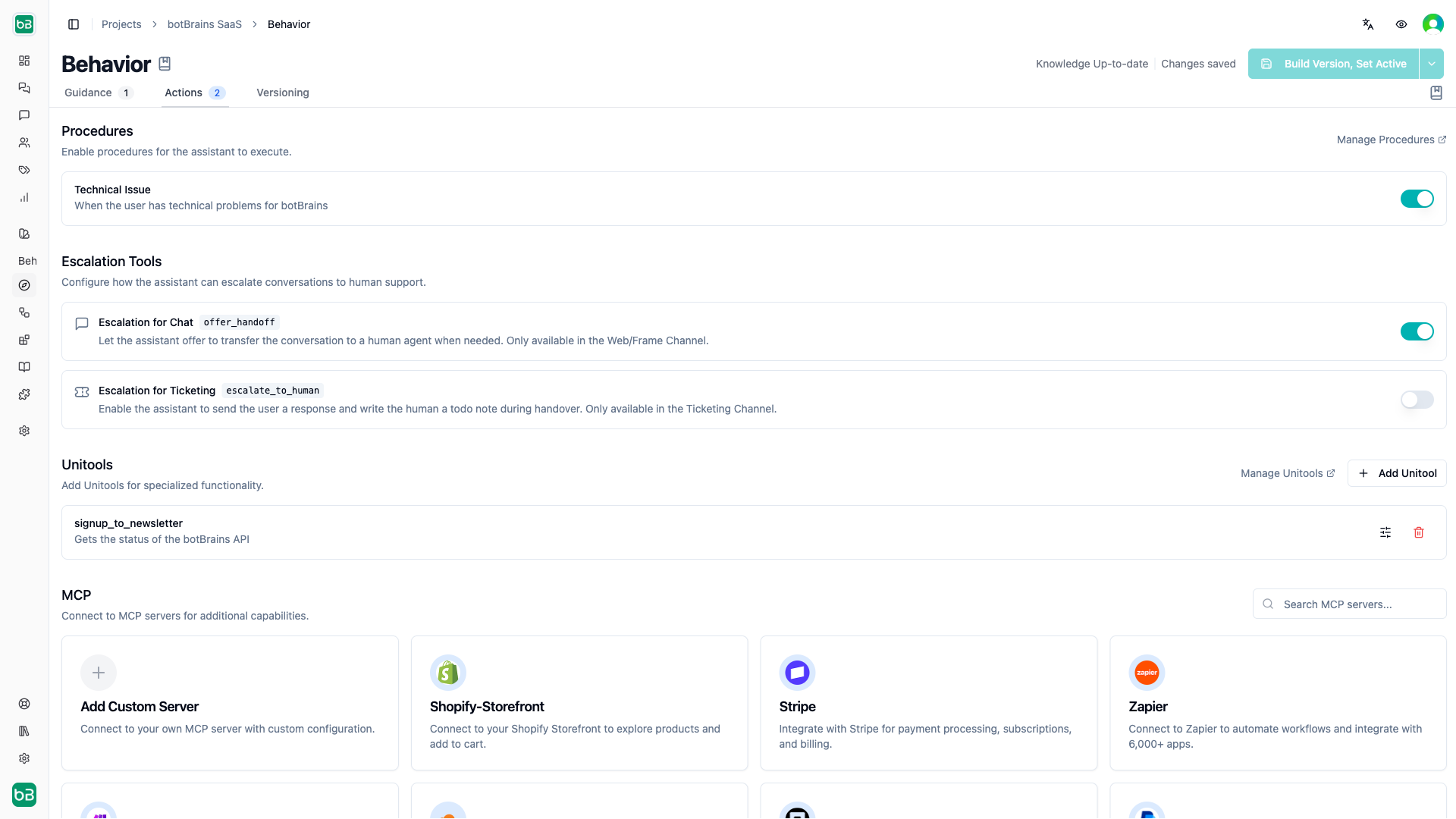
Start by having conversations with your AI to understand what it can and can’t answer.- Navigate to Behavior in the sidebar
- Look at the preview panel on the right side
- Ask questions that your customers might ask
- Try questions you know it should answer (based on your knowledge sources)
- Try questions it probably can’t answer yet (to find knowledge gaps)
Step 2: Refine AI Instructions
Based on your testing, update how your AI communicates.- While still in Behavior, edit the instructions on the left side
- The preview updates in real-time as you make changes
- Test the same questions again to see improvements
Guidance controls how your AI behaves. You can create multiple guidances for different audiences or use cases.
Step 3: Add Missing Knowledge
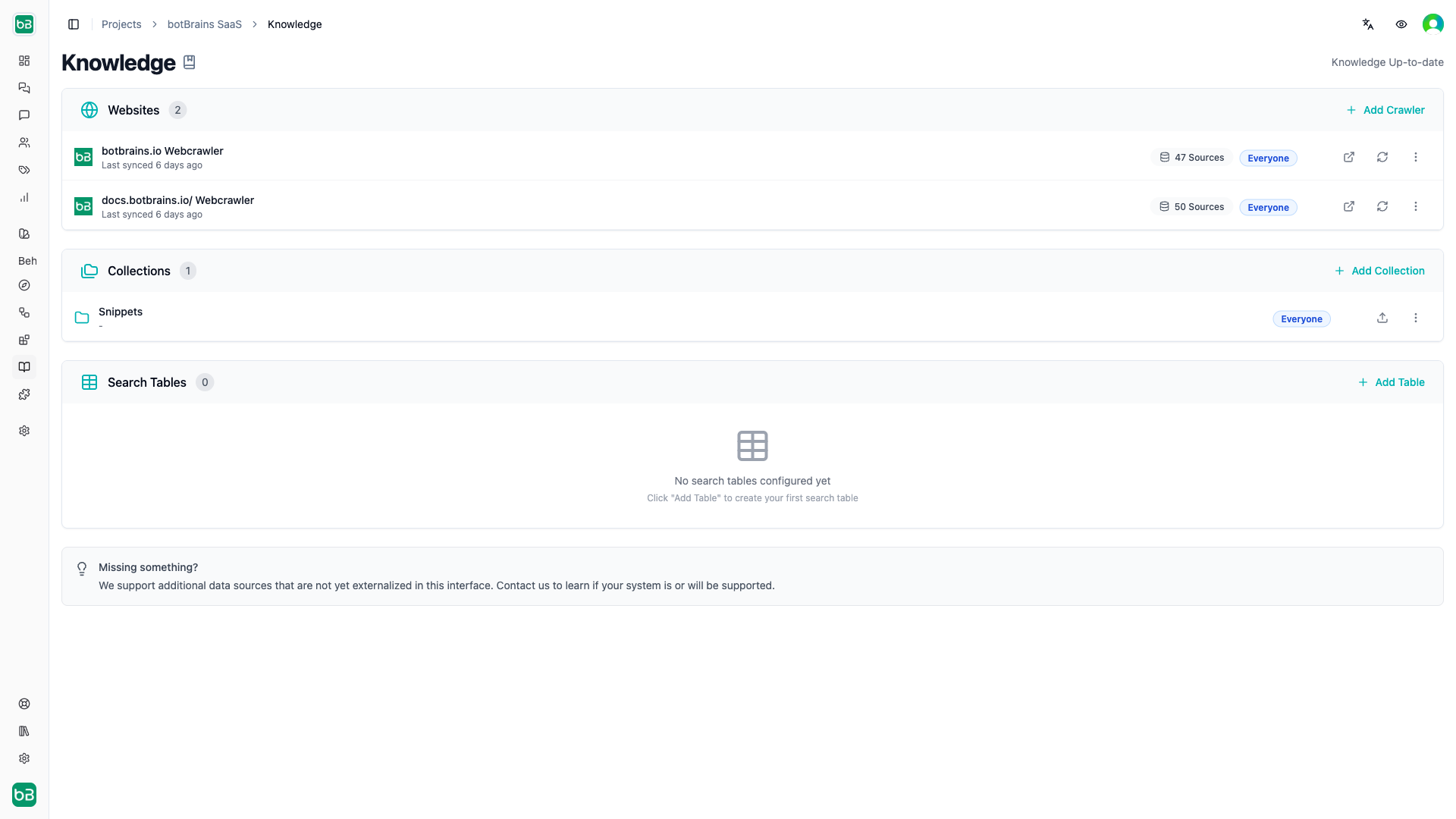
When you find gaps in what your AI knows, add more knowledge sources.- Navigate to Data Providers in the sidebar
- Click Add Data Provider
- Choose from multiple provider types:
- Website: Crawl documentation sites or help centers
- PDF: Upload PDF documents
- Word/Docx: Upload Word documents
- Markdown: Upload markdown files
- Snippets: Add content manually for quick additions
- Configure and save
Step 4: Redeploy Changes
If you changed instructions you need to redeploy via “Build, Set active” in Behavior. Because Knowledge is also versioned, you will also need to redeploy then and wait until the building toast has stopped spinning.You only need to redeploy when you’ve changed instructions in Behavior or added new knowledge in Data Providers. Simple configuration changes don’t require redeployment.
Step 5: Deploy Your AI
Now deploy your AI to start helping customers. Choose the integration that matches your workflow:Website Integration
Add a chat widget to your website with customizable styling.
Zendesk Integration
Automate ticket responses and field predictions in Zendesk.
Salesforce Integration
Handle cases in Salesforce Service Cloud with AI assistance.
Slack Integration
Bring AI support directly into your team’s Slack workspace.
Step 6: Monitor and Improve
After deployment, continuously improve your AI:- Review Conversations: Go to Conversations to see how your AI is performing
- Check Topics: Visit Topics to understand what customers are asking about
- Analyze Metrics: Review Metrics for performance data
- Add Knowledge: When you spot gaps, add more knowledge sources or snippets
- Refine Behavior: Update your instructions in Behavior based on real interactions
Common Next Steps
Once you’re up and running:- Set up Escalations - Configure when to hand off to human agents
- Create Audiences - Personalize responses for different customer segments
- Add More Data Sources - Connect additional knowledge repositories
- Configure Triggers - Automate workflows based on conversation events
- Invite Your Team - Add team members and assign roles
Getting Help
Need assistance? Here are your resources:- Documentation: Browse our comprehensive docs
- Support: Email support@botbrains.io
- Platform: Use the in-app chat for quick questions
What You’ve Accomplished
You’ve successfully:- ✅ Created your first botBrains project
- ✅ Connected knowledge sources
- ✅ Configured AI behavior
- ✅ Tested responses
- ✅ Deployed your AI to customers
- ✅ Set up monitoring