Your AI agent is never truly “done” - it’s a living system that improves through continuous optimization. The most successful teams treat AI optimization as an ongoing practice, not a one-time project. This guide walks you through seven proven strategies to systematically improve your AI’s performance, increase autonomous resolution rates, and deliver exceptional customer experiences.

Why Optimization Matters

Even a well-configured AI agent will face new challenges as your business evolves:
  • Product changes introduce new questions your AI hasn’t encountered
  • Knowledge gaps emerge as customers ask novel questions
  • Customer expectations shift over time
  • Seasonal patterns create different support loads
  • Edge cases reveal themselves only through real usage
The teams that excel at AI support don’t just deploy and forget - they establish systematic optimization routines that compound improvements over time.
Teams that review metrics weekly and conversations daily see 15-25% improvement in resolution rates within the first 90 days. Consistency matters more than intensity.

The Seven Optimization Strategies

Follow these strategies in order for maximum impact. Each builds on the previous one, creating a comprehensive optimization system.

1. Track Key Performance Indicators

You can’t improve what you don’t measure. Start by establishing baseline metrics and tracking them consistently.

Essential Metrics to Monitor

Involvement Rate The percentage of conversations where your AI participates in any way (autonomous, public, or private involvement).
Involvement Rate = (AI-Involved Conversations / Total Conversations) × 100%

Target: 80%+ involvement means AI is assisting with most customer interactions
Baseline: Track your current rate as starting point
This metric shows how much of your support workload the AI is touching. Low involvement rates indicate missed opportunities for automation. Resolution Rate The percentage of conversations successfully resolved without escalation or abandonment.
Resolution Rate = Resolved / (Resolved + Escalated + Unresolved) × 100%

Excellent: 75%+
Good: 60-75%
Needs improvement: Below 60%
High resolution rates indicate your AI has the knowledge and guidance to handle most questions autonomously. Customer Satisfaction (CSAT) The percentage of customers who rate their experience positively (4-5 stars).
CSAT = (4-star + 5-star ratings) / (All 1-5 star ratings) × 100%

Industry leading: 80%+
Solid: 70-80%
Needs attention: Below 70%
CSAT shows whether customers appreciate the AI’s help, regardless of technical resolution status.

Setting Baselines and Targets

Week 1: Establish Your Baseline
  1. Navigate to Analyze → Metrics
  2. Set date range to “Last 30 days”
  3. Record your current performance:
Example baseline (March 1):
- Involvement Rate: 65%
- Resolution Rate: 58%
- CSAT Score: 72%
- Autonomous Rate: 42%
Week 2-4: Set Realistic Targets Based on your baseline, set achievable 90-day goals:
Example targets (June 1):
- Involvement Rate: 75% (+10pp)
- Resolution Rate: 70% (+12pp)
- CSAT Score: 80% (+8pp)
- Autonomous Rate: 55% (+13pp)
Don’t chase perfection - aim for steady 10-15 percentage point improvements per quarter.

Using the Metrics Dashboard

Navigate to Analyze → Metrics to access your performance analytics. General View provides:
  • Overall conversation volume and message counts
  • CSAT trends over time
  • Resolution status breakdown
  • AI involvement distribution
  • Conversation rating distribution
  • Message volume patterns
Ticketing View focuses on:
  • Involvement rate across tickets
  • Autonomous handling percentage
  • Better Monday Score (weekend coverage)
  • Resolution flow analysis
Key Actions:
  1. Weekly Review (15 minutes)
    • Check CSAT and resolution rate trends
    • Identify any sudden drops or spikes
    • Note topics with growing volume
    • Filter to 1-2 star ratings, scan recent issues
  2. Monthly Deep Dive (1 hour)
    • Compare month-over-month across all metrics
    • Segment by channel to find optimization opportunities
    • Review involvement rate evolution
    • Export data for stakeholder reports
Metrics respect your filter selections. Use channel, label, and date range filters to segment performance and identify specific improvement areas.

Interpreting Metrics Together

Individual metrics tell part of the story - combinations reveal deeper insights: Healthy Pattern:
CSAT: 80%+ | Resolution: 75%+ | Autonomous: 60%+
Interpretation: Well-tuned AI providing effective automated support
Knowledge Gap Pattern:
CSAT: 60-70% | Resolution: 50-60% | High "No Answer" rate
Interpretation: Systematic missing knowledge - review unresolved conversations
Quality Problem Pattern:
CSAT: Below 60% | Resolution: 70%+ | High 1-2 star ratings
Interpretation: AI claims resolution but users disagree - check answer accuracy

2. Identify Poor Performing Topics

Not all topics perform equally. Find the topics dragging down your averages and fix them first.

Using Topics Explorer

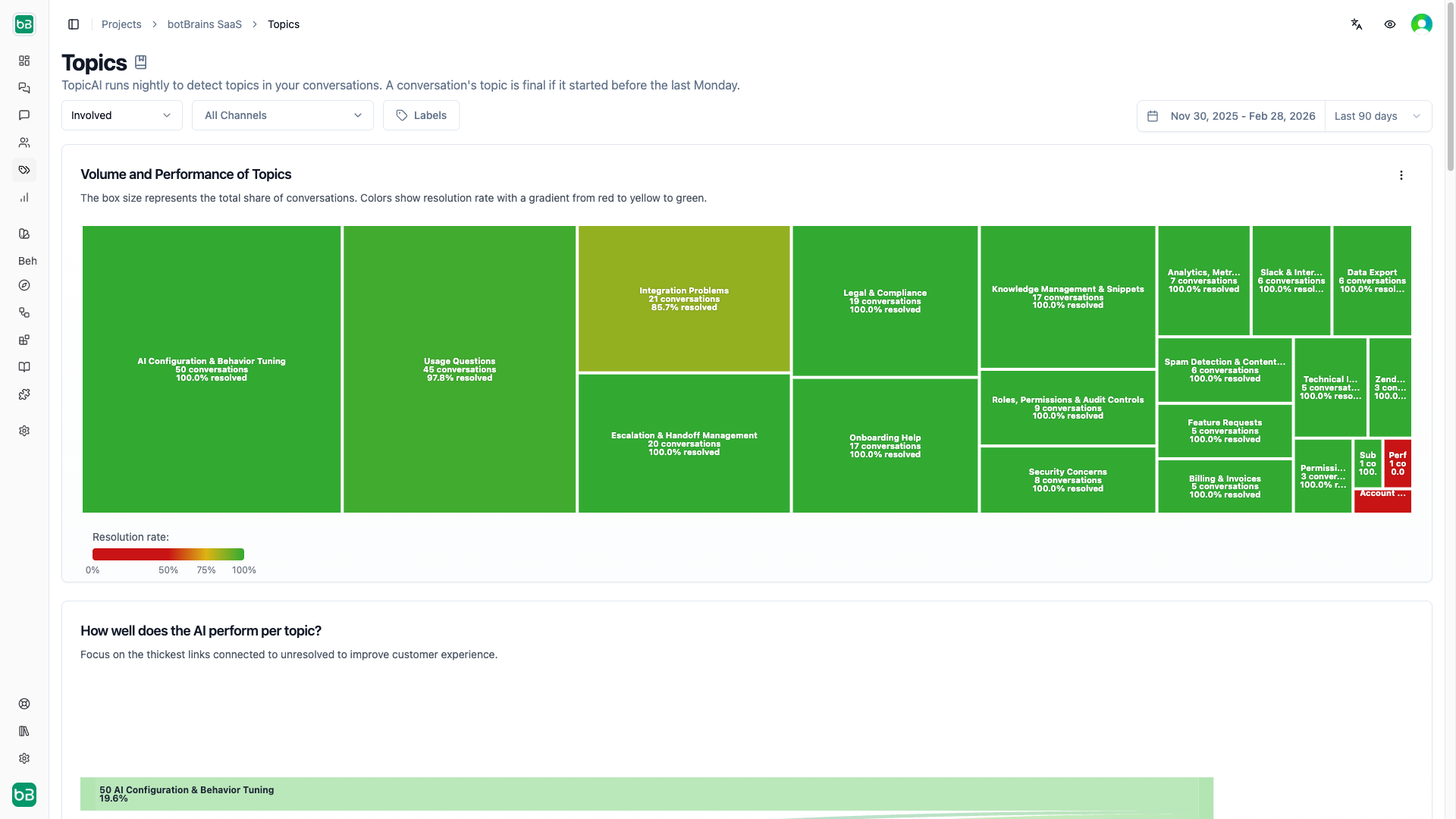
Navigate to Analyze → Topics to see your conversation landscape. Topic Resolution Treemap The treemap shows topic health at a glance:
  • Size = Conversation volume (larger = more conversations)
  • Color = Resolution rate (green = high, yellow = moderate, red = low)
  • Position = Grouped by similarity
Priority Identification Strategy:
  1. Find large red boxes - High volume + low resolution = maximum impact opportunity
  2. Scan yellow boxes - Moderate performance with improvement potential
  3. Note green boxes - Success stories to learn from
Example:
Topic: "API Authentication"
Size: Large (150 conversations/month)
Color: Red (35% resolution rate)
Priority: HIGH - lots of customers struggling

Topic: "Shipping Status"
Size: Medium (60 conversations/month)
Color: Yellow (62% resolution rate)
Priority: MEDIUM - room for improvement

Topic: "Return Policy"
Size: Large (180 conversations/month)
Color: Green (85% resolution rate)
Priority: LOW - performing well, use as template

Analyzing Resolution Rates by Topic

Step 1: Review the Sankey Chart The topic resolution Sankey shows flows from topics to outcomes:
  • Wide green flows = Topics with high resolution (success)
  • Wide purple flows = Topics frequently escalating (needs better knowledge)
  • Wide yellow flows = Topics ending unresolved (critical gaps)
Step 2: Click Through for Details Click any topic in the treemap or table to filter conversations to just that topic. Review:
  1. What specific questions are customers asking?
  2. How is the AI responding?
  3. What knowledge sources is it using (or missing)?
  4. Are answers accurate but poorly formatted?
  5. Do certain edge cases cause consistent failures?
Step 3: Compare Against Benchmarks For each priority topic, ask:
Is the low performance because:
[ ] Missing knowledge - AI doesn't have the information
[ ] Wrong information - AI has outdated or incorrect data
[ ] Poor guidance - AI has info but presents it badly
[ ] Inherent complexity - Topic requires human judgment
[ ] Tool limitations - AI needs capabilities it doesn't have

Prioritizing Improvements

Use this framework to decide which topics to tackle first: Impact Score = Volume × (100 - Resolution Rate)
Example calculation:

Topic A: "Billing Questions"
Volume: 200 conversations/month
Resolution: 45%
Impact: 200 × (100 - 45) = 11,000

Topic B: "Feature Requests"
Volume: 30 conversations/month
Resolution: 30%
Impact: 30 × (100 - 30) = 2,100

Priority: Fix Topic A first (5x higher impact)
Typical Prioritization:
  1. This Week: Top 1-2 topics by impact score
  2. This Month: Top 5 topics
  3. This Quarter: All topics below 60% resolution
Don’t ignore high-performing topics completely. Review them occasionally to understand what’s working and replicate those patterns elsewhere.

Taking Action on Poor Topics

Once you’ve identified a problem topic: For Knowledge Gaps:
  1. Filter conversations to that topic
  2. Review 10-20 conversations
  3. List common questions the AI can’t answer
  4. Create snippets or add documentation
  5. Rebuild and deploy
  6. Monitor improvement over next 2 weeks
For Quality Issues:
  1. Review low-rated conversations in the topic
  2. Check if AI has correct information but poor presentation
  3. Update guidance with topic-specific instructions
  4. Add examples of ideal responses
  5. Deploy and verify improvement
Example Action Plan:
Topic: "API Rate Limits"
Current Resolution: 38%
Volume: 85 conversations/month

Actions:
✓ Created 3 snippets covering rate limit tiers
✓ Added table of rate limits by plan type
✓ Updated guidance to format limits as tables
✓ Added examples showing how to interpret 429 errors

Target: 65% resolution within 30 days

3. Identify Not Yet Enabled Tickets

Your involvement rate shows how much AI is being used - the uninvolvement rate shows missed opportunities.

Understanding Uninvolvement

Uninvolvement Rate = (Not Involved Conversations / Total Conversations) × 100% If 40% of your conversations have no AI involvement, that’s 40% of your workload where AI could potentially help but doesn’t.

Finding Uninvolved Conversations

Navigate to Analyze → Conversations and apply filters:
Filters:
- Involvement: Not Involved
- Date: Last 30 days
- Status: All
Review a sample of these conversations to understand why AI wasn’t involved.

Common Causes and Solutions

Cause 1: Channel Segmentation Some channels may not have AI enabled. Detection: Filter uninvolved conversations by channel. If one channel has 80%+ uninvolvement, it’s likely not AI-enabled. Solution:
  • Review deployment settings for that channel
  • Enable AI deployment if appropriate
  • Consider whether channel should have AI (some channels like phone may be human-only by design)
Cause 2: Brand or Ticket Type Exclusion In Zendesk or Salesforce, certain brands or ticket types may be excluded from AI. Detection: Export uninvolved conversations and check for patterns in:
  • Zendesk brand
  • Salesforce case type
  • Ticket tags or categories
Solution:
Example: "Premium Support" Zendesk brand has no AI

Decision tree:
- Should premium customers get AI assistance? YES
  → Enable AI deployment for Premium Support brand
  → Consider private involvement mode (copilot) if you want human control

- Should premium customers avoid AI? NO
  → Keep AI disabled, but track if this impacts metrics
Cause 3: Imported Historical Tickets Tickets created before AI deployment won’t have involvement. Detection: Check created_at dates for uninvolved tickets. If they’re all older than your deployment date, this is expected. Solution: Filter your analysis to exclude historical imports:
Filters:
- Date: After [deployment date]
- Involvement: Not Involved
Cause 4: Operator-Initiated Outbound Messages Human agents proactively reaching out won’t trigger AI. Detection: Review message flow. If the first message is from an operator (not customer), it’s outbound. Solution: This is expected behavior. Consider if AI copilot mode could help agents draft these messages, but don’t force AI involvement on outbound.

Expansion Opportunities

Once you’ve identified uninvolved conversation patterns: Opportunity Sizing:
Example analysis:

Total conversations last month: 1,200
Not involved: 480 (40%)

Breakdown:
- Historical imports: 200 (exclude from analysis)
- Premium brand: 150 (expansion opportunity)
- Phone channel: 80 (intentionally human-only)
- Outbound proactive: 50 (expected)

Real expansion opportunity: 150 conversations/month
Potential automation at 60% resolution: 90 additional autonomous resolutions/month
Phased Rollout Strategy:
Phase 1 (Month 1):
- Enable AI for one previously excluded segment
- Monitor closely for quality issues
- Measure involvement and resolution rates

Phase 2 (Month 2):
- If Phase 1 successful, expand to next segment
- Compare metrics to Phase 1
- Adjust guidance if needed

Phase 3 (Month 3):
- Full rollout across all appropriate channels/brands
- Track overall involvement rate improvement
- Measure impact on team workload
Aim for 80%+ involvement rate as a healthy target. Not every conversation should have AI (outbound, historical, etc.), but most customer-initiated inquiries should at least get AI assistance.

4. Use Improve Answer to Fix Wrong Information

Incorrect information destroys trust faster than missing information. When your AI provides wrong answers, customers notice immediately.

Identifying Incorrect Responses

Method 1: Low Ratings with Negative Feedback
Filters:
- Rating: 1-2 stars (Terrible, Bad)
- Date: Last 7 days
- Sort: By rating (lowest first)
Read customer feedback comments. Look for phrases like:
  • “That’s not correct”
  • “Wrong information”
  • “That’s outdated”
  • “Actually, it’s…”
Method 2: Escalated Conversations After AI Response
Filters:
- Status: Escalated
- Involvement: Public Involvement
- Date: Last 30 days
Review conversations where AI provided an answer but human had to correct it. The correction reveals the wrong information. Method 3: Message Search for Corrections Navigate to Analyze → Message Search:
Search queries:
- "actually" (often precedes corrections)
- "incorrect"
- "that's wrong"
- "no, it's"
- "let me correct"
Filter to operator messages to find human agents correcting AI mistakes.

Tracing Back to Source Systems

When you find incorrect information: Step 1: Open the conversation detail Click the conversation to see full message history. Step 2: Click the incorrect AI message This opens the Improve Answer sidebar showing:
  • Used sources
  • Available sources
  • Guidance link
Step 3: Review used sources The sidebar highlights which knowledge documents the AI referenced:
Example:

AI message: "Premium plans start at $79/month"
Customer feedback: "That's wrong, they start at $99"

Used Sources:
📄 Pricing Documentation (outdated)
   (A) "Premium plans start at dollar 79/month with annual billing."

Source: pricing_2023.pdf | Added: 8 months ago
Step 4: Identify the root cause
Common scenarios:

Scenario A: Outdated documentation
- Source has old information
- Fix: Update the source document in your system

Scenario B: Conflicting sources
- Multiple sources with different prices
- Fix: Remove outdated source, keep canonical version

Scenario C: Misinterpreted source
- Source is correct but AI read it wrong
- Fix: Rewrite source for clarity or add explicit snippet

Scenario D: Source is correct for wrong context
- Information is right for old plan, wrong for new plan
- Fix: Add context or conditions to source

Correcting Information in Third-Party Systems

For Documentation Sources (PDFs, Webpages):
  1. Navigate to Train → Data Providers
  2. Find the data provider containing the wrong information
  3. Click to view details
  4. Locate the specific document
If you control the source:
  • Update the original document
  • Re-upload to botBrains or trigger re-crawl
  • Wait for next sync cycle
  • Rebuild profile to incorporate changes
If you don’t control the source:
  • Create an override snippet with correct information
  • Snippets take precedence over other sources
  • Quick fix while you work on updating canonical source
For Database/API Sources:
  1. Identify which third-party system has wrong data
  2. Update the data in that system (Salesforce, Zendesk, your CRM)
  3. Trigger data sync in botBrains
  4. Verify updated data appears
  5. Rebuild and deploy
For Snippets:
  1. Navigate to Train → Snippets
  2. Search for the snippet containing wrong info
  3. Edit the snippet content directly
  4. Save changes
  5. Rebuild profile immediately

Knowledge Quality Loops

Establish a systematic process to prevent wrong information from recurring: Weekly Quality Audit:
Every Monday:
1. Filter to 1-2 star ratings from last week
2. Review 10-15 conversations
3. Identify any incorrect information
4. Create list of corrections needed
5. Update sources by Friday
6. Deploy updated profile
7. Monitor next week for improvement
Source Review Cadence:
Monthly:
- Review all snippets for accuracy
- Check for outdated pricing, features, policies
- Verify external documentation URLs still work
- Update dates on time-sensitive information

Quarterly:
- Audit all data providers
- Remove deprecated sources
- Consolidate duplicate information
- Document source of truth for each topic
Correction Tracking: Keep a log of corrections made:
Example log:

Date: March 15
Issue: Incorrect pricing for Premium plan
Source: pricing_2023.pdf
Old info: $79/month
Correct info: $99/month
Action: Updated pricing_2024.pdf, removed old file
Impact: Pricing topic resolution improved from 45% to 78%
Never assume an AI response is wrong based on a single customer complaint. Verify against your canonical source of truth before making changes. Customers can also be mistaken.

5. Use Improve Answer to Add Missing Information

Knowledge gaps are more common than wrong information. Your AI can only be as good as the knowledge you provide.

Identifying Knowledge Gaps

Method 1: “No Answer” Conversations Navigate to Analyze → Metrics and review the Answer Completeness chart:
  • Complete: AI provided full answer
  • Incomplete: AI answered but indicated uncertainty
  • No Answer: AI explicitly couldn’t answer
Filter conversations to “No Answer” category and review what questions triggered these responses. Method 2: Message Search Navigate to Analyze → Message Search and search for:
AI message search queries:
- "I don't have information about"
- "I don't have access to"
- "I'm not sure about"
- "I couldn't find"
- "I don't know"
- "I'm unable to"
Each result reveals a knowledge gap. Method 3: Unresolved + Low Involvement
Filters:
- Status: Unresolved
- Involvement: Fully Autonomous
- Rating: Any
- Date: Last 30 days
These are conversations where AI tried to help but couldn’t resolve the issue - often due to missing knowledge.

Adding Missing Documentation

When you discover a knowledge gap: Quick Fix: Create a Snippet
  1. Open the conversation with the knowledge gap
  2. Click the AI message that shows the gap
  3. Click Add Snippet in the sidebar
  4. Write the answer the AI should have provided:
Example:

User question: "Can I integrate with Zapier?"
AI response: "I don't have information about Zapier integration."

Create snippet:

Title: "Zapier Integration"

Content:
Yes, botBrains integrates with Zapier. Here's how to set it up:

1. Navigate to Settings → Integrations
2. Click "Connect Zapier"
3. Authorize the connection in Zapier
4. Choose trigger events (new conversation, rating received, etc.)
5. Map fields to your desired actions

Available triggers:
- New conversation started
- Conversation resolved
- Customer rating received
- Escalation occurred

Available actions:
- Create conversation
- Add message
- Update conversation status
- Apply label

Learn more: https://docs.botbrains.io/integrations/zapier
  1. Save the snippet
  2. Rebuild profile
  3. Monitor next similar question
Long-term Fix: Comprehensive Documentation For topics with many related questions:
  1. Identify the topic cluster
  2. Create comprehensive documentation covering:
    • Overview
    • Common questions
    • Step-by-step procedures
    • Edge cases
    • Troubleshooting
    • Examples
  3. Add as data provider (PDF or crawl webpage)
  4. Rebuild profile
Example:
Topic: "Mobile App Features"
Gap: 15 questions about features with no answers

Action:
- Wrote comprehensive mobile app documentation
- Created sections for each major feature
- Added screenshots and examples
- Published to help center
- Crawled help center page into botBrains
- Resolution rate improved from 32% to 71%

Creating New Knowledge Sources

When to use each source type: Snippets - Quick, specific Q&A
Use for:
- Single questions with clear answers
- Quick gaps discovered in conversation review
- Override wrong information temporarily
- Policy clarifications

Example: "What's your refund policy?"
PDFs - Comprehensive documentation
Use for:
- Product manuals
- Process documentation
- Training materials
- Policy documents

Example: Employee handbook, API documentation
Webpage Crawls - Living documentation
Use for:
- Help center articles
- Public documentation
- Product pages
- Blog posts

Example: Your public FAQ or knowledge base
Tables - Structured data
Use for:
- Pricing tiers
- Product specifications
- Feature comparison
- Status lookups

Example: Rate limits by plan type
Database Integrations - Dynamic data
Use for:
- Order status
- Account information
- Real-time availability
- Custom records

Example: Salesforce cases, Zendesk tickets

Proactive Gap Filling

Don’t wait for customers to hit every gap. Anticipate missing knowledge: New Product Launch Checklist:
Before launching new feature:
[ ] Create product documentation
[ ] Add to help center
[ ] Crawl documentation into botBrains
[ ] Create snippet summary
[ ] Test AI responses to common questions
[ ] Update guidance with feature-specific instructions
[ ] Deploy before launch
[ ] Monitor conversations during launch week
Seasonal Preparation:
Examples:

Holiday season approaching:
- Add shipping deadline documentation
- Create gift card policy snippets
- Update return window for holiday purchases
- Add snippets for common holiday questions

Tax season:
- Add tax form documentation
- Create snippets for tax-related questions
- Update guidance for financial sensitivity

Product update cycle:
- Document new features before release
- Archive deprecated feature docs
- Update getting started guides
- Create migration documentation
Competitive Monitoring:
Track questions you can't answer yet:

Week 1:
- "Do you support SSO?" (asked 3 times) - NO INFO
- "What's your uptime SLA?" (asked 5 times) - NO INFO

Priority: Add these before next sprint
Impact: 8 questions/week could be answered autonomously
The best teams maintain a “Knowledge Backlog” - a prioritized list of missing documentation to create. Review it monthly and tackle high-impact gaps first.

6. Foster a QA Culture Among Your Team

Sustainable optimization requires team participation. Build quality assurance into your team’s regular workflow.

Using Labels for QA Workflows

Labels transform conversation review from chaos to system. Create Standard QA Labels: Navigate to Settings → Labels or create inline while tagging:
Quality labels:
- "QA: Needs Review"
- "QA: In Progress"
- "QA: Reviewed"
- "QA: Excellent Example"
- "QA: Issue Found"
- "QA: Follow-up Required"
Assignment labels:
- "Review: Alice"
- "Review: Bob"
- "Review: Charlie"
Finding labels:
- "Knowledge Gap - [Topic]"
- "Wrong Information"
- "Guidance Issue"
- "Bug Report"
- "Feature Request"

Creating Review Workflows

Weekly QA Workflow Example: Monday Morning (Team Lead - 15 minutes):
1. Navigate to Analyze → Conversations
2. Filter:
   - Date: Last 7 days
   - Rating: 1-2 stars
   - Status: Unresolved OR Escalated

3. Review conversation list (don't read each one yet)
4. Assign conversations to team members:
   - Select 5 conversations
   - Apply label "Review: Alice"
   - Select 5 different conversations
   - Apply label "Review: Bob"
   - Repeat for all team members

5. Add "QA: Needs Review" to all assigned conversations
Throughout the Week (Team Members - 30 minutes each):
1. Navigate to Analyze → Conversations
2. Filter:
   - Labels: Include "Review: [Your Name]"
   - Labels: Include "QA: Needs Review"

3. For each conversation:
   a. Read full conversation thread
   b. Identify issue:
      - Missing knowledge? Add snippet
      - Wrong info? Fix source
      - Bad tone? Update guidance
      - Good example? No action needed

   c. Apply finding label:
      - "Knowledge Gap - Billing"
      - "QA: Excellent Example"
      - etc.

   d. Remove "QA: Needs Review"
   e. Add "QA: Reviewed"

   f. Add comment to shared doc with:
      - Conversation ID
      - Issue found
      - Action taken or recommended
Friday Review (Team Lead - 30 minutes):
1. Filter to "QA: Reviewed" from this week
2. Review team findings in shared doc
3. Prioritize actions:
   - Quick wins (snippets) - do now
   - Documentation needs - schedule for next week
   - Guidance updates - batch for next deployment

4. Create knowledge updates
5. Deploy improved profile
6. Remove all "QA: Reviewed" labels (cleanup for next week)

Removing Labels After QA Review

Keep your label list clean by removing temporary workflow labels: After completing review cycle:
1. Navigate to Analyze → Conversations
2. Filter:
   - Labels: Include "QA: Reviewed"
   - Date: Last 7-14 days

3. Select all conversations (batch select)
4. Click "Remove Labels" in bottom toolbar
5. Select "QA: Reviewed"
6. Confirm removal

Result: Clean slate for next week's review
Keep permanent labels:
Labels to KEEP after review:
- "Knowledge Gap - [Topic]" (for trend tracking)
- "QA: Excellent Example" (for training materials)
- "Bug Report" (until bug is fixed)
- "Feature Request" (until implemented)

Labels to REMOVE after review:
- "QA: Needs Review" (temporary workflow state)
- "QA: In Progress" (temporary workflow state)
- "QA: Reviewed" (temporary workflow state)
- "Review: [Name]" (temporary assignment)

Team Collaboration Best Practices

Shared Documentation: Create a shared document (Google Doc, Notion, Confluence) for weekly findings:
Template:

## Week of March 11-17, 2024

### Summary
- Conversations reviewed: 35
- Knowledge gaps found: 8
- Wrong information: 2
- Excellent examples: 5
- Snippets created: 6
- Actions pending: 2

### Detailed Findings

**Alice's Review:**
- Conv #123: Missing info about international shipping
  - Action: Created snippet
  - Status: Deployed

- Conv #456: Customer loved the response format
  - Action: Saved as excellent example
  - Label: "QA: Excellent Example"

**Bob's Review:**
- Conv #789: Wrong pricing for Enterprise plan
  - Action: Updated pricing_2024.pdf
  - Status: Deployed
  - Impact: Critical fix

... (continue for all team members)

### Actions for Next Week
1. Create comprehensive shipping documentation
2. Review all pricing sources for accuracy
3. Update guidance to use more formatting (based on excellent examples)
Team Meeting Agenda: Hold brief weekly QA sync (15-30 minutes):
Agenda:

1. Review metrics (5 min)
   - CSAT trend
   - Resolution rate trend
   - Top topics by volume

2. Share findings (10 min)
   - Each person shares most interesting finding
   - Discuss patterns across reviews
   - Identify systemic issues

3. Plan actions (10 min)
   - Prioritize knowledge additions
   - Assign documentation tasks
   - Schedule next deployment

4. Celebrate wins (5 min)
   - Highlight improved metrics
   - Share excellent AI responses
   - Recognize team contributions
Cross-Training: Rotate review responsibilities:
Month 1:
- Alice: Billing questions
- Bob: Technical issues
- Charlie: Product questions

Month 2:
- Alice: Technical issues (learns Bob's domain)
- Bob: Product questions (learns Charlie's domain)
- Charlie: Billing questions (learns Alice's domain)

Result: Broader team expertise, fresh perspectives on each topic

Building Sustainable QA Processes

Start Small:
Week 1-2: Just track
- Review 5 conversations/week
- Document findings
- Don't try to fix everything yet

Week 3-4: Light process
- Add basic labels (Needs Review, Reviewed)
- Create 1-2 snippets per week
- Start weekly sync

Month 2: Full workflow
- Formal assignment process
- Comprehensive labeling
- Regular deployments
- Metrics tracking
Avoid Burnout:
Don'ts:
- Don't try to review every conversation
- Don't make QA feel like punishment
- Don't let backlog grow unbounded
- Don't sacrifice action for documentation

Do's:
- Review representative samples
- Celebrate improvements and wins
- Set boundaries (10 reviews/week max per person)
- Prioritize action over perfect documentation
Measure QA Impact:
Track these metrics:

Before QA program:
- CSAT: 72%
- Resolution: 58%
- Snippets: 45
- Weekly reviews: 0

After 3 months of QA:
- CSAT: 81% (+9pp)
- Resolution: 71% (+13pp)
- Snippets: 127 (+82)
- Weekly reviews: 20-25

ROI: 9pp CSAT improvement = fewer escalations, happier customers
Time invested: 30 min/person/week = 2 hours/week for 4 person team
Make QA visible and celebrated. Share excellent AI responses in team chat. Create a “Response of the Week” highlight. Recognition keeps the team engaged.

7. Review DSAT Conversations

Dissatisfied customers provide the clearest signal of what needs fixing. Don’t ignore low ratings - mine them for insights.

Finding Dissatisfied Customers

Navigate to Analyze → Conversations
Primary filter for DSAT:
- Rating: 1-2 stars (Terrible, Bad)
- Date: Last 7 days
- Sort: By rating (lowest first)

Advanced filters for deeper analysis:
- Add Status: Unresolved (worst outcomes)
- Add Topic: [Specific topic] (topic-specific DSAT)
- Add Channel: [Channel] (channel-specific issues)
Using the Metrics Dashboard: Navigate to Analyze → MetricsConversation Rating Chart
  • Click the 1-star or 2-star bar
  • Automatically filters to those ratings
  • Review conversation list

Investigating Root Causes

For each low-rated conversation: Step 1: Read the full conversation thread Don’t just read the AI’s response - understand the full context:
  • What was the customer’s initial question?
  • Did the AI understand the question correctly?
  • How did the conversation evolve?
  • Where did it go wrong?
Step 2: Check if customer provided feedback Look for the CSAT feedback card showing:
  • Star rating
  • Optional text feedback from customer
Common feedback themes:
"Didn't answer my question"
"Wrong information"
"Too complicated"
"Sent me in circles"
"Wanted to speak to a human"
"Response too long"
"Didn't understand what I asked"
Step 3: Click AI messages to review sources Open the Improve Answer sidebar:
  • Zero sources used: Knowledge gap - customer asked something not in your knowledge base
  • Wrong sources used: AI misunderstood question and cited irrelevant info
  • Right sources, poor presentation: Knowledge exists but poorly formatted or explained
  • Sources conflict: Multiple sources with contradictory information
Step 4: Identify the failure point
Categorize DSAT by root cause:

A. Knowledge Gap (40% of DSAT)
   - AI didn't have information
   - Solution: Add snippet or documentation

B. Wrong Information (20% of DSAT)
   - AI provided incorrect answer
   - Solution: Fix source data

C. Misunderstood Question (15% of DSAT)
   - AI answered wrong question
   - Solution: Improve guidance, add examples

D. Poor Presentation (15% of DSAT)
   - Right info, wrong format/tone
   - Solution: Update guidance on formatting

E. Inherent Complexity (10% of DSAT)
   - Question requires human judgment
   - Solution: Create escalation rule

F. Unrealistic Expectations (5% of DSAT)
   - Customer wanted different outcome than AI can provide
   - Solution: Set expectations earlier in conversation

Analyzing Visited Pages and Context

User Information Sidebar: Review the right sidebar for context: Device and Location:
  • Browser/device type
  • Screen size (mobile vs desktop)
  • Geographic location
  • Language preference
Session Context:
  • Which page they were on when asking
  • How they arrived (referrer)
  • Previous pages visited
  • Time spent before asking
User History:
  • Previous conversation count
  • Previous ratings
  • Labels applied to user
  • Account information (if integrated)
Using Context for Insights:
Example 1:
DSAT Rating: 1 star
Page: /pricing
Device: Mobile
Feedback: "Too long, couldn't read it"

Root cause: AI response optimized for desktop, too verbose for mobile
Solution: Update guidance - "On mobile devices, provide shorter responses with key info first. Offer 'Would you like more details?' for elaboration."

Example 2:
DSAT Rating: 2 stars
Page: /checkout
Previous conversations: 3
Feedback: "Asked this yesterday already"

Root cause: Customer asked same question multiple times, indicates previous answer didn't help
Solution: Review previous conversations, identify what was missing, add comprehensive answer

Example 3:
DSAT Rating: 1 star
Page: /enterprise-features
User label: "Free Plan"
Feedback: "Can't help with this"

Root cause: Free user asking about enterprise features, AI couldn't help due to plan restrictions
Solution: Create guidance - "When free users ask about enterprise features, explain plan limitations and offer upgrade path politely."

Creating Action Plans

Template for DSAT Action Items:
DSAT Conversation Analysis

Conversation ID: #12345
Date: March 15, 2024
Rating: 1 star ⭐
Topic: Billing

Customer Feedback:
"This didn't answer my question at all. I need to know about pro-rated refunds."

Root Cause Category: Knowledge Gap

What AI Said:
"Our refund policy allows refunds within 30 days of purchase..."

What AI Should Have Said:
"Yes, we provide pro-rated refunds. Here's how it works:
- Calculate unused days: [days remaining] / [billing period days]
- Refund amount: [plan cost] × [unused percentage]
- Processing time: 5-7 business days
- How to request: Contact billing@example.com with your account ID

Example: If you paid $100 for annual plan and cancel after 3 months:
- Unused: 9 months = 75%
- Refund: $100 × 0.75 = $75"

Action Taken:
[✓] Created snippet "Pro-rated Refund Calculation"
[✓] Added to Billing data provider
[✓] Rebuilt profile v0.12
[ ] Deploy Friday March 17
[ ] Monitor billing topic DSAT next week

Expected Impact:
- Billing topic DSAT: Reduce from 25% to 15%
- Billing topic resolution: Improve from 65% to 75%
Batch Processing DSAT: Review 10-20 DSAT conversations, then categorize:
Week of March 11-17 DSAT Review (15 conversations)

By root cause:
- Knowledge Gaps: 6 conversations → Create 4 snippets
- Wrong Information: 2 conversations → Fix 2 sources
- Poor Presentation: 4 conversations → Update guidance
- Inherent Complexity: 2 conversations → Create escalation rules
- Unrealistic Expectations: 1 conversation → No action needed

Priority actions:
1. Fix wrong pricing info (affects multiple topics) - DO TODAY
2. Create snippets for top 3 knowledge gaps - DO THIS WEEK
3. Update guidance for better mobile formatting - NEXT SPRINT
4. Create escalation rule for refund disputes - NEXT SPRINT

Closing the Feedback Loop

Track DSAT Improvements:
Month 1 Baseline:
- Total DSAT (1-2 star): 18%
- Billing DSAT: 25%
- Technical DSAT: 22%
- Product Questions DSAT: 12%

Actions Taken:
- Created 12 snippets addressing common gaps
- Fixed 3 sources with wrong information
- Updated guidance for clearer, shorter responses
- Added escalation rules for refund disputes

Month 2 Results:
- Total DSAT: 12% (↓6pp)
- Billing DSAT: 15% (↓10pp) ✓
- Technical DSAT: 16% (↓6pp) ✓
- Product Questions DSAT: 10% (↓2pp) ✓

Impact: 6 percentage point reduction in overall DSAT
= ~50 fewer unhappy customers per month
Follow-up with Customers (Optional): For critical DSAT:
Scenario: Enterprise customer gave 1-star rating

Process:
1. Identify in conversation review
2. Check if issue was resolved after rating
3. If not, create internal ticket for account manager
4. Account manager reaches out:
   "Hi [Name], I saw you had trouble with our support. I wanted to personally ensure we address your question about [topic]. Here's the answer: [detailed response]. Is there anything else I can help with?"

Result:
- Customer feels heard
- You learn more about the issue
- Potential to recover the relationship
- Insight into high-priority customer pain points
Document Patterns:
Keep a DSAT pattern log:

Pattern: API authentication questions
Frequency: 8 DSAT conversations over 2 weeks
Common feedback: "Didn't give me the exact steps"
Root cause: Documentation was conceptual, not procedural

Fix: Rewrote API auth documentation with step-by-step instructions, code examples, screenshots

Validation: Next 2 weeks - only 1 DSAT in API auth (88% reduction)

Pattern confirmed: Customers want procedural "how-to" not conceptual "what is"
Applied to: All technical documentation
Not all DSAT is actionable. Some customers will be dissatisfied with your product, policy, or limitations - not the AI’s response. Focus on DSAT where the AI could have genuinely done better.

Putting It All Together: Monthly Optimization Routine

Combine all seven strategies into a sustainable monthly rhythm:

Week 1: Metrics and Topic Review

Monday (30 minutes):
  • Review metrics dashboard
  • Note CSAT, resolution rate, involvement rate trends
  • Compare to previous month
  • Identify any sudden changes
Wednesday (45 minutes):
  • Navigate to Topics dashboard
  • Review topic treemap for red/yellow boxes
  • Prioritize top 3-5 topics by impact score
  • Create list of topics to address this month
Friday (30 minutes):
  • Export metrics for monthly report
  • Document baseline for this month
  • Share metrics with team

Week 2: Deep Dive and QA Assignment

Monday (45 minutes):
  • Filter conversations to priority topic #1
  • Review 15-20 conversations in that topic
  • Identify patterns (knowledge gaps, wrong info, guidance issues)
  • Create action plan for topic
Wednesday (1 hour):
  • Assign QA reviews to team (20-25 conversations)
  • Apply “Review: [Name]” labels
  • Apply “QA: Needs Review” labels
  • Send team reminder to complete by Friday
Friday (30 minutes):
  • Review team QA findings
  • Consolidate common issues
  • Prioritize fixes for next week

Week 3: Content Creation and Fixes

Monday-Wednesday (2-3 hours total):
  • Create snippets for top knowledge gaps
  • Fix wrong information in sources
  • Update guidance based on QA findings
  • Address DSAT root causes
Thursday (1 hour):
  • Review all changes before deployment
  • Test responses in preview
  • Build new profile version
  • Document what changed
Friday (30 minutes):
  • Deploy new profile version
  • Announce to team what improved
  • Set reminder to review impact next week

Week 4: Validation and Planning

Monday (30 minutes):
  • Review conversations from weekend (Better Monday)
  • Check if deployed changes are working
  • Look for any regressions
Wednesday (1 hour):
  • Compare metrics to Week 1
  • Measure impact of changes
  • Review DSAT conversations from past 2 weeks
  • Validate improvements
Friday (1 hour):
  • Monthly team retrospective
  • What worked well this month?
  • What didn’t work?
  • What should we try next month?
  • Set goals for next month
  • Celebrate improvements

Monthly Metrics Review Template

## Month: March 2024

### Metrics Performance
| Metric | Target | Actual | Trend |
|--------|--------|--------|-------|
| Involvement Rate | 75% | 78% | ↑ +3pp |
| Resolution Rate | 70% | 73% | ↑ +5pp |
| CSAT Score | 80% | 81% | ↑ +2pp |
| DSAT (1-2 star) | <15% | 12% | ↓ -4pp |
| Autonomous Rate | 60% | 64% | ↑ +6pp |

### Topic Performance
Top 3 Improved Topics:
1. Billing: 65% → 78% resolution (+13pp)
2. API Auth: 45% → 68% resolution (+23pp)
3. Shipping: 72% → 81% resolution (+9pp)

Topics Still Needing Work:
1. Enterprise Features: 38% resolution (low)
2. Integration Setup: 52% resolution (medium)

### Actions Taken
- Created 18 new snippets
- Fixed 4 sources with wrong information
- Updated guidance for mobile formatting
- Deployed 3 profile versions
- Completed 4 QA review cycles (80 conversations total)

### Impact
- 60 additional autonomous resolutions per month
- DSAT reduction = ~40 fewer unhappy customers
- Weekend coverage: Better Monday Score improved to 75%
- Team time saved: ~15 hours/month from automation gains

### Next Month Goals
1. Get Enterprise Features topic above 60% resolution
2. Reduce billing DSAT below 10%
3. Increase involvement rate to 82%
4. Create integration documentation series

Measuring Your Optimization Success

Key Success Indicators

Lagging Indicators (results of your work):
  • CSAT score trending upward
  • Resolution rate increasing
  • DSAT percentage decreasing
  • Autonomous rate growing
  • Escalation rate declining
Leading Indicators (activities that drive results):
  • Conversations reviewed per week
  • Snippets created per month
  • Sources updated per month
  • Profile deployments per month
  • Team QA participation rate
Compound Growth Pattern:
Month 1:
- Baseline: 58% resolution, 72% CSAT
- Actions: Review 50 conversations, create 8 snippets
- Result: 62% resolution, 74% CSAT (+4pp, +2pp)

Month 2:
- Baseline: 62% resolution, 74% CSAT
- Actions: Review 60 conversations, create 12 snippets, fix 3 sources
- Result: 67% resolution, 77% CSAT (+5pp, +3pp)

Month 3:
- Baseline: 67% resolution, 77% CSAT
- Actions: Review 55 conversations, create 10 snippets, update guidance
- Result: 73% resolution, 81% CSAT (+6pp, +4pp)

Total improvement: +15pp resolution, +9pp CSAT in 90 days
Compound effect: Each month builds on previous improvements

When to Adjust Your Approach

If metrics plateau:
  • You may have addressed obvious gaps; look for subtle issues
  • Shift focus from knowledge additions to guidance refinement
  • Review excellent examples to understand what’s working
  • Consider channel-specific or audience-specific optimizations
If metrics regress:
  • Recent deployment may have introduced issues
  • Review changes made in last 2 weeks
  • Rollback to previous version if needed
  • Investigate external factors (product changes, seasonality)
If team engagement drops:
  • QA process may be too burdensome
  • Reduce review quota temporarily
  • Make QA more engaging (gamification, recognition)
  • Focus on wins and impact, not just problems

Conclusion

AI agent optimization is a marathon, not a sprint. The teams that excel follow consistent, systematic routines:
  1. Track KPIs - Measure baseline and progress weekly
  2. Identify poor topics - Use data to prioritize improvements
  3. Find uninvolved tickets - Expand AI coverage systematically
  4. Fix wrong information - Maintain knowledge quality rigorously
  5. Add missing information - Fill gaps proactively and reactively
  6. Foster QA culture - Make optimization a team sport
  7. Review DSAT - Learn from unhappy customers
Start with just 30 minutes per week reviewing conversations. Add structure gradually. Celebrate improvements. Track your progress. Within 90 days, you’ll see measurable gains in resolution rates, customer satisfaction, and team efficiency. Your AI agent gets better when you commit to continuous improvement. The question isn’t whether to optimize - it’s when you’ll start.

Next Steps

Metrics Dashboard

Track your performance indicators and measure improvement over time

Topics Analysis

Identify poor-performing topics and prioritize optimization efforts

Improve Answers

Learn how to fix wrong information and add missing knowledge

Labels for QA

Set up label workflows for systematic quality assurance

Conversations

Review individual conversations to find patterns and insights