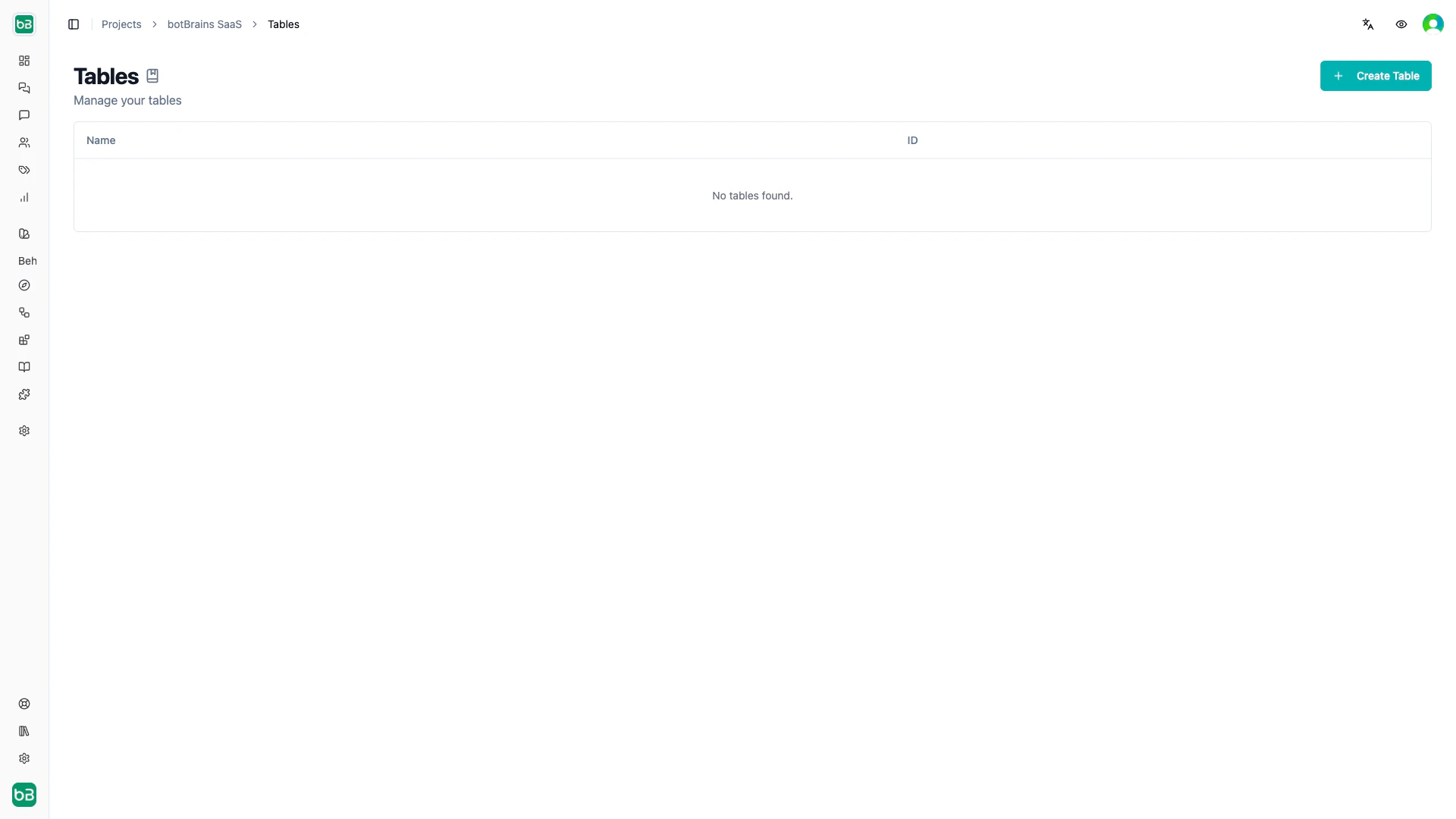
Search tables let your AI query structured datasets. Unlike text-based knowledge that returns paragraphs, tables return specific records matching multiple criteria, for example products by category and price range, or customers by location and status.

Creating a Table

  1. Navigate to Tables and click Create Table
  2. Import your data as CSV, JSONL, or JSON
  3. Configure field types and search types for each column
  4. Click Verify data to validate
Import formatBest for
CSVSpreadsheet exports. First row must contain headers
JSONLDatabase exports. One JSON object per line, preserves data types
JSONComplete table definitions. Format: {"objects": [...], "fields": [...]}

Field Types

TypeExamples
TextNames, descriptions, IDs
NumberPrices, quantities, scores
DateDate only (2024-01-15)
datetimeDate and time with timezone
booleanTrue/false values
JSONNested objects
VectorEmbedding vectors for semantic search
ArrayLists of values

Search Types

Search types control how the AI can filter each field. Fields set to “Same as data type” are display-only (no filtering).
Field typeAvailable search types
TextSearch text (full-text with partial matching), Select (single value, max 500 unique), multiselect (multiple values, max 500 unique)
NumberRange filter (min/max)
Date/datetimedatetime filter (date range)
booleanToggle (true/false filter)
JSON, Vector, ArrayDisplay only
Select and multiselect only work when a field has 500 or fewer unique values.
Sorting isn’t supported yet. The AI can filter records but can’t order results by a specific field.

Attaching Tables to AI

Configure your table as a tool so the AI can search it:
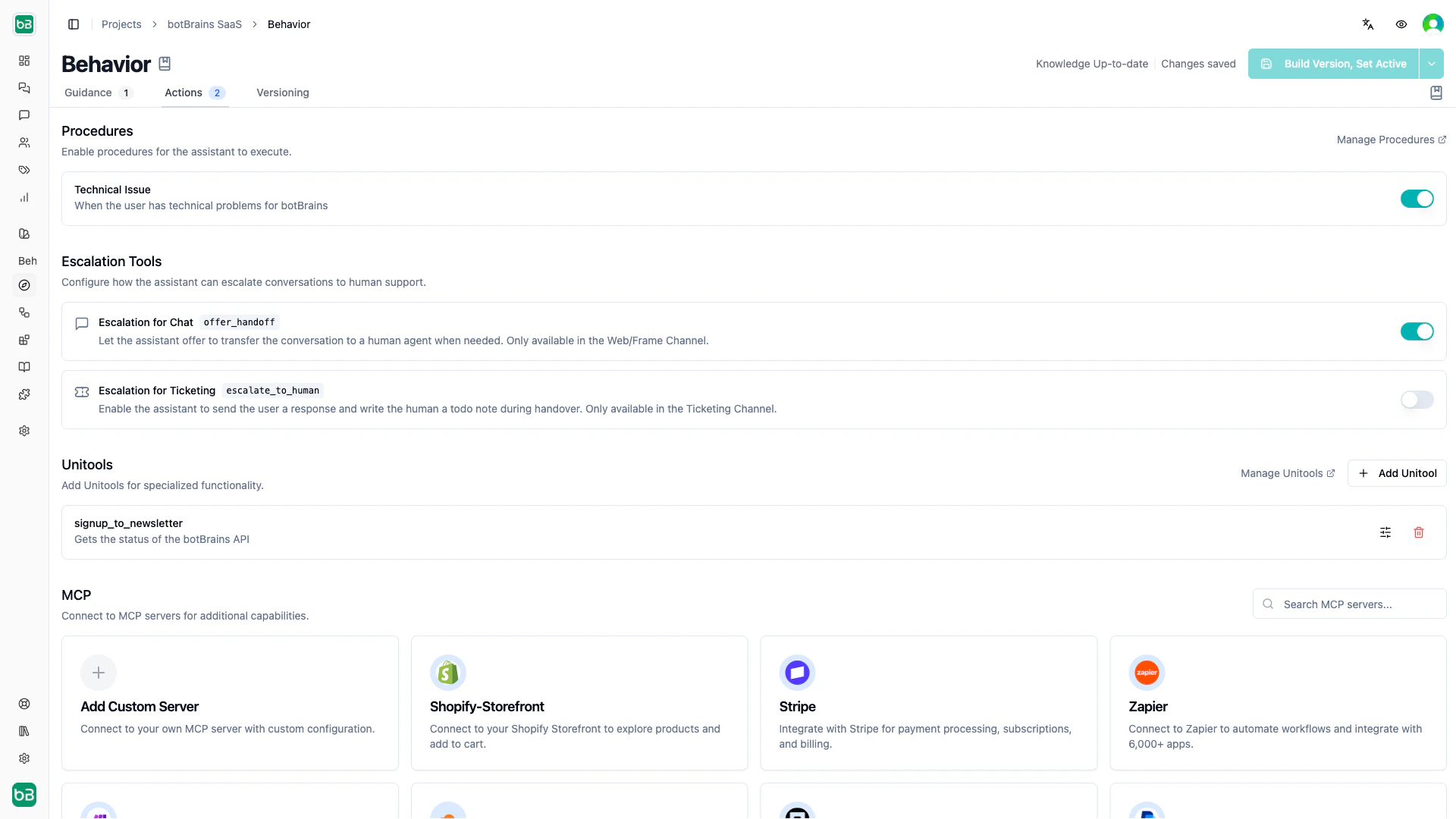
  1. Go to Behavior → Tools → Search Tables
  2. Click Add Search Table
  3. Set a Tool Name (for example, search_products)
  4. Write a Tool Description explaining what data the table contains and when to search it
  5. Select your table and save
The AI generates search parameters from natural language questions automatically. Write clear tool descriptions so the AI knows when to use the table versus other knowledge sources. Remember to enable the tool on the relevant guidance rules.

Updating Data

Importing a file replaces all existing data. To preserve your field configuration when updating:
  1. Export your table as JSON
  2. Update the objects array with new data
  3. Re-import the JSON file
  4. Verify data and rebuild