

Finding Conversations to Improve
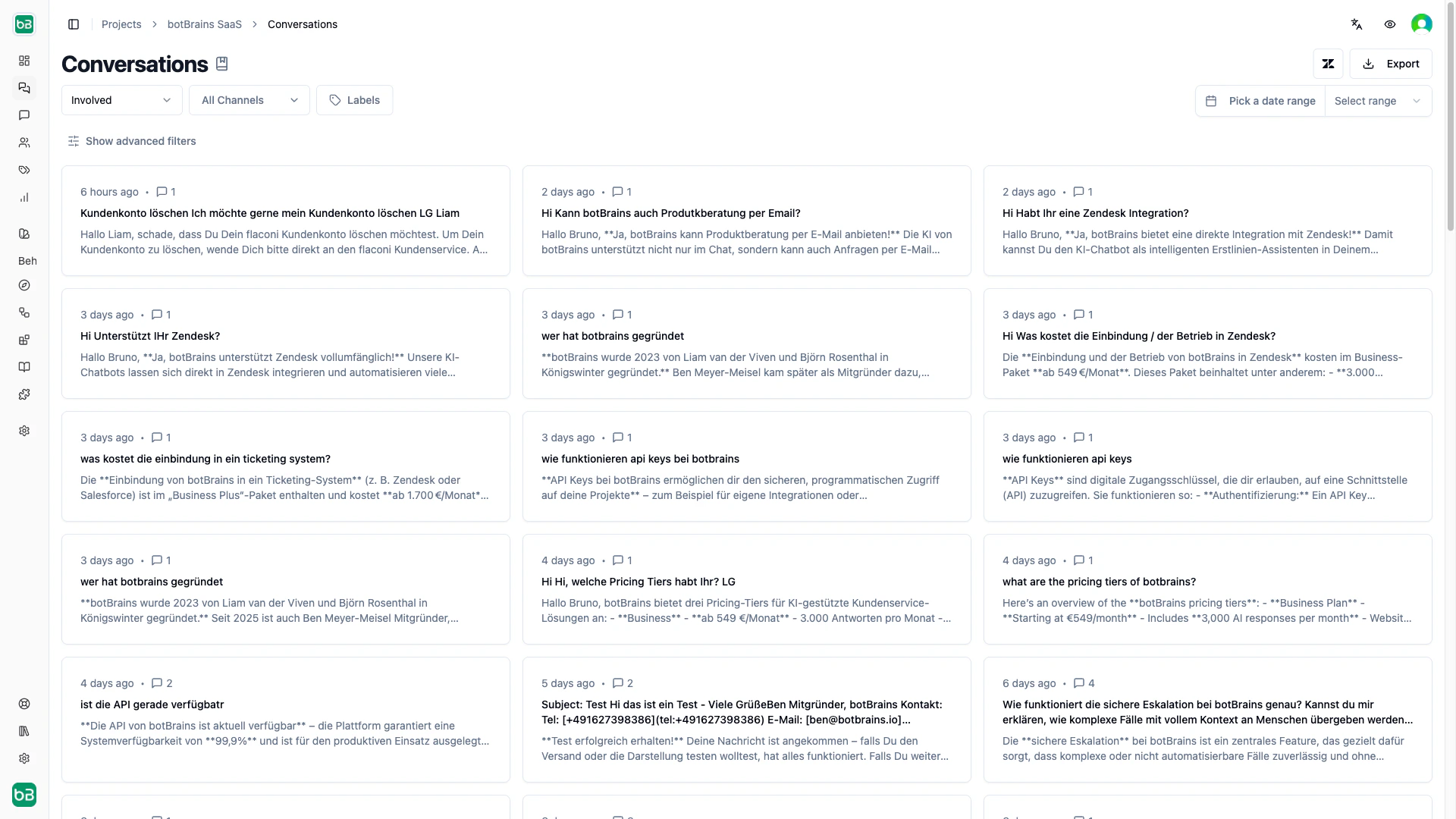
Open Analyze → Conversations and filter to find the highest-impact issues:- Low ratings (1–2 stars) for responses that disappointed users
- Unresolved or escalated for conversations the AI couldn’t handle
- Specific topics via the topic filter or the Topics treemap
Using the Improve Answer Sidebar
Click any AI message in a conversation to open the sidebar. It shows: Used Sources. The knowledge documents the AI cited, with highlighted excerpts (A, B, C) and links to the full source. If this list is empty, the AI had no relevant knowledge to draw from. Available Sources. Other documents the AI retrieved but didn’t cite. These may contain related content that wasn’t specific enough, or they may reveal near-misses in your knowledge base. Guidance Link. A direct link to edit the guidance rule that applied to this conversation. Use this when the problem is tone, style, or approach rather than missing knowledge.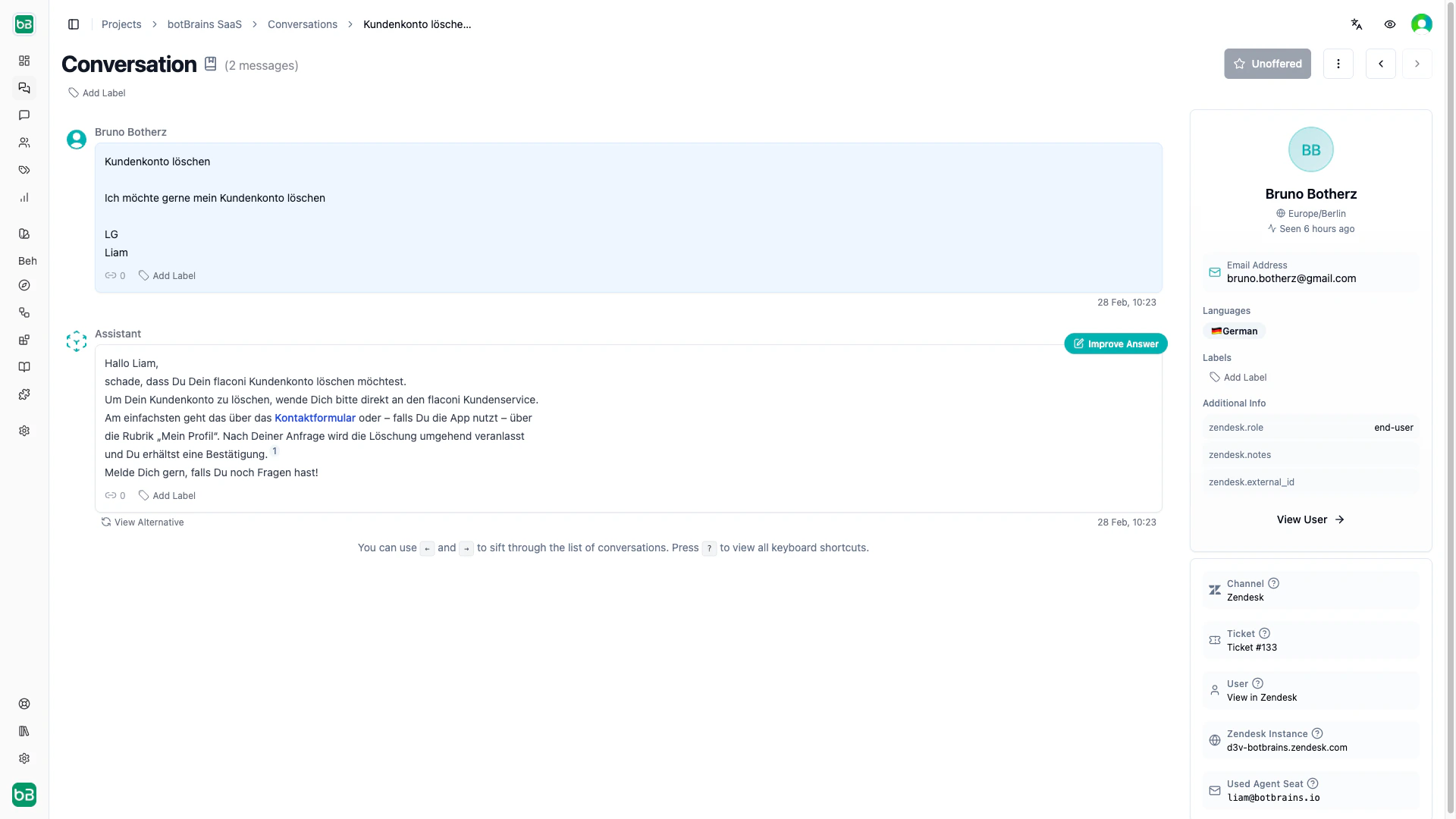
Fixing Problems
Wrong information. Check which source the AI cited and correct it in Train → Data Providers or Snippets. Common causes: outdated documents, conflicting sources, or misinterpreted content. Missing information. Click Add Snippet in the sidebar. The editor opens pre-populated with the question as a title. Write a clear, direct answer and save it to a collection. The snippet becomes available after you rebuild. Poor presentation. The AI has the right answer but delivers it badly (too long, no structure, wrong tone). Edit the guidance to be more specific about response format, length, or style. Wrong tool usage. The AI searched the web when internal docs had the answer, or offered escalation too early. Update tool descriptions and add explicit usage criteria in your guidance.Snippets and source corrections don’t reach users until you rebuild and deploy a new version.