Topics help you understand what your customers are actually talking about. Instead of manually categorizing conversations, botBrains uses AI to automatically cluster similar conversations together, revealing patterns in customer needs, pain points, and requests.

Why Topic Analysis Matters

Understanding conversation topics transforms raw customer data into strategic insights:
  • Spot emerging issues early - Detect new problems before they escalate into major customer pain points
  • Prioritize product improvements - Make data-driven decisions about which features or issues need attention
  • Optimize AI knowledge - Identify gaps in your knowledge base and measure improvement over time
  • Measure impact of changes - Track how product updates or knowledge additions affect topic volumes
  • Allocate team resources - Focus human support on topics that matter most or require specialized expertise
  • Demonstrate ROI - Show stakeholders which improvements reduced support burden on specific topics
Instead of reading thousands of conversations manually, topics surface patterns automatically, saving you hours while ensuring nothing important gets missed.

Understanding TopicAI

TopicAI automatically analyzes your conversations and groups them into meaningful categories. The system runs on a regular schedule to keep your topic model current as your business evolves.
Topic analysis is powered by TopicAI, which uses advanced clustering algorithms to automatically categorize conversations based on semantic similarity. No manual tagging required.

How It Works

1. Initial Setup When you activate topics, you choose how to guide the analysis:
  • Start with predefined templates for E-Commerce or SaaS businesses
  • Provide seed topics to set the granularity level
  • Let the system discover topics completely automatically
These seed topics don’t constrain what can be detected - they guide how specific or broad the categories should be. 2. Nightly Categorization Every night, TopicAI assigns topics to all your conversations:
  • Each conversation is analyzed for its core subject matter
  • The AI assigns the most relevant topic(s) based on semantic similarity
  • New conversations get categorized automatically
  • This runs daily to keep your data current
3. Weekly Topic Discovery Every Monday morning, TopicAI analyzes recent conversations to identify new topics:
  • Scans conversations from the past week
  • Detects emerging patterns that don’t fit existing topics
  • Creates new topic categories when significant clusters are found
  • Refines the topic model based on evolving customer needs
4. Topic Finalization Topics become final for conversations that started before the most recent Monday:
  • Recent conversations may be recategorized as the model improves
  • Older conversations have stable topic assignments
  • This ensures historical analysis remains consistent while adapting to change

Topic Structure

Each topic has:
  • Title: A clear, descriptive name (e.g., “Shipping Delays”, “Refund Requests”)
  • Description: Detailed explanation of what the topic covers
  • Conversation Count: How many conversations match this topic
  • Trend Indicator: Whether the topic is growing, declining, or stable

Predefined Topic Templates

botBrains offers industry-specific topic templates to get you started quickly: E-Commerce Template (25+ topics)
  • Product Availability
  • Product Details
  • Recommendations & Advice
  • Discounts & Promotions
  • Shipping Costs & Options
  • Delivery Time
  • Order Confirmation Issues
  • Payment Issues
  • Tracking Issues
  • Delayed Delivery
  • Wrong or Damaged Items
  • Returns & Exchanges
  • Refund Requests
  • Account Issues
  • And more…
SaaS Template (15+ topics)
  • Account Access
  • Billing & Invoices
  • Onboarding Help
  • Feature Requests
  • Technical Issues
  • Usage Questions
  • Subscription Changes
  • Payment Issues
  • Refund Requests
  • Legal & Compliance
  • Permission Issues
  • Integration Problems
  • Performance Issues
  • And more…
You can start with these templates and the system will automatically discover additional topics unique to your business.
Allow time for analysis: Topic detection and categorization run on scheduled jobs. Initial setup takes a few minutes, and changes to the topic model may take up to a week to fully stabilize.

Activating Topics

Before you can analyze topics, you need to activate TopicAI for your project.

Requesting Activation

  1. Navigate to Analyze > Topics
  2. If topics aren’t yet activated, you’ll see an activation screen
  3. Click Request TopicAI Activation to contact support
  4. The support team will enable topics for your project (usually within hours)

Configuring Your Topic Model

Once activated, configure how topics are detected: Option 1: Industry Templates Choose a predefined template that matches your business (E-Commerce or SaaS). These templates include 15-25 common topics relevant to your industry. Option 2: Custom Seed Topics Provide your own topics to guide detection:
  1. List 5-15 topics relevant to your business (one per line)
  2. Add descriptions if you want to be specific about what each covers
  3. The system will use these as a starting point and discover additional topics
  4. Example seed topics:
    Billing Support
    Technical Issues
    Product Questions
    Shipping Inquiries
    Account Management
    
Option 3: Fully Automatic Let the system discover all topics without guidance:
  • Best for unique business models that don’t fit templates
  • Requires more conversations (50+) to identify clear patterns
  • May take longer to stabilize than seeded approaches
Choose your granularity carefully: More seed topics lead to finer-grained categorization. Fewer seed topics create broader categories. Start with 10-15 topics and adjust based on results.
The Topics dashboard provides multiple views to analyze your conversation patterns.

Topic Overview Section

The overview gives you quick insights into your topic landscape: Filters
  • Date Range: Analyze topics for any time period (default: last 90 days)
  • Channel: Filter by communication channel (web, email, Slack, etc.)
  • Labels: Combine with conversation labels for deeper segmentation
Actions
  • 3D Visualization: Open the interactive topic cluster visualization
  • Categorize Now: Manually trigger topic assignment (runs daily automatically)
  • Find New Topics: Manually detect emerging topics (runs weekly automatically)

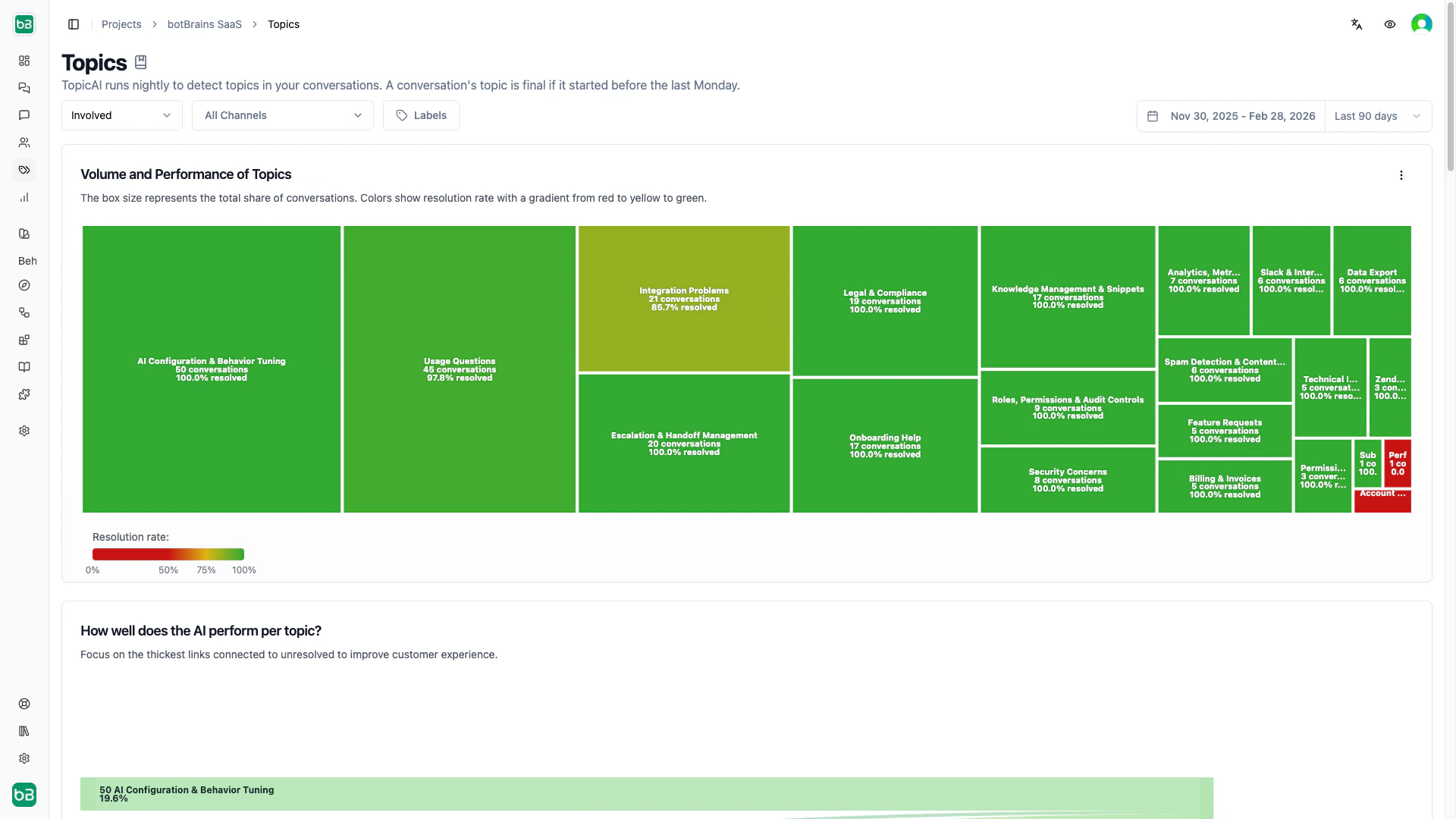
Topic Resolution Treemap

The treemap provides an at-a-glance view of topic health: Reading the Treemap
  • Size: Larger rectangles = more conversations about that topic
  • Color: Green = high resolution rate, Yellow = moderate, Red = low
  • Position: Topics are grouped and sized by volume
  • Hover: See exact conversation count and resolution percentage
Using the Treemap
  1. Identify problem areas: Red or large yellow boxes need attention
  2. Click to filter: Click any topic to see those conversations
  3. Compare performance: Quickly spot which topics your AI handles well vs. poorly
  4. Prioritize improvements: Focus on large red boxes (high volume, low resolution)
Focus on volume and color together: A small red box might be acceptable, but a large red box represents many customers having poor experiences - prioritize those.

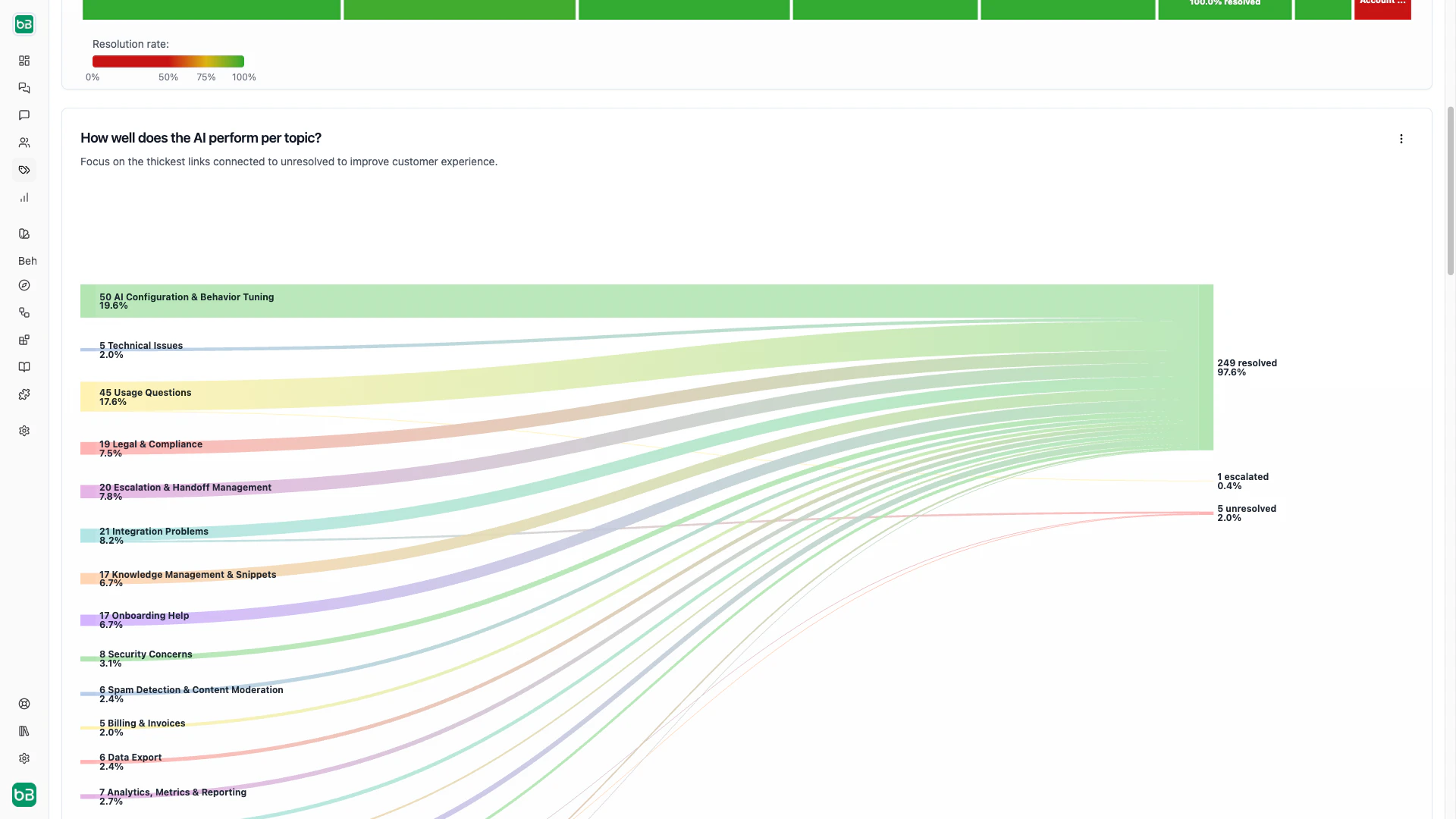
Topic Resolution Sankey Chart

This flow diagram shows how topics connect to resolution outcomes: Understanding the Flow
  • Left side: Topics sorted by conversation volume
  • Right side: Resolution status (Resolved, Escalated, Unresolved, Unknown)
  • Flow width: Represents number of conversations
  • Colors: Match topic colors from other visualizations
Key Insights High Resolved Flow: Topics where the AI successfully handles most conversations
  • Good knowledge coverage for these areas
  • Consider these as benchmarks for other topics
High Escalated Flow: Topics frequently requiring human intervention
  • May indicate complex issues beyond AI capability
  • Consider adding more detailed knowledge or improving AI instructions
  • Could justify specialized training for support team
High Unresolved Flow: Topics where neither AI nor humans fully addressed the issue
  • Critical knowledge gaps
  • Possible product issues that need fixing
  • May need better escalation rules or guidance
Hover over any flow to see exact numbers and percentages for that topic-status combination.
The trends chart shows how topic volumes change over time. Chart Components Donut Chart (left)
  • Shows overall topic distribution for the selected time period
  • Percentages indicate share of total conversations
  • Click segments to filter the data
Bar Chart (right)
  • Weekly time series of topic volumes
  • Stacked view shows composition over time
  • Toggle to percentage view for relative trends
  • Hover to see exact counts for each week
Viewing Options Absolute Numbers (default)
  • Shows actual conversation counts per topic
  • Best for understanding total volume and capacity planning
  • Good for seeing if overall volume is growing
Relative Percentages
  • Shows what percentage of conversations each topic represents
  • Best for spotting shifts in topic mix
  • Useful when total volume fluctuates significantly
Using Trend Analysis
  1. Identify seasonal patterns: Do certain topics spike at specific times?
  2. Measure impact of changes: Did a product update reduce a problem topic?
  3. Catch emerging trends: Is a new topic suddenly growing?
  4. Validate improvements: Did adding knowledge reduce a topic’s volume?

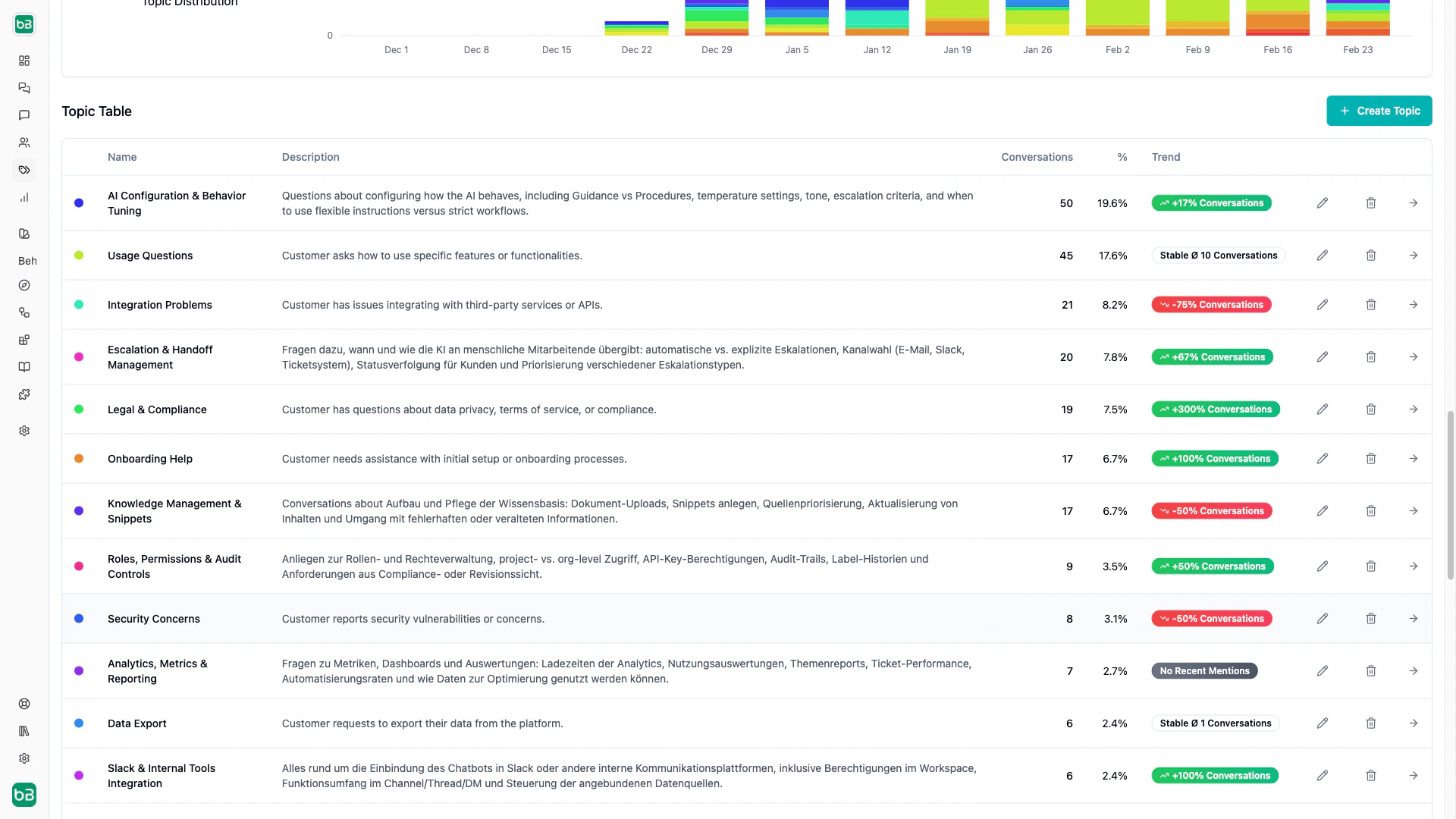
Topic Table

The detailed table provides comprehensive information about each topic: Columns
  • Color indicator: Matches visualizations for easy cross-referencing
  • Name: Topic title
  • Description: What conversations in this topic are about
  • Conversations: Total number of conversations assigned to this topic
  • Percentage: Share of total conversations
  • Trend: Badge showing topic lifecycle status
  • Edit: Modify topic title or description
  • View: Click to see all conversations for this topic
Trend Badges Understanding topic lifecycle:
  • New (Purple): Topic detected in the past 7 days - monitor closely
  • Growing (Green ↑): Volume increased by >5% - may need attention
  • Declining (Red ↓): Volume decreased by >5% - could indicate improvements working
  • Stable (Gray): Volume changed by ±5% - consistent baseline
  • Inactive (Gray): No conversations in recent period - consider archiving
Sorting The table automatically sorts by conversation count (highest first) to show your most significant topics at the top.
Monitor growing topics weekly: Set a reminder to check for Growing topics each Monday after the system updates. These often signal emerging problems that need quick action.

Topic Involvement Sankey Chart

This advanced chart shows the relationship between topics and AI involvement levels: Understanding Involvement Levels Autonomous (Green)
  • AI handled the entire conversation without human intervention
  • Highest efficiency and automation
Public (Blue)
  • AI sent customer-facing messages, but a human also got involved
  • Partial automation with human oversight
Private (Orange)
  • AI suggested responses internally, but humans sent all customer messages
  • AI as a copilot for support agents
Uninvolved (Gray)
  • No AI participation at all
  • Imported tickets or third-party messages
Using This Chart
  1. Optimize autonomy: Topics with low autonomous rates may need better knowledge
  2. Identify copilot opportunities: High private involvement shows humans using AI suggestions
  3. Find automation candidates: Topics with consistent patterns but low autonomous rates
  4. Understand limitations: Some topics may inherently require human judgment

3D Topics Explorer

The Topics Explorer provides an interactive 3D visualization of your conversation landscape. Instead of analyzing topics through charts and tables alone, you can explore how conversations cluster together in semantic space, revealing patterns, relationships, and outliers that drive actionable insights.

Why Visual Exploration Matters

The 3D visualization reveals insights that would take hours to discover through manual analysis:
  • Hidden relationships - Discover which topics are semantically related and should be handled similarly
  • Quality validation - Verify that conversations within each topic are actually similar
  • Volume drivers - Identify dense topic clusters that represent your highest-impact areas
  • Emerging patterns - Spot new conversation clusters that may need their own topics
  • Classification accuracy - Find outlier conversations that might be misclassified
  • Strategic opportunities - Visualize where improving one topic could benefit related areas

Accessing the Topics Explorer

To open the visualization:
  1. Navigate to Analyze > Topics
  2. Ensure TopicAI is activated and has processed your conversations
  3. Click the Open 3D Visualization button (sparkle icon)
  4. The visualization loads in full-screen view
The visualization is computationally intensive. For best performance, use a modern browser (Chrome, Edge, or Safari) and close the visualization when not actively exploring.

Understanding the 3D Visualization

The Topics Explorer uses scatter-gl to render your conversations as points in three-dimensional space, where spatial relationships reveal semantic meaning. What You’re Seeing Each Point represents a single conversation:
  • Position is determined by the conversation’s semantic embedding
  • Conversations about similar topics cluster together naturally
  • Distance between points indicates how similar the conversations are
  • Colors indicate topic assignments from TopicAI
The 3D Space is created through dimensionality reduction:
  • Your conversations exist as high-dimensional vectors (embeddings)
  • These are reduced to 3D coordinates while preserving relationships
  • Closer points = more semantically similar conversations
  • The absolute position doesn’t matter - only relative distances
Colors and Legend help you identify topics:
  • Each topic has a unique color
  • The legend on the left shows which color represents which topic
  • Only topics with assigned conversations appear in the legend
  • Hover over any point to see a conversation preview

Reading the Patterns

Tight, Dense Clusters What it means:
  • Conversations are very similar to each other
  • The topic is well-defined and coherent
  • Your AI likely has consistent knowledge for these
What to do:
  • This is good - your topic model is working well here
  • Use these as benchmarks for other topics
  • Ensure your knowledge base covers the common patterns
Overlapping Clusters What it means:
  • Two or more topics have blurry boundaries
  • Conversations could reasonably belong to multiple topics
  • Topics may be too granular or naturally related
What to do:
  • Consider merging related topics if they always overlap
  • Check if the topics represent different aspects of the same issue
  • Refine topic descriptions to clarify boundaries
Scattered, Spread-Out Points What it means:
  • Topic covers diverse conversation types
  • May be a catch-all category like “Other” or “General Questions”
  • Conversations might not have strong common patterns
What to do:
  • Review scattered topics to see if they should be split
  • Look for sub-clusters that deserve their own topics
  • Consider if this represents genuinely diverse customer needs
Outlier Points (far from any cluster) What it means:
  • Unique conversations that don’t fit typical patterns
  • Could be miscategorized
  • Might represent edge cases or new issues
What to do:
  • Click outliers to read them
  • Verify they’re in the correct topic
  • Consider if they indicate a new topic emerging
  • Check if they’re data quality issues (spam, test conversations)
The visualization is generated during nightly topic analysis. The timestamp at the bottom shows when it was last updated. Recent conversations won’t appear until the next nightly run.
The Topics Explorer provides intuitive controls for exploring your conversation landscape. Mouse Navigation
  • Click and drag: Rotate the view in any direction
  • Scroll wheel: Zoom in and out
  • Click a point: Open that conversation in a side panel
  • Hover over a point: See a text preview of the conversation
Keyboard Shortcuts
  • Spacebar: Toggle automatic rotation on/off
  • Press spacebar again to stop the rotation
The Toggle Button
  • Click “Toggle Orbiting” in the top-right corner
  • Starts automatic rotation to see all angles
  • Useful for presentations or discovering hidden patterns
  • Click again or press spacebar to stop

Exploration Strategies

Start with the Big Picture
  1. Zoom out to see all conversations at once
  2. Identify major cluster locations and sizes
  3. Note which topics dominate the landscape
  4. Look for unexpected patterns or separations
Zoom into Areas of Interest
  1. Rotate to find a clear view of a specific cluster
  2. Scroll to zoom in close
  3. Hover over individual points to preview conversations
  4. Click points to read full conversations in the side panel
Compare Related Topics
  1. Find two topics you think should be similar
  2. Rotate to see both clusters clearly
  3. Check if they’re positioned near each other
  4. If they’re far apart, they represent very different issues
  5. If they overlap, consider merging them
Hunt for Misclassifications
  1. Identify a tight cluster for a well-defined topic
  2. Look for same-colored points far from the main cluster
  3. Click these outliers to read them
  4. Verify whether they truly belong to this topic
  5. Note patterns in misclassifications to improve topic descriptions

Using Topics Explorer for Strategic Insights

Identifying Volume Drivers The densest, largest clusters represent your highest-volume topics. These are your biggest opportunities for improvement. How to find them:
  1. Zoom out to see all conversations
  2. Identify the areas with the most dots packed together
  3. Check the legend to see which topic that color represents
  4. Estimate relative size by visual density
If a large cluster has high resolution rates:
  • You’re handling this well at scale
  • Document what’s working to apply elsewhere
  • Monitor to ensure performance stays high as volume grows
If a large cluster has low resolution rates:
  • This is your highest-impact improvement opportunity
  • Even small percentage improvements affect many customers
  • Prioritize knowledge additions for this topic
  • Consider if this indicates a product issue that needs fixing
Finding Emerging Topics New conversation patterns appear as small clusters that don’t align well with existing topic colors. How to find them:
  1. Look for groups of 5-10 points that cluster together
  2. Check if they’re all the same color (same topic)
  3. Look for clusters positioned between existing major topics
  4. Identify scattered points that form loose patterns
Discovering Topic Relationships Topics that are positioned near each other in 3D space represent related customer needs. Why this matters: Knowledge Reuse:
  • Related topics can share similar knowledge
  • Create a data provider that serves multiple related topics
  • Build comprehensive guides that address topic clusters together
Workflow Efficiency:
  • Group related topics for support team training
  • Create escalation paths that route related topics to the same specialists
  • Build combo solutions that address multiple related issues
Customer Journey Mapping:
  • Nearby topics might represent sequential customer experiences
  • Example: “Payment Failed” → “Refund Request” → “Subscription Cancellation”
  • Improve upstream topics to prevent downstream issues

Best Practices for Visual Exploration

Regular Exploration Cadence Weekly Quick Check (5 minutes):
  • Open the visualization
  • Zoom out to see the full landscape
  • Look for new clusters or dramatic size changes
  • Check if anything looks unusual compared to last week
  • Screenshot for future comparison
Monthly Deep Dive (30 minutes):
  • Explore each major cluster individually
  • Click through 5-10 conversations per topic to validate categorization
  • Look for opportunities to split or merge topics
  • Identify outliers and misclassifications
  • Compare density with performance metrics from dashboard
Quarterly Strategic Review (2-3 hours):
  • Compare visualizations across the quarter
  • Identify which clusters grew, shrank, or shifted
  • Correlate changes with product releases and knowledge updates
  • Present findings to product and support leadership
  • Plan next quarter’s optimization priorities
Combine with Dashboard Analytics The Topics Explorer is most powerful when used alongside the Topics dashboard. Effective workflow:
  1. Start with the Dashboard to identify topics that need attention:
    • Low resolution rates (red on treemap)
    • Growing trends (green badge in table)
    • High escalation rates (sankey chart)
  2. Move to Topics Explorer to understand why:
    • Is the cluster tight (knowledge gap) or scattered (inherently complex)?
    • Are there sub-clusters that should be separate topics?
    • How does this topic relate to others spatially?
  3. Click Through Conversations to validate your hypothesis:
    • Read 5-10 conversations from the cluster
    • Check outlier points
    • Verify that your interpretation makes sense
  4. Take Action based on combined insights:
    • Add knowledge for tight clusters with low resolution
    • Split scattered clusters into more specific topics
    • Merge overlapping clusters that represent the same need
    • Set up escalations for inherently complex scattered clusters
  5. Return to Dashboard to measure impact:
    • Did resolution rates improve?
    • Did the topic trend change to “Declining”?
    • Did related topics also improve?

Managing Topics

While TopicAI works automatically, you have full control to refine and customize the topic model.

Creating Custom Topics

Add topics that the system hasn’t automatically detected:
  1. Navigate to the Topics dashboard
  2. Click Create Topic in the topic table
  3. Enter a clear, descriptive title
  4. Write a detailed description of what this topic covers
  5. Click Create
The system will automatically start categorizing relevant conversations into your new topic during the next nightly run. When to Create Custom Topics
  • You notice a pattern that doesn’t have its own topic
  • You want to track a specific product or feature separately
  • Business priorities require granular tracking of certain issues
  • You’re launching a new product line or feature

Editing Topics

Refine existing topics to make them more meaningful:
  1. Find the topic in the topic table
  2. Click the edit (pencil) icon
  3. Update the title or description
  4. Click Update
Best Practices for Editing
  • Use clear, specific titles (not vague labels like “Other Issues”)
  • Write descriptions that capture the essence of conversations in that topic
  • Include examples in the description if helpful
  • Update descriptions as you learn more about what the topic covers
Editing doesn’t immediately reclassify: Changes to topic titles or descriptions don’t instantly reassign conversations. The updated definitions will be used in the next topic detection run (weekly).

Triggering Manual Updates

You can manually trigger topic analysis operations: Categorize Now
  • Assigns topics to all conversations based on the current model
  • Runs automatically every night
  • Use when you want immediate results after making changes
  • Takes a few minutes to complete
Find New Topics
  • Analyzes recent conversations to discover new topics
  • Runs automatically every Monday morning
  • Use when you notice patterns that should be separate topics
  • Takes several minutes to complete
Manual triggers are useful for testing and immediate analysis, but the scheduled automatic runs ensure your topics stay current without manual intervention.

Deleting the Topic Model

If you need to start over completely:
  1. Click Delete Topics in the admin controls
  2. Confirm the deletion
  3. All topic assignments are removed
  4. Configure and activate topics again from scratch
When to Delete and Restart
  • Your business model changed significantly
  • Initial seed topics were poorly chosen
  • You want to try a different template or approach
  • The topic model became too fragmented or unclear

Using Topics Across the Platform

Topics integrate throughout botBrains to help you filter and analyze your data.

Filtering Conversations by Topic

Navigate deeper into specific topics:
  1. Click the arrow icon next to any topic in the table
  2. Or click a topic in the treemap or sankey chart
  3. You’re taken to the Conversations page filtered to that topic
  4. Review all conversations to understand the pattern
  5. Identify knowledge gaps or common pain points

Combining Topics with Other Filters

Create powerful segments by combining filters: Topics + Labels
  • Example: “Billing” topic + “VIP Customer” label
  • Helps prioritize high-value customer issues
Topics + Channels
  • Example: “Technical Issues” topic + “Email” channel
  • Understand how issues differ across communication channels
Topics + Date Ranges
  • Example: “Shipping Delays” topic + “Last 30 days”
  • Track recent performance on specific issues

Analyzing Metrics by Topic

While viewing metrics dashboards:
  • Apply topic filters to see performance for specific categories
  • Compare CSAT scores across different topics
  • Track resolution rates by topic over time
  • Identify which topics have the best or worst metrics

Improving Your Service with Topics

Transform topic insights into concrete improvements.

1. Identify and Fill Knowledge Gaps

Process
  1. Find topics with low resolution rates in the treemap
  2. Click through to view conversations in that topic
  3. Review what questions customers ask and how the AI responds
  4. Identify missing or inadequate information
  5. Add targeted knowledge through data providers or snippets
  6. Monitor improvement in resolution rates over the following weeks
Example
  • Topic: “Return Policy Questions”
  • Observation: 35% resolution rate, many escalations
  • Finding: AI lacks information about international returns
  • Action: Add comprehensive international return policy to knowledge base
  • Result: Resolution rate increases to 78% within two weeks

2. Prioritize Product Improvements

Process
  1. Review growing topics in the topic table
  2. Read conversations to understand the underlying issue
  3. Determine if this is a knowledge gap or product problem
  4. If it’s a product issue, quantify the impact (conversation volume, CSAT)
  5. Prioritize fixes based on customer impact
  6. Track topic volume after releasing fixes
Example
  • Topic: “Mobile App Crashes” marked as Growing
  • Volume: Increased from 15 to 67 conversations per week
  • Action: Engineering prioritizes mobile stability fixes
  • Result: Topic declines to Stable after release

3. Optimize Team Training and Escalations

Process
  1. Identify topics with high escalation rates
  2. Determine if these require specialized human expertise
  3. For topics that should be automated:
    • Add more detailed knowledge
    • Improve AI instructions for these scenarios
    • Update guidance to handle edge cases
  4. For topics that legitimately need humans:
    • Create training materials for support team
    • Set up automatic escalation rules
    • Assign specialists to handle specific topics
Example
  • Topic: “Legal Compliance Questions”
  • Observation: 85% escalation rate
  • Decision: These inherently need human legal review
  • Action: Create automatic escalation rule for this topic
  • Action: Train specialized support agents on compliance
  • Result: Faster routing, better customer experience

4. Measure Impact of Changes

Process
  1. Before making a change, note baseline metrics for affected topics
  2. Implement your change (knowledge update, product fix, etc.)
  3. Wait 1-2 weeks for data to accumulate
  4. Compare topic metrics before and after
  5. Validate that the change had the intended effect
Example
  • Change: Added 15 new articles about API integration
  • Baseline: “API Integration” topic at 45 conversations/week, 52% resolved
  • After 2 weeks: 31 conversations/week, 76% resolved
  • Conclusion: Better documentation reduced volume and improved resolution

5. Track Customer Sentiment by Topic

Process
  1. Apply topic filters in the metrics dashboard
  2. Review CSAT scores for each topic
  3. Identify topics with consistently low satisfaction
  4. Read low-rated conversations to understand frustrations
  5. Address the root cause (product issues, poor knowledge, etc.)
Example
  • Topic: “Subscription Cancellation”
  • CSAT: 42% (well below average)
  • Finding: Cancellation process is confusing and requires multiple steps
  • Action: Simplify cancellation flow and add clear step-by-step guidance
  • Result: CSAT improves to 73%

Best Practices

Follow these guidelines to get the most value from topic analysis:

Starting Out

Begin with Templates or Seeds
  • Don’t start with fully automatic detection unless you have 100+ conversations
  • Use industry templates as a foundation
  • Add 5-10 custom seed topics specific to your business
  • Let the system discover additional topics organically
Give It Time
  • Initial topic detection takes a few minutes
  • The model stabilizes over 1-2 weeks
  • Don’t judge results from the first day
  • Weekly refinement improves accuracy over time

Regular Review Cadence

Weekly (15 minutes)
  • Check for new or growing topics
  • Review topics with red boxes in the treemap
  • Identify quick wins (small knowledge additions that fix big topics)
  • Monitor impact of recent changes
Monthly (1 hour)
  • Deep dive into top 5 topics by volume
  • Refine topic titles and descriptions
  • Clean up inactive topics
  • Analyze long-term trends
  • Plan knowledge improvements for next month
Quarterly (2-3 hours)
  • Comprehensive topic model review
  • Evaluate if seed topics still make sense
  • Consider restructuring if business changed significantly
  • Analyze seasonal patterns
  • Report to stakeholders on improvements

Quality Over Quantity

Aim for 10-30 Meaningful Topics
  • Too few: Everything lumped together, not actionable
  • Too many: Fragmented, hard to track, overlap between topics
  • Sweet spot: Each topic represents a distinct area you can act on
Merge Related Topics
  • If two topics always move together and cover related issues, combine them
  • Don’t create separate topics for tiny variations
  • Focus on topics that drive different actions or decisions
Archive Inactive Topics
  • Delete topics that haven’t had conversations in 90+ days
  • Unless they represent seasonal issues (e.g., “Holiday Shipping”)
  • Clean topic list makes analysis easier

Combine with Other Platform Features

Topics + Labels
  • Use topics for automatic categorization
  • Add labels for workflow states (reviewed, follow-up needed, etc.)
  • Combine filters for powerful segmentation
Topics + Audiences
  • Create audience rules based on topics
  • Customize AI behavior for specific topic categories
  • Different tone or detail level for different topics
Topics + Triggers
  • Set up automatic actions when certain topics are detected
  • Example: Auto-escalate all “Data Privacy Request” topics
  • Example: Send internal alert when “Critical Bug” topic grows
Topics + Data Providers
  • Organize knowledge collections by topic
  • Create topic-specific data providers
  • Easier to maintain and update relevant knowledge

Avoiding Common Pitfalls

Don’t Over-Interpret Short-Term Fluctuations
  • One week of data is not a trend
  • Look for patterns over 4+ weeks
  • Consider external factors (seasonality, marketing campaigns)
Don’t Ignore Context
  • A growing topic during product launch is expected
  • Declining topics might mean customers gave up, not that problems are solved
  • Check CSAT and resolution alongside volume
Don’t Set and Forget
  • Topics drift as business evolves
  • Regular review keeps the model relevant
  • Outdated topic models provide misleading insights
Don’t Create Topics for Everything
  • Not every edge case needs its own topic
  • Some variation is healthy and expected
  • Focus on topics you can actually act on

Frequently Asked Questions

If you don’t see any topics:
  1. Verify TopicAI is activated for your project
  2. Ensure you’ve completed the initial setup
  3. Check that you have at least 20-30 conversations
  4. Confirm conversations have substantial content (not just “Hi” and “Bye”)
  5. Wait for the nightly analysis to complete (check timestamp)
  6. Manually trigger “Find New Topics” if it’s been over a week
If topics are too general and overlap significantly:
  1. Provide more specific seed topics to increase granularity
  2. Add 5-10 additional seed topics as examples of desired specificity
  3. Delete the current topic model and restart with better seeds
  4. Wait for weekly refinement to improve separation
  5. Edit topic descriptions to be more specific about boundaries
If you have too many tiny topics that should be combined:
  1. Manually merge related topics by editing descriptions
  2. Delete very similar topics to force recategorization
  3. Restart with fewer, broader seed topics
  4. Use the 3D visualization to identify natural clusters
  5. Focus on topics with at least 10+ conversations
If many conversations seem miscategorized:
  1. Review topic descriptions - are they accurate and specific?
  2. Update descriptions to clarify what belongs in each topic
  3. Check if you have overlapping or redundant topics
  4. Use the 3D visualization to verify cluster quality
  5. Read sample conversations in each topic to validate
  6. Allow the weekly refinement cycle to improve accuracy
  7. Consider if the conversation is actually multi-topic (legitimate)
If data seems stale:
  1. Check the timestamp at the bottom of visualizations
  2. Remember updates happen nightly, not real-time
  3. Manually trigger “Categorize Now” if you need immediate refresh
  4. Clear browser cache if you recently made changes
  5. Verify the date range filter is set correctly
If the 3D visualization doesn’t appear:
  1. Verify TopicAI is activated and has processed conversations
  2. Ensure you have at least 20-30 conversations
  3. Use a modern browser (Chrome, Edge, or Safari)
  4. Check if WebGL is enabled in browser settings
  5. Disable browser extensions that might interfere
  6. Wait for nightly analysis to generate visualization data
  7. Clear browser cache and reload
If the visualization is laggy:
  1. Close other browser tabs and applications
  2. Disable automatic rotation (press spacebar)
  3. Use date range filters to reduce the number of points
  4. Focus on recent data (last 30-60 days)
  5. Clear browser cache
  6. Try on a different device if performance is unusable
If clicking doesn’t work:
  1. Wait a few seconds for initial rendering to complete
  2. Rotate to get a better angle - some points might be behind others
  3. Zoom in to spread points apart
  4. Refresh the page to reset the visualization
  5. Check browser console for errors (F12)

Next Steps

Now that you understand topic analysis: