

Why Frames Matter
Your chat widget is often the first point of contact between your AI and your customers. The right frame design:- Increases engagement - Visitors are more likely to use a chat that looks trustworthy and professional
- Reinforces brand identity - Match your website’s colors, tone, and style seamlessly
- Adapts to context - Show different messages and suggestions based on which page visitors are viewing
- Removes friction - Guide users with clear welcome messages and suggested questions
- Works everywhere - Delivers consistent experience across desktop, tablet, and mobile devices
Frame Architecture
Each frame has five configuration sections:Accessing Frame Settings
Navigate to Frames in your project to:- View existing frames - See all configured chat widgets for your project
- Create new frames - Add additional widgets for different websites or environments
- Edit frame settings - Customize appearance, messages, and behavior
- Get embed code - Copy the code snippet to add the widget to your website
- Different brands or sub-sites
- Testing environments (staging vs production)
- Regional variations with different languages
General Settings
Assistant Identity
Configure how your AI agent presents itself to visitors.
Use your company logo as the assistant image for instant brand recognition.
To rename your AI agent, edit the Assistant Name here. Update the name everywhere else it appears so the two stay consistent: in your Start Message under Messages, and in any Guidance instructions that reference it.
Feature Configuration
Preview Suggestions: Display a popup with suggested questions after 5 seconds. Useful for proactively showing visitors what the AI can help with. Can be overridden per page using Rules. Allow Image Upload: Enable visitors to upload screenshots, product photos, or documents in conversations. The system scans and validates images before processing.Security Configuration
Allowed Origins: URLs permitted to embed this widget (CORS security). Format:https://example.com or wildcards https://*.example.com. Required for all domains where you’ll embed the widget.
Whitelisted IPs: IP addresses granted higher request limits (for example, office IPs for testing). Only whitelist IPs you fully control.
Legal Links
Terms of Service URL and Privacy Policy URL appear as footer links in the chat widget. Always provide these for production deployments to build trust and meet compliance requirements.Theme Settings
Control the visual appearance to match your brand identity. The widget automatically detects user’s system preferences and applies the appropriate theme.Light and Dark Modes
Configure separate color schemes for light and dark modes. Start by configuring light mode, then add dark mode by duplicating and adjusting colors for dark backgrounds.Color Configuration
Each theme has five customizable colors:- Brand Color: Primary accent used for buttons, links, and highlights
- Header Background: Background for the top section of the chat window
- Chat Background: Background for the main conversation area
- Chat Text: Primary text color for messages and content
- Secondary Text: Color for timestamps and less prominent text
Messages and Localization
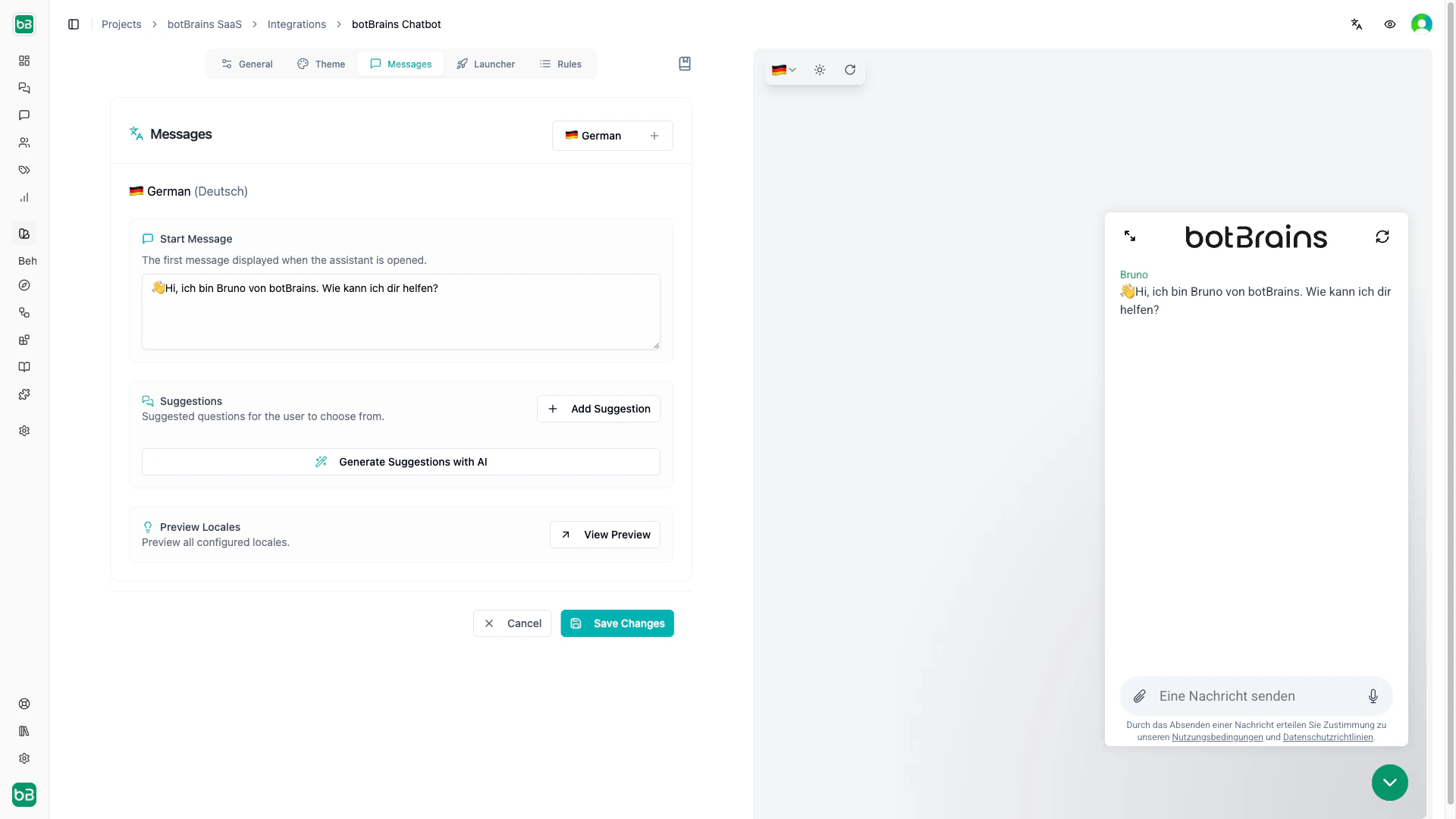
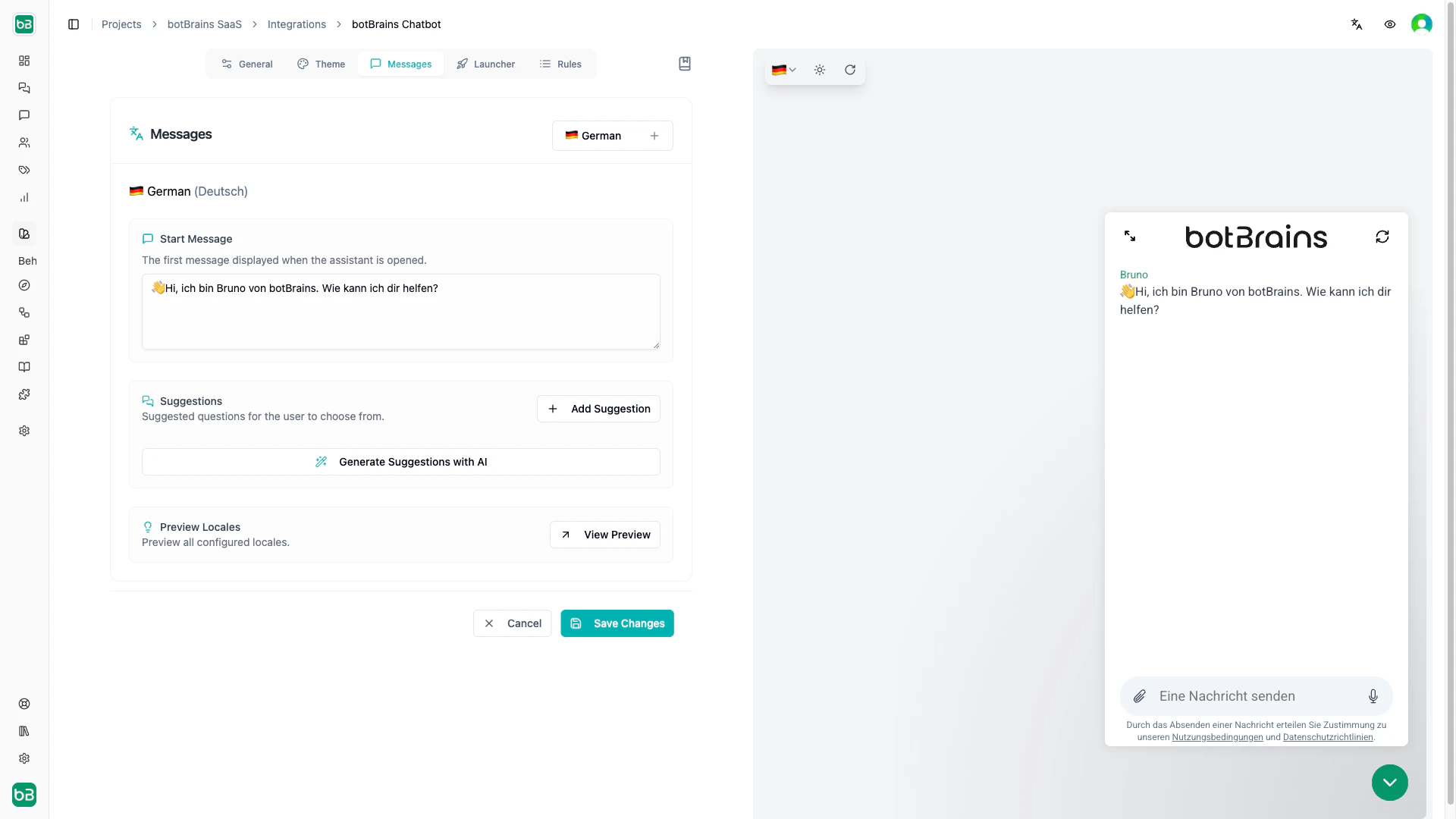
Configure what users see when they first open the chat and guide them with suggestions.Multi-Language Support
Frames support multiple languages simultaneously, making your AI agent accessible to global audiences. The widget automatically detects the user’s browser language and displays the appropriate messages, falling back to your primary language if their language isn’t configured. How Language Detection Works: When a visitor opens the chat widget:- The widget reads the browser’s language preference (for example,
en-US,de-DE,fr-FR) - It matches this against your configured languages
- If it finds a match, it displays that language’s start message and suggestions
- If no match exists, it uses your first configured language (typically English)
- The selected language persists throughout the conversation session
- Configure your primary language completely (start message and suggestions)
- Click the language selector dropdown
- Select Translate with AI
- Review AI-generated translations for 17 major languages
- Adjust translations to match your brand voice and cultural context
- Save changes
- Formal vs. informal tone (varies by culture)
- Idiomatic expressions that may not translate directly
- Brand terminology and product names
- Cultural appropriateness of suggestions
- Click the language selector dropdown
- Select Add Language
- Choose from 100+ supported languages
- Write start message and suggestions from scratch
- Save changes
- Start with your primary language: Perfect your English (or main language) content before translating. This ensures consistent quality across all languages.
- Review all AI translations: AI is remarkably accurate but may miss nuances. Have native speakers review translations before deploying.
- Adapt, don’t just translate: Good localization considers cultural context. A suggestion like “What’s included in the Pro plan?” might work in English but need restructuring in other languages.
- Test with native speakers: Before going live, have team members or customers test the widget in their native language.
- Update all languages together: When you change suggestions based on user data, update all language versions to maintain consistency.
- Consider regional variations: Spanish in Spain differs from Spanish in Mexico. Use the most appropriate variant for your primary audience.
- Major European languages (English, German, French, Spanish, Italian, Portuguese, Dutch, Polish, etc.)
- Asian languages (Chinese, Japanese, Korean, Hindi, Thai, Vietnamese, etc.)
- Middle Eastern languages (Arabic, Hebrew, Turkish, etc.)
- Other global languages (Russian, Indonesian, Malay, Filipino, etc.)
Start Message
The first message visitors see when opening the chat. Welcome users, set expectations for what the AI agent can help with, and encourage engagement. Creating effective start messages:- Keep it concise (2-3 sentences maximum)
- Mention 2-4 specific capabilities
- Use friendly, conversational tone
- End with a question to prompt response
Suggested Questions
Pre-written questions users can click to start conversations instantly. Suggestions reduce friction and showcase capabilities, increasing engagement by up to 60%. Best Practices for Suggestions:- Use actual customer questions - Review your support data to find common queries
- Keep them short - Under 50 characters per suggestion
- Write 3-5 suggestions - Enough variety without overwhelming
- Cover different topics - Balance between billing, features, technical, and general questions
- Update quarterly - Refresh based on what users actually ask
You can generate suggestions using AI (based on your knowledge base) or write them manually. Always review AI-generated suggestions to match your brand voice.
Preview All Languages
Before deploying, preview how all your configured languages look:- Save your frame changes
- Click View Preview in the Messages section
- See all languages side-by-side
- Verify translations, formatting, and suggestions
- Test start messages in context
Launcher Settings
Control where and how the chat button appears on your website.Button Position
Alignment: Left or right side of the screen. Right is standard and familiar to users. Use left when right side has conflicting elements. Side Margin: Distance from screen edge. Default:20px. Common values: 16px to 32px.
Bottom Margin: Distance from screen bottom. Default: 20px. Increase to 80px+ if you have cookie banners or bottom navigation.
Margin values accept any CSS unit (px, rem, em). We recommend px for consistency.
Button Color
Customize the launcher button background color. Default matches your brand color from theme settings. Use a color that stands out but harmonizes with your site. Ensure visibility on different pages - a color that works on your homepage might not be visible on darker pages.Rules - Conditional Appearance
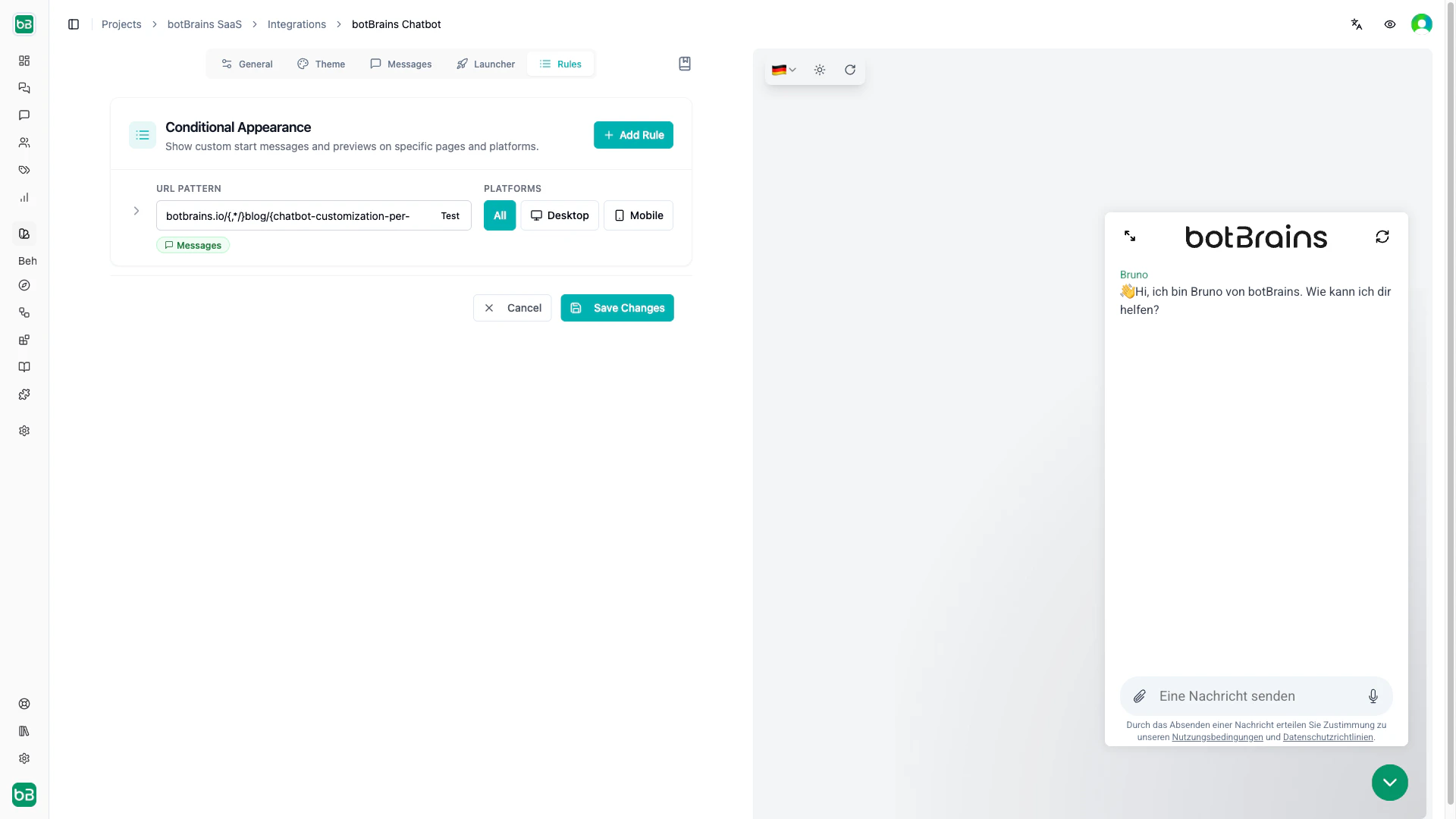
Show different messages and behaviors based on where users are on your website. Contextual start messages can increase engagement by 2-3x compared to generic messages. Use cases:- Product pages: “What are the features?” or “Is this compatible with my setup?”
- Pricing pages: “Which plan is right for me?” or “Can I upgrade later?”
- Checkout pages: Disable preview popup to avoid disrupting purchase flow
- Support section: Technical questions and billing help
- Blog posts: Different suggestions for readers vs. customers
Rule Components
Each rule has three parts:- URL Pattern - Which pages this rule applies to
- Platform - Desktop, mobile, or both
- Overrides - What to change (messages, preview popup setting)
URL Pattern Matching
Use patterns to match specific pages or sections of your site. Wildcard types:*- Matches any characters except slashes (/)**- Matches any characters including slashes (/)
Testing patterns:
- Create or edit a rule
- Click Test next to the URL pattern field
- Enter a pattern and test URL
- See normalized versions and match result
- Adjust pattern until it matches correctly
Normalization: Trailing slashes, query parameters (
?id=123), and URL fragments (#section) are ignored during matching. This ensures consistent behavior.Platform Targeting
Control which devices see each rule:- All - Desktop and mobile (default, recommended for most rules)
- Desktop - Only users on larger screens
- Mobile - Only users on phones and tablets
- Mobile-only: Shorter messages, simpler suggestions (smaller screens)
- Desktop-only: More detailed suggestions, longer explanations
- Both: Most rules should apply to all platforms unless you have specific UX reasons
Rule Types
Messages Rule: Override the start message and suggestions for specific pages. Examples: “Comparing plans? I can help you choose!” (pricing page) or “Interested in [product]? I can answer questions!” (product page). Preview Rule: Enable or disable the suggestion popup for specific pages. Disable on checkout flows, forms, or video pages to avoid disruption. Enable on landing pages or complex product pages to proactively engage visitors.Creating Rules
- Navigate to Frames → Select your frame → Rules tab
- Click Add Rule
- Choose rule type:
- Messages Rule - Custom start message and suggestions
- Preview Rule - Control popup behavior
- Configure the rule:
- URL Pattern: Enter pattern (for example,
example.com/pricing) - Platform: Choose All, Desktop, or Mobile
- Overrides: Set custom messages or toggle preview popup
- URL Pattern: Enter pattern (for example,
- Test your pattern using the Test button
- Save changes
Rule Priority
When multiple rules match a page, the most specific rule wins:- Exact URL matches take priority
- More specific wildcards beat less specific
- Later rules in the list override earlier ones
example.com/pricing?plan=pro, Rule 3 takes priority because the system normalizes query parameters and Rule 3 is most specific to the pricing page.
Rule Management
Editing rules:- Click the rule to expand it
- Modify pattern, platform, or overrides
- Changes take effect after saving the frame
- Expand the rule
- Scroll to the bottom
- Click Delete Rule
- Confirm deletion
- Use the URL pattern tester
- Visit your website and check which messages appear
- Use browser DevTools console to see which rule matched
Live Preview
The preview panel on the right side shows real-time changes as you edit: Features:- Updates instantly as you modify settings
- Displays current theme (light/dark toggle)
- Shows actual messages in selected language
- Previews launcher button position and color
- Interactive - test the chat flow
- Make changes in any settings tab
- Watch preview update automatically
- Click the launcher button in preview
- Test start messages and suggestions
- Verify colors, fonts, and spacing
Best Practices
Design
- Start simple: Begin with default settings and customize gradually
- Brand consistency: Match your website’s color palette and design language
- Readability first: Test contrast rigorously - ensure text is readable at all sizes
Content
- Clarity over cleverness: Start message + suggestions should immediately clarify what the AI agent can do
- Update suggestions quarterly: Review conversation data and update suggestions to match actual user questions
- Context matters: Use rules for different messages on product, pricing, and support pages
Programmatic Control
The Web SDK allows programmatic control of the widget via JavaScript. You can open/close the chat, send messages programmatically, and listen for events. This enables use cases like opening chat from custom buttons, pre-filling messages from links, tracking engagement in analytics, and A/B testing different frame configurations. For complete Web SDK documentation and embed details, see Website Integration.Next Steps
Now that you understand frames:Deploy to Production
Install the widget on your website with platform-specific instructions
Deployment Versioning
Connect frames to AI versions and manage releases